Recently, while trying to package a .NET Core project using a previous written batch script, the old approach failed completely. After considerablle debugging, the issues were resolved. This article shares the solution and provides a refined script.
For details about Nuget, visit: https://docs.microsoft.com/en-us/nuget/
Download Nuget.exe
Download latest Nuget.exe from: https://www.nuget.org/. Using the most recent version is crucial, especially when working with .NET Core projects.
Writing the Packaging Script
Create a file named pack.bat in the solution directory with the following content:
:: Wildcard pattern to locate packages
echo %1
:: Path to the project file
echo %2

:: Remove previously generated packages
del %1 /f /q /a

:: Variable for the package file name
set pkgFile=""

:: Build and create the Nuget package
nuget Pack %2 -Build -Properties Configuration=Release

:: Retrieve the generated package name
for %%a in (dir /s /a /b "./%1") do (set pkgFile=%%a)

:: Publish the package to Nuget.org
nuget push %pkgFile% {your api key} -Source https://www.nuget.org/api/v2/package
This script expects two arguments:
%1: A search pattern for the package, e.g.,"Toolkit.Finance.*.nupkg".%2: The project file path, such as"Toolkit.Finance/Toolkit.Finance.csproj". For .NET Core projects, point to theproject.jsonfile (e.g.,"Toolkit.Finance/project.json"). This detail caused a long troubleshooting session until a hint on GitHub clarified it.
Setting Package Metadata
When browsing Nuget packages, you often see descriptive information, as shown below:
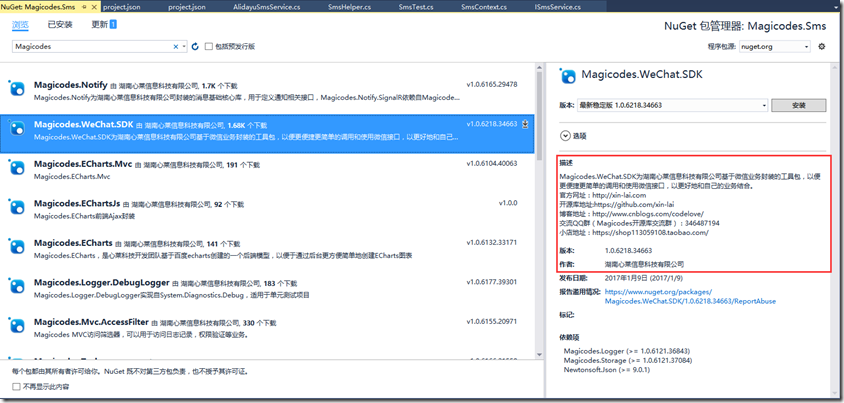
For Traditional .NET Libraries
Define metadata in the AssemblyInfo.cs file:
[assembly: AssemblyTitle("Toolkit.Integration.SDK")]
[assembly: AssemblyDescription("A toolkit for simplifying external service integration.\nOfficial site: https://example.com \nRepository: https://github.com/example/repo \nCommunity: https://discord.gg/example")]
[assembly: AssemblyConfiguration("")]
[assembly: AssemblyCompany("Example Corp")]
[assembly: AssemblyProduct("Toolkit.Integration.SDK")]
[assembly: AssemblyCopyright("Copyright © 2025")]
[assembly: AssemblyTrademark("")]
[assembly: AssemblyCulture("")]
You can also enable automatic versioning during build:
[assembly: AssemblyVersion("1.0.*")]
For .NET Core Projects
Configure properties inside project.json:
{
  "authors": [ "Example Corp" ],
  "dependencies": {
    "NETStandard.Library": "1.6.1"
  },
  "description": "Core messaging library built on .NET Core.\nOfficial site: https://example.com \nRepository: https://github.com/example/core-repo",
  "frameworks": {
    "net461": {
    }
  },
  "title": "Toolkit.Messaging.Core",
  "version": "1.0.0-*"
}
Currently, generating .NET Core libraries via batch scripts may cause garbled Chinese characters in metadata. A reliable way to set automatic versioning for .NET Core projects remains unknown; input from readers is welcome.
Executing the Script
Ensure the directory structure and required files are correctly placed:
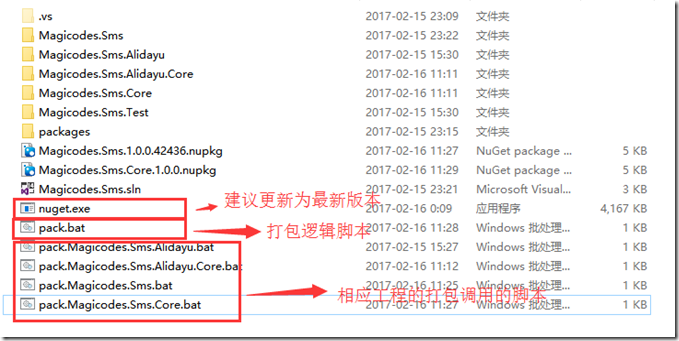
Create project‑specific invocation scripts. For a classic .NET project, create pack.Toolkit.Finance.bat:
call ./pack.bat "Toolkit.Finance.*.nupkg" "Toolkit.Finance/Toolkit.Finance.csproj"
@pause
For a .NET Core project, such as pack.Toolkit.Messaging.Core.bat:
call ./pack.bat Toolkit.Messaging.Core.*.nupkg "Toolkit.Messaging.Core/project.json"
@pause
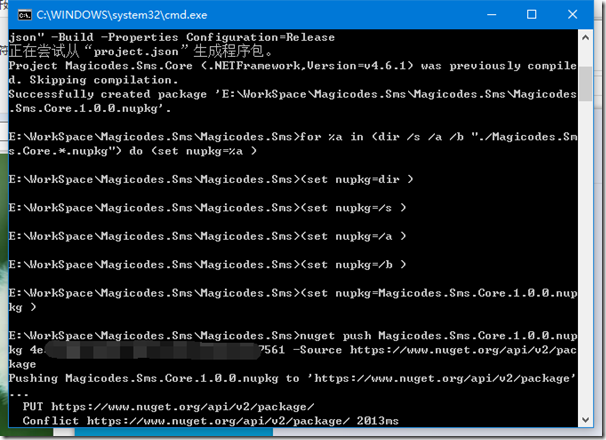
Execution output:
Bonus: Third‑Party API Notifications
If packages are pushed to a private server or you want to notify teammates without spamming the group chat, a PowerShell script can handle the notification. Below is an example using a webhook (alternative: send emails):
Param (
    [string]$url = "https://hook.example.com/incoming/b32181af9434465685901eb5d0a39aa2",
    [string]$data = "{`"text`": `"A new notification from the webhook.\nMessages can span multiple lines.`"}",
    [string]$username = "",
    [string]$password = "",
    [string]$responseType="string",
    [string]$method="POST"
)

try
{
    write-host $data -ForegroundColor Green -BackgroundColor Black
    $postBytes = [text.encoding]::utf8.getBytes($data)
    $webClient = new-object net.WebClient
    $webClient.Headers.Add("Content-Type","application/json")

    if ($username.Length -gt 0 -and $password.Length -gt 0)
    {
        $webClient.Credentials = New-Object System.Net.NetworkCredential($username,$password)
        $webClient.Headers.add("Cookie", $webClient.ResponseHeaders["Set-Cookie"])
    }
    $rawResponse = $webClient.UploadData($url,$method,$postBytes)
    $responseText = [text.encoding]::utf8.getString($rawResponse)
    write-host $responseText -ForegroundColor Green -BackgroundColor Black
}
catch [System.Net.WebException],[System.Exception]
{
    Write-Host "Exception occurred; notification failed." -ForegroundColor Red -BackgroundColor Black
}
finally
{
    Write-Host "Processing complete." -ForegroundColor White -BackgroundColor Yellow
}
After the package push completes, invoke the notification:
set title="%pkgFile% has been published. Please update."
set data="{`"`"attachment`"`":{`"`"text`"`": `"`"%title%`"`",`"`"color`"`": `"`"#FFFF33`"`",`"`"fallback`"`":`"`"%title%`"`"}}"
cmd /c powershell -ExecutionPolicy RemoteSigned -noprofile -noninteractive -file "./NotifyWebhook.ps1" -data %data%
Conclusion
With these batch scripts, compiling, packaging, and publishing a Nuget package becomes a double‑click operation. It streamlines the workflow and adds a nice touch to your development process.