Table of Contents
- Fonts
- Background Images
- Display Modes
- Type Conversion
- Relative Positioning
- Absolute Positioning
- Fixed Positioning
- Z-Index
- Sticky Positioning
- Padding
- Margin
- Borders
- Box Sizing Calculation
- Resetting Default Styles
- Content Overflow
- Margin Collapsing
- Inline Element Margins & Padding
- Centering Block Elements
- Border Radius
- Box Shadow
- Text Shadow
- Resize
- Floats
- Float Issues
- Flexbox Layout
- Main Axis Alignment
- Cross Axis Alignment
- Changing the Main Axis Direction
- Flex Grow
- Wrapping
- Grid
- Opacity
- Showing & Hiding Elements
- Cursor Styles
- Outline Styles
- Transitions
- Custom Fonts
- Translation
- Rotation
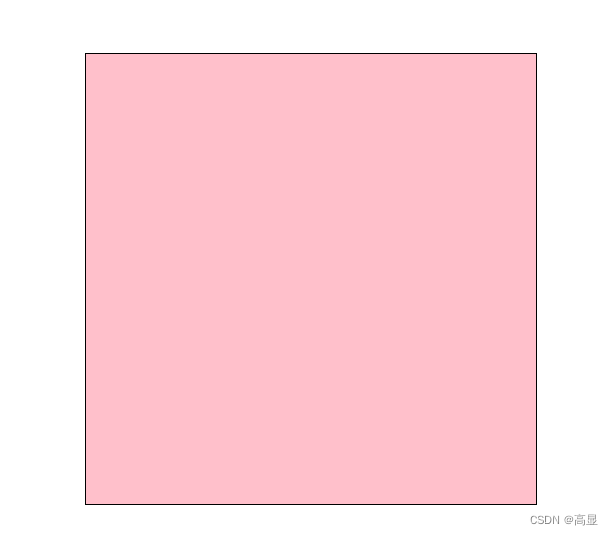
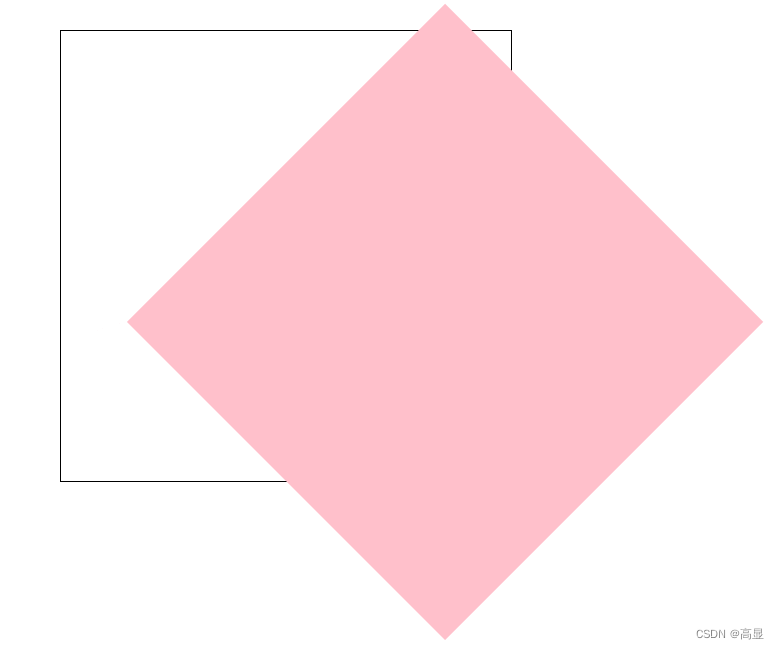
- Changing Transform Origin
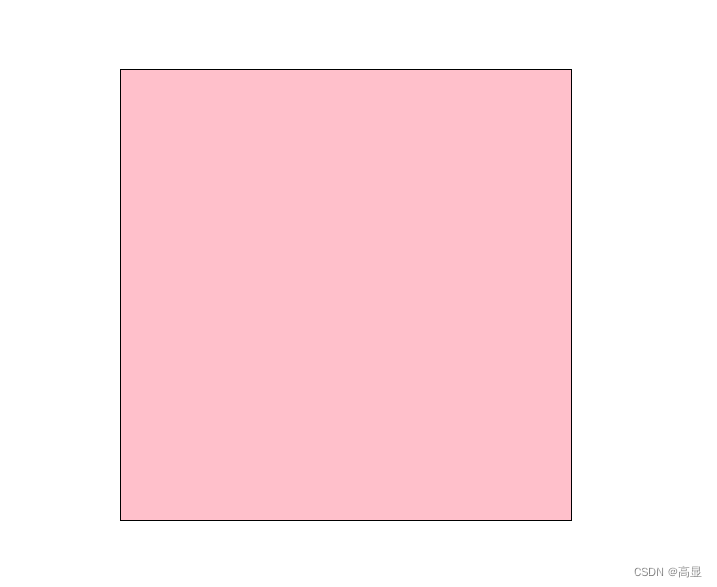
- Multiple Transforms
- Scalinng
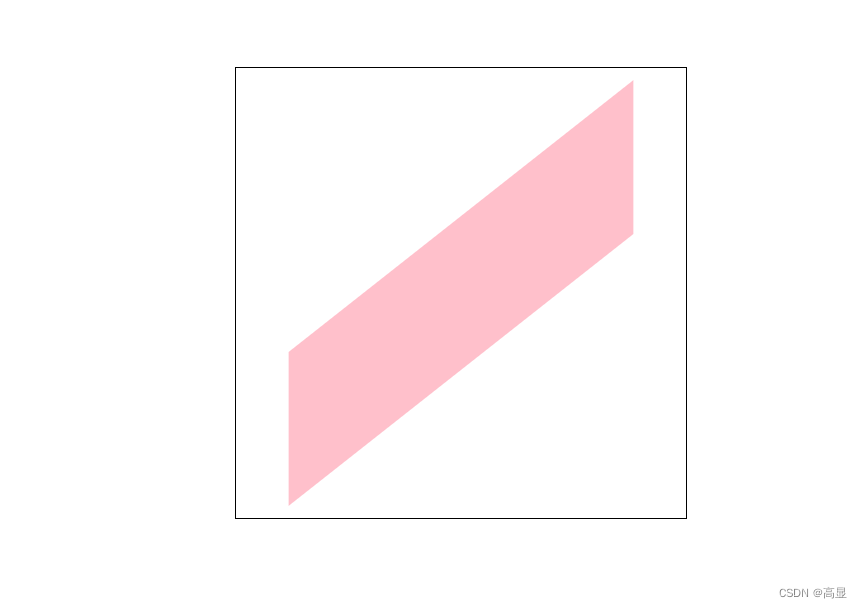
- Skewing
- 3D Transforms
- Animations
- Collapsing Table Borders
- Icon Fonts: Method 1
- Icon Fonts: Method 2
- Icon Fonts: SVG (Iconfont)
- Removing Image Bottom Gap
- JavaScript Semicolons
- Input & Output
- Variables
letvsvar- Data Types
- Implicit Type Conversion
- Summing User Input
- Rest Parameters
- Spread Operator (
...) - Objects
- Garbage Collection
- Closures
- Math Object
- Date Object
- Selecting DOM Elements
- Element Content (innerHTML, textContent)
- Changing Element Attributes
- Changing Element Styles
- Additional Notes on Attributes
- Traversing the DOM
- Event Listeners
- Tab Switch Example
1. Fonts
p {
    font-size: 18px;
    font-weight: 700;
    font-style: italic;
    color: red;
    text-indent: 2em;
    line-height: 20px;
    text-align: center;
    text-decoration: overline;
}

2. Background Images
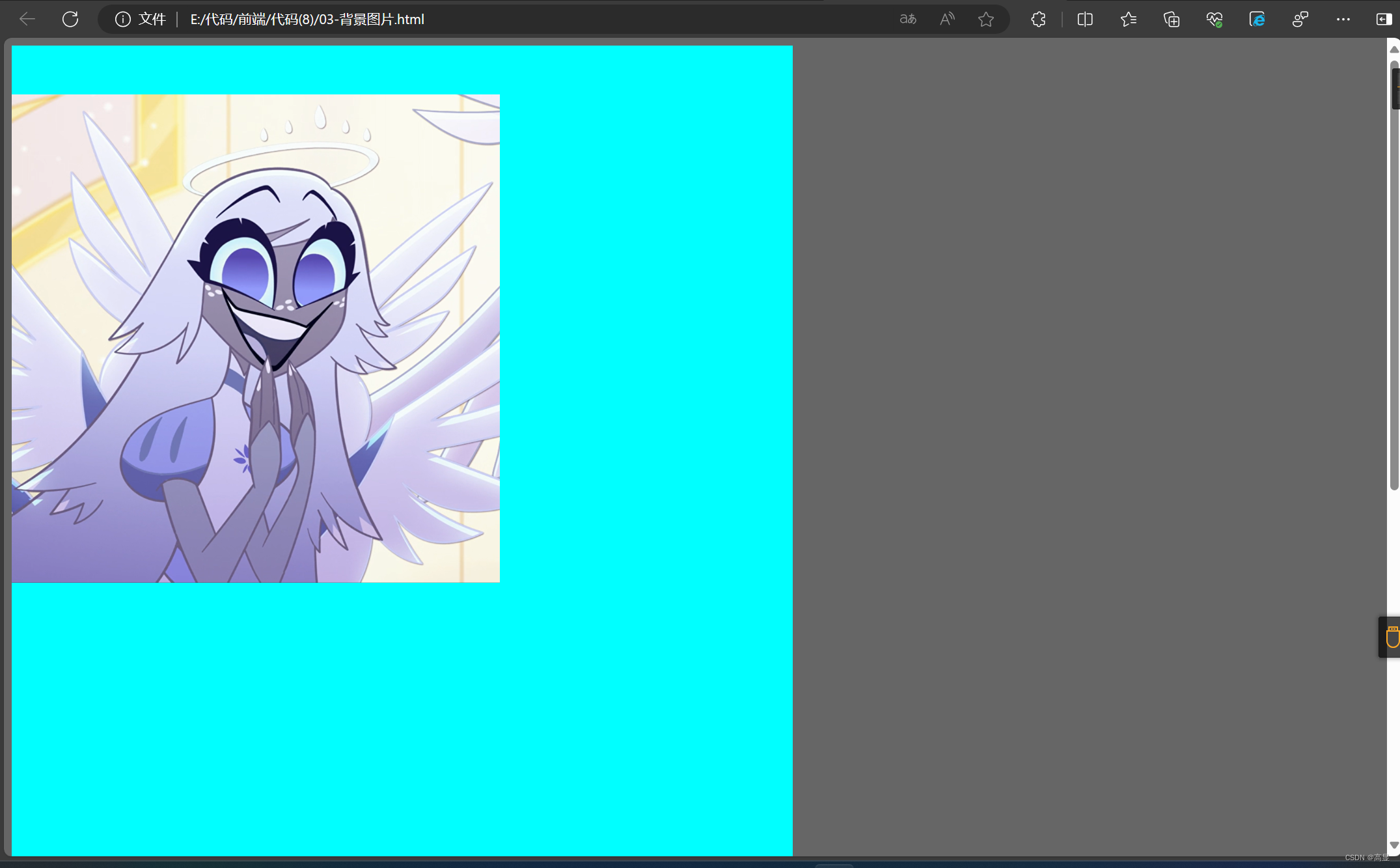
div {
    width: 800px;
    height: 1500px;
    background-color: aqua;
    background-image: url("path/to/image.png");
    background-repeat: repeat-x;
    background-repeat: no-repeat;
    background-position: top left;
    background-position: 100px 0;
    background-size: cover;
    background-size: contain;
    background-size: 100% 100%;
    background-size: 500px 500px;
}
body {
    height: 1000px;
    background-color: rgba(0, 0, 0, .6);
    background-repeat: no-repeat;
    background-attachment: fixed;
}
3. Display Modes
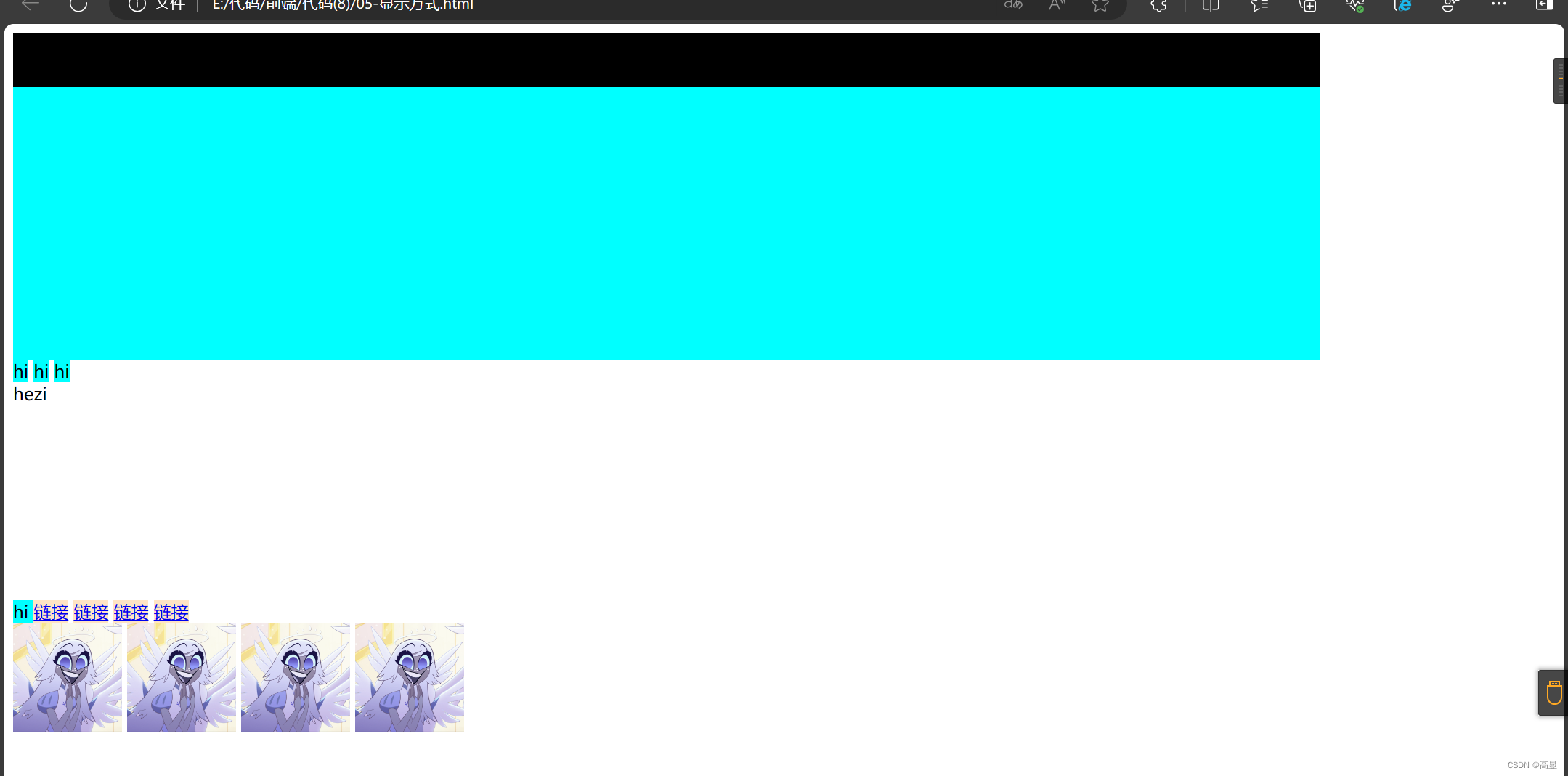
.father {
    width: 1200px;
    height: 300px;
    background-color: aqua;
}
.son {
    background-color: black;
    height: 50px;
}
span {
    width: 300px;
    height: 50px;
    background-color: aqua;
}
a {
    width: 300px;
    height: 300px;
    background-color: bisque;
}
.aaa {
    width: 1200px;
    height: 200px;
}
img {
    width: 100px;
    height: 100px;
}
4. Type Conversion (display property)
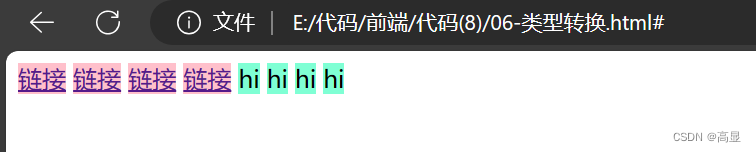
a {
    display: inline-block;
    width: 200px;
    height: 100px;
    background-color: pink;
}
div {
    display: inline;
    background-color: aquamarine;
}
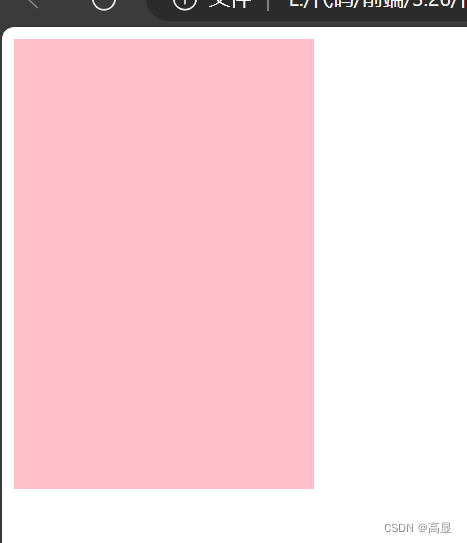
5. Relative Positioning
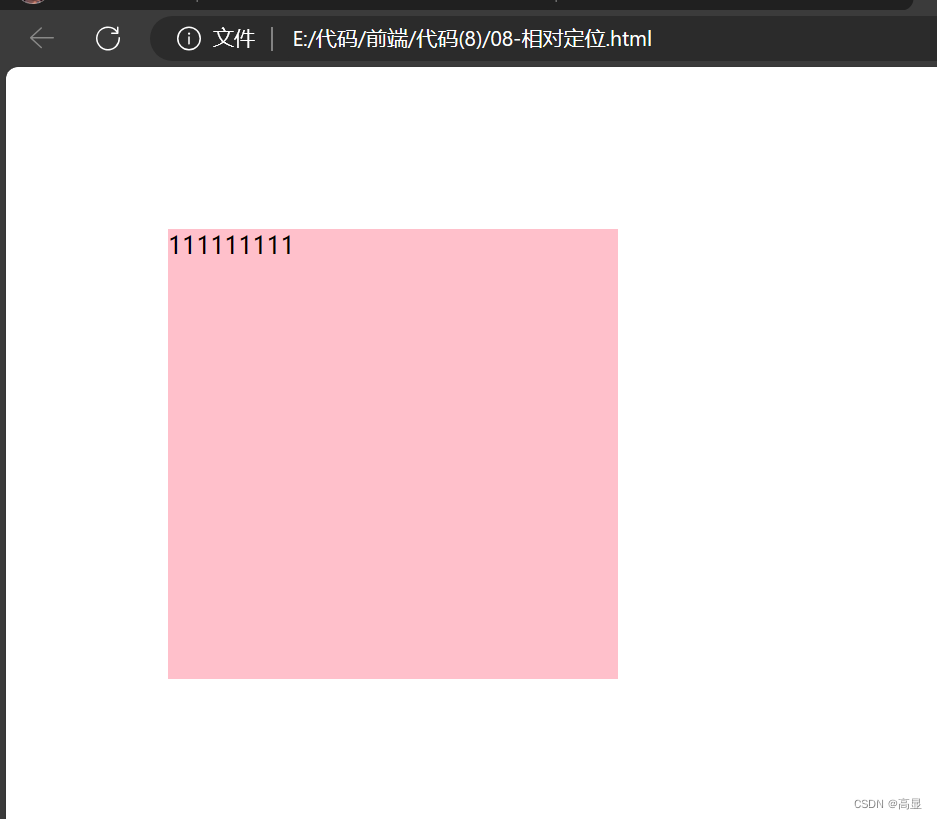
div {
    position: relative;
    top: 100px;
    left: 100px;
    right: 20px;
    width: 300px;
    height: 300px;
    background-color: pink;
}
6. Absolute Positioning
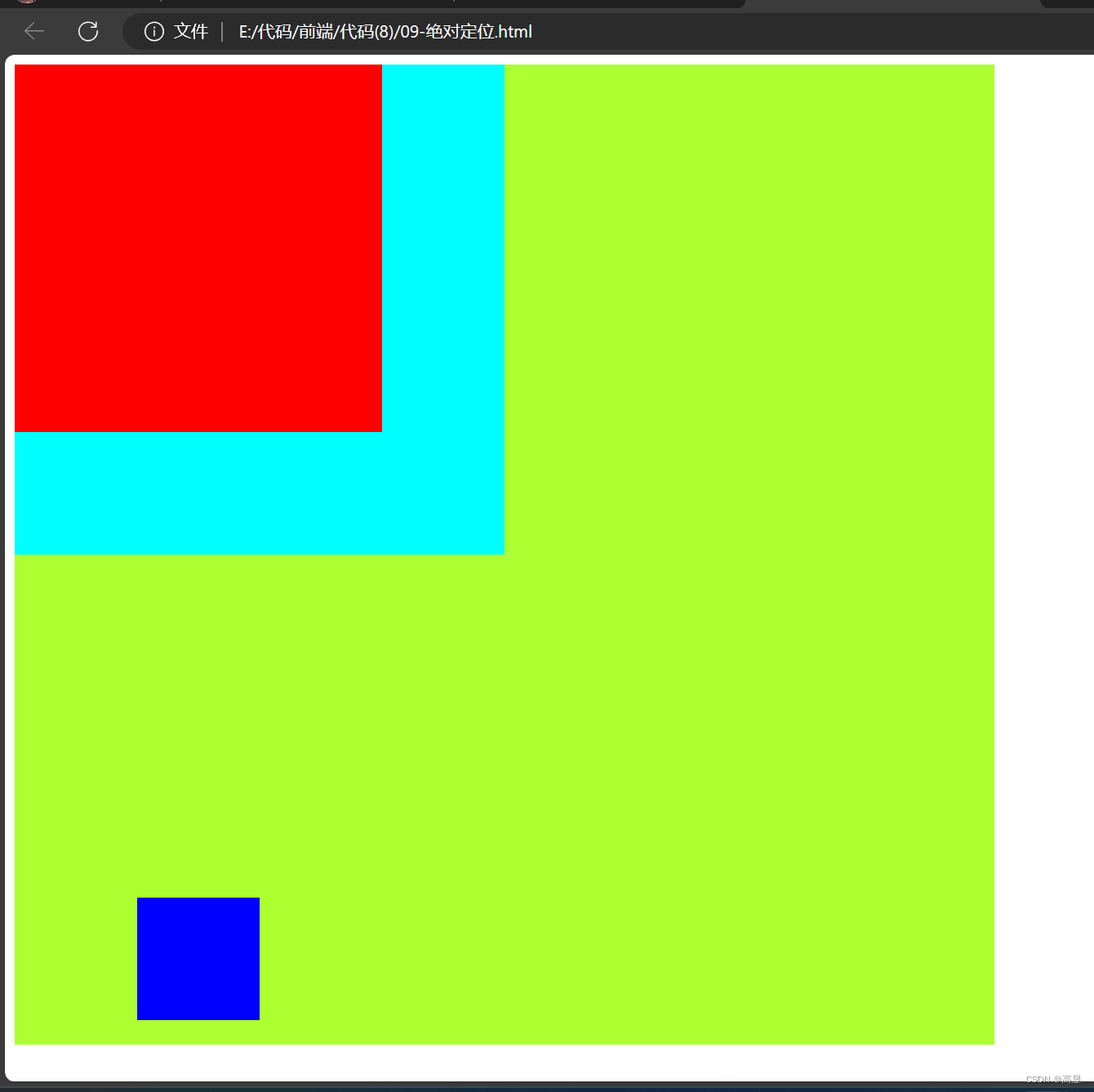
.father {
    width: 400px;
    height: 400px;
    background-color: aqua;
}
.grandfather {
    position: relative;
    width: 800px;
    height: 800px;
    background-color: greenyellow;
}
.son {
    position: absolute;
    bottom: 20px;
    left: 100px;
    width: 100px;
    height: 100px;
    background-color: blue;
}
.son1 {
    width: 300px;
    height: 300px;
    background-color: red;
}
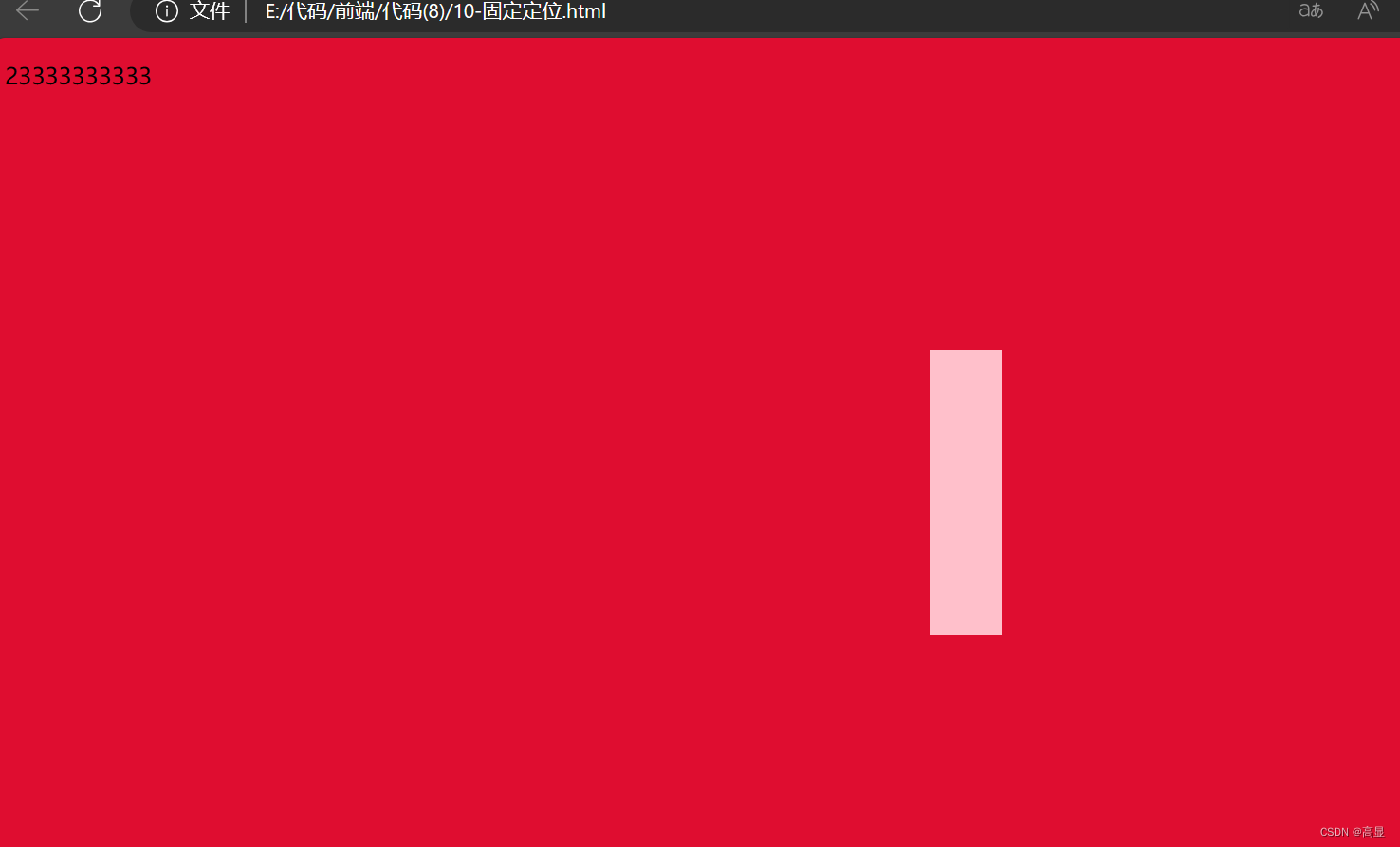
7. Fixed Positioning
body {
    height: 2000px;
    background-color: rgb(223, 13, 48);
}
div {
    position: fixed;
    right: 50%;
    bottom: 50%;
    width: 50px;
    height: 200px;
    background-color: pink;
}
8. Z-Index
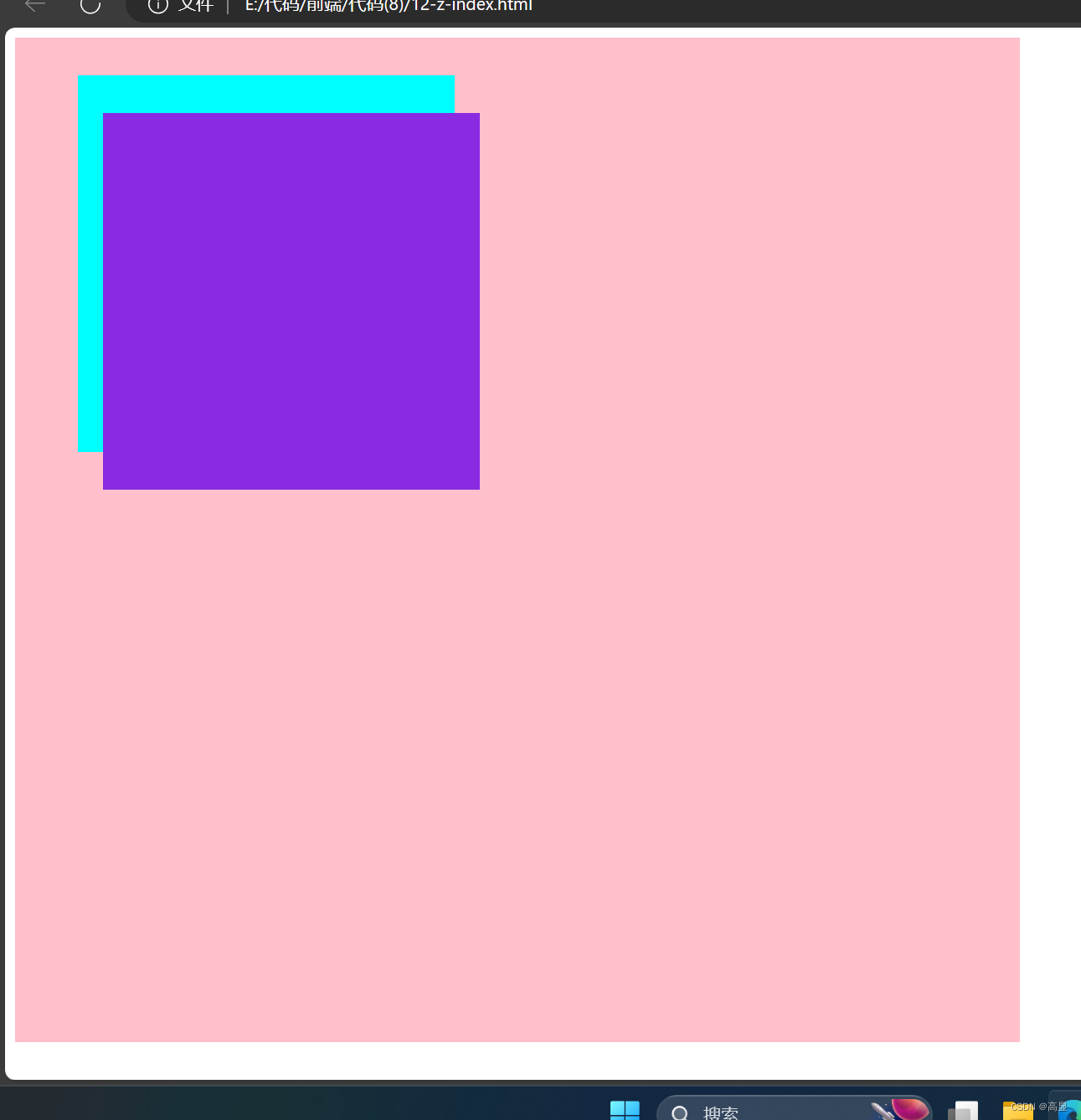
.father {
    position: relative;
    width: 800px;
    height: 800px;
    background-color: pink;
}
.son1 {
    position: absolute;
    top: 30px;
    left: 50px;
    width: 300px;
    height: 300px;
    background-color: aqua;
    z-index: 1;
}
.son2 {
    position: absolute;
    top: 60px;
    left: 70px;
    width: 300px;
    height: 300px;
    background-color: blueviolet;
    z-index: -1;
}
9. Sticky Positioning
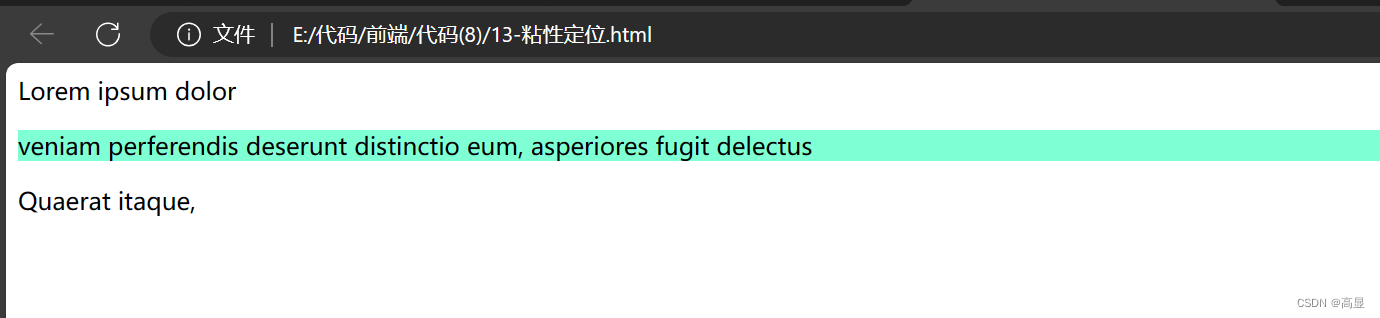
p {
    background-color: aquamarine;
    position: sticky;
    top: 20px;
}
10. Padding
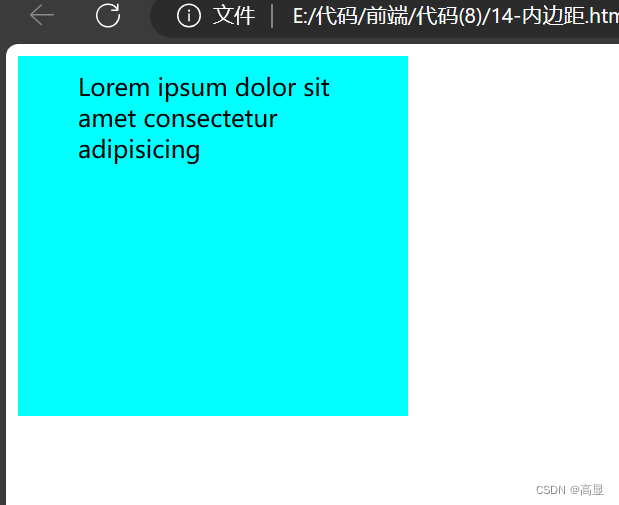
div {
    width: 200px;
    height: 200px;
    background-color: aqua;
    /* Single value applies to all sides */
    padding: 10px;
    /* Two values: top/bottom, left/right */
    padding: 10px 30px;
    /* Three values: top, left/right, bottom */
    padding: 10px 20px 30px;
    /* Four values: top, right, bottom, left */
    padding: 10px 20px 30px 40px;
}
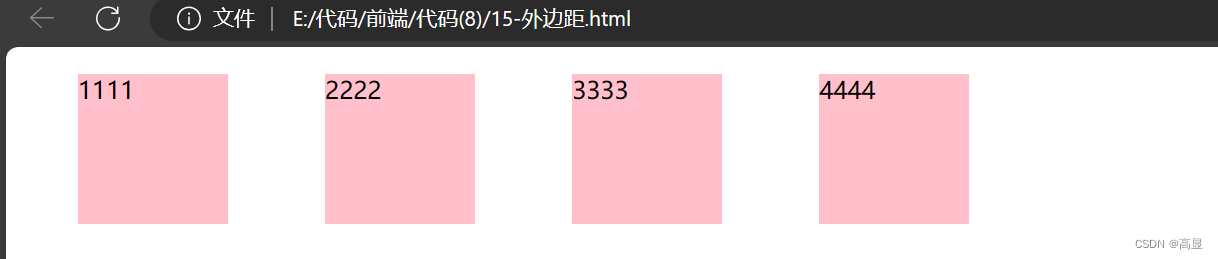
11. Margin
div {
    display: inline-block;
    width: 100px;
    height: 100px;
    background-color: pink;
    /* Single value */
    margin: 10px;
    /* Two values: top/bottom, left/right */
    margin: 20px 40px;
    /* Three values: top, left/right, bottom */
    margin: 10px 20px 30px;
    /* Four values: top, right, bottom, left */
    margin: 10px 20px 30px 40px;
}
12. Borders
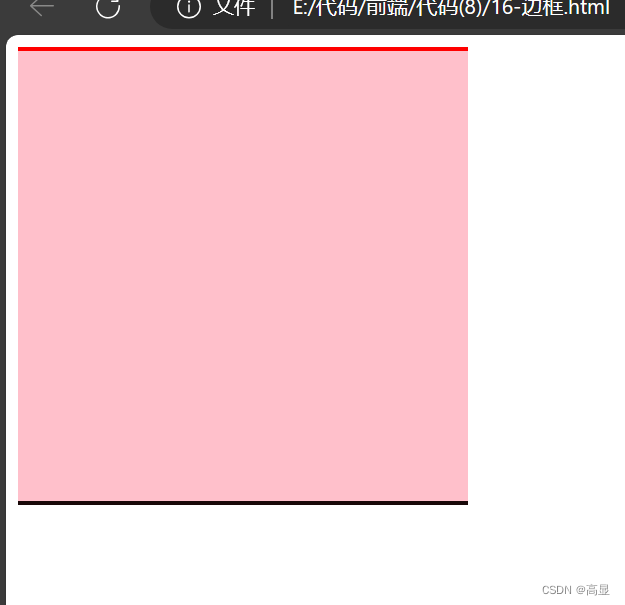
div {
    width: 300px;
    height: 300px;
    background-color: pink;
    border: 10px solid black;
    border-top: 3px solid red;
    border-bottom: 3px solid rgb(25, 8, 8);
}
13. Box Sizing Calculation
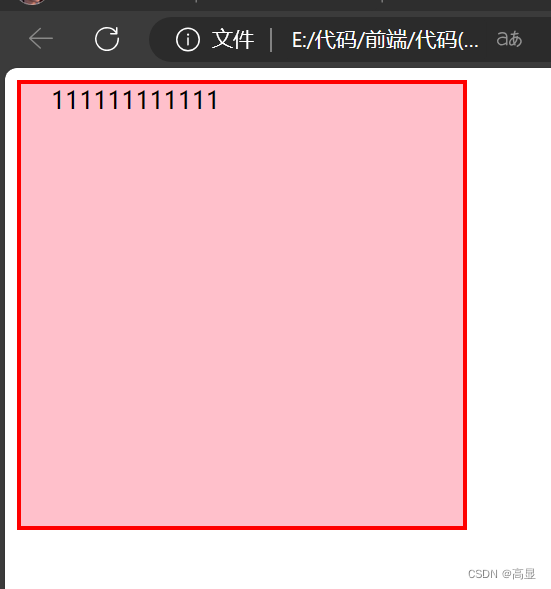
div {
    width: 300px;
    height: 300px;
    background-color: pink;
    padding-left: 20px;
    box-sizing: border-box;
    border: 3px solid red;
}
14. Resetting Default Styles
* {
    padding: 0;
    margin: 0;
    box-sizing: border-box;
}
15. Content Overflow
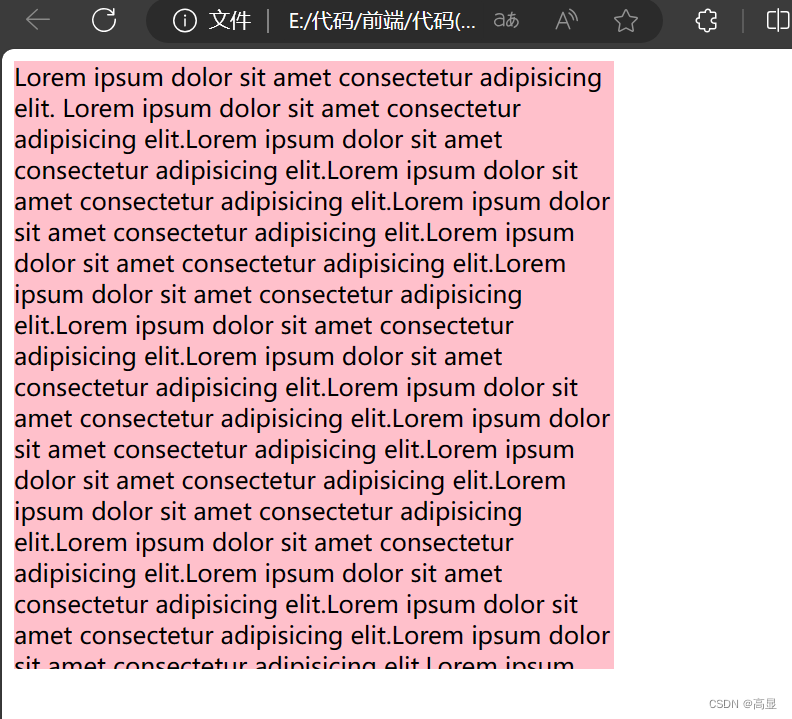
div {
    width: 400px;
    height: 405px;
    background-color: pink;
    overflow: hidden;
}
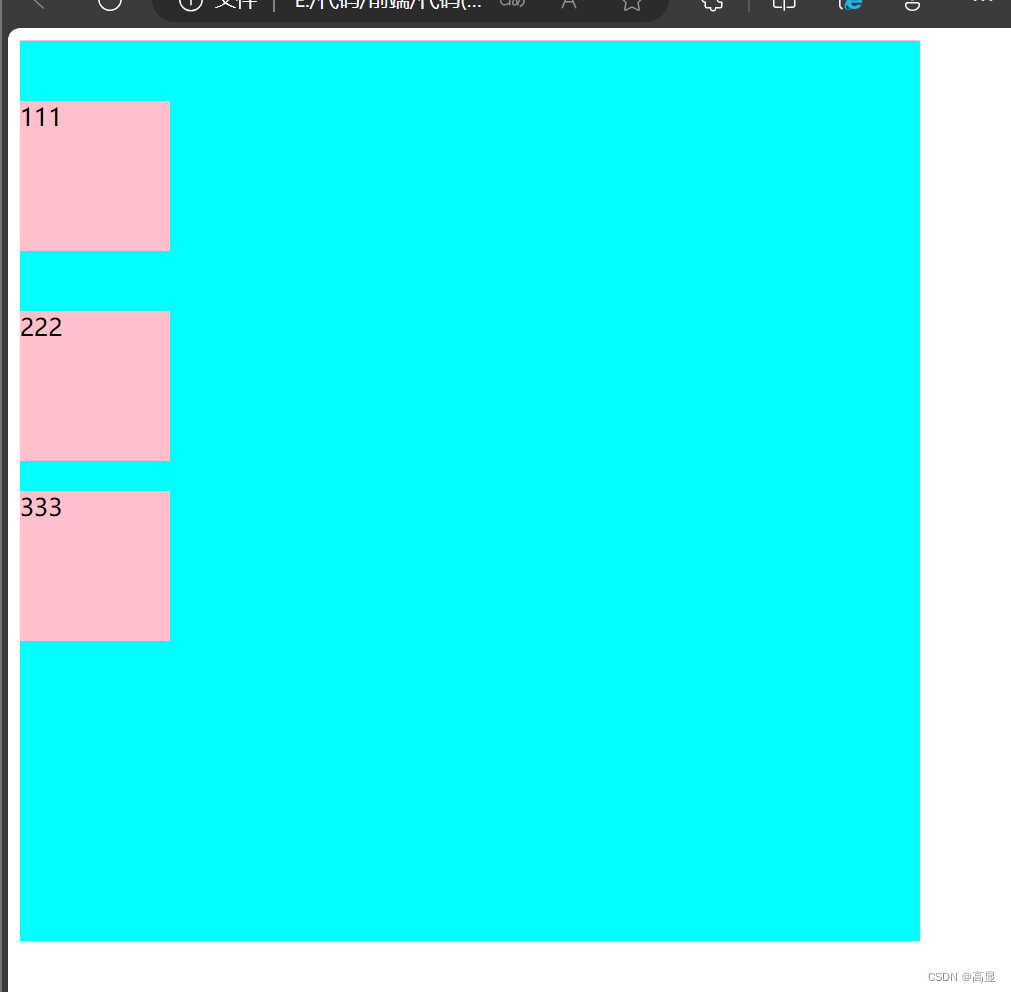
16. Margin Collapsing
.father {
    width: 600px;
    height: 600px;
    background-color: aqua;
    border-top: 1px solid pink;
}
.box1, .box2, .box3 {
    width: 100px;
    height: 100px;
    background-color: pink;
}
.box2 {
    margin-top: 20px;
    margin-bottom: 20px;
}
.box1 {
    margin-bottom: 40px;
    margin-top: 40px;
}
17. Inline Element Margins & Padding
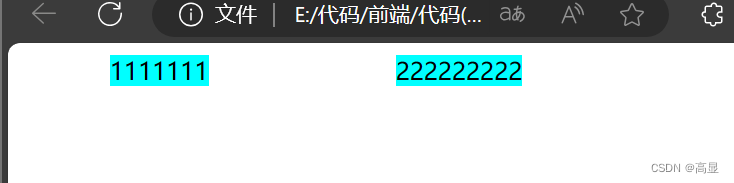
span {
    background-color: aqua;
    /* Vertical margins/padding have no effect on inline elements */
    margin: 30px 60px;
}
18. Centering Block Elements
div {
    width: 1200px;
    height: 60px;
    background-color: aqua;
    margin: 0 auto;
}

19. Border Radius
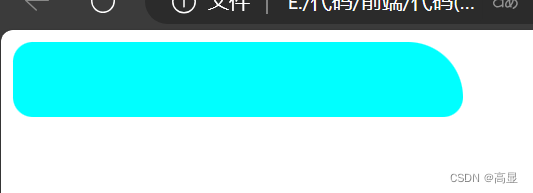
div {
    width: 300px;
    height: 50px;
    background-color: aqua;
    border-radius: 20px;
    /* Top-left, top-right+bottom-left, bottom-right */
    border-radius: 10px 20px 30px 40px;
    /* Pill shape: half of the height */
    border-radius: 25px;
    border-top-right-radius: 70px;
}
20. Box Shadow
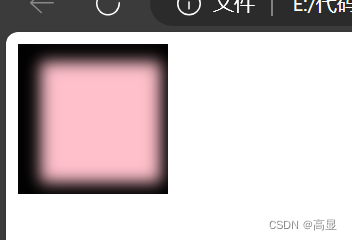
div {
    width: 100px;
    height: 100px;
    background-color: pink;
    /* offset-x | offset-y | blur-radius | spread-radius | color | inset */
    box-shadow: 5px 2px 10px 10px black inset;
}
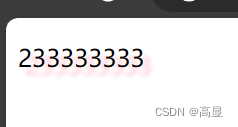
21. Text Shadow
p {
    text-shadow: 5px 5px 3px pink;
}
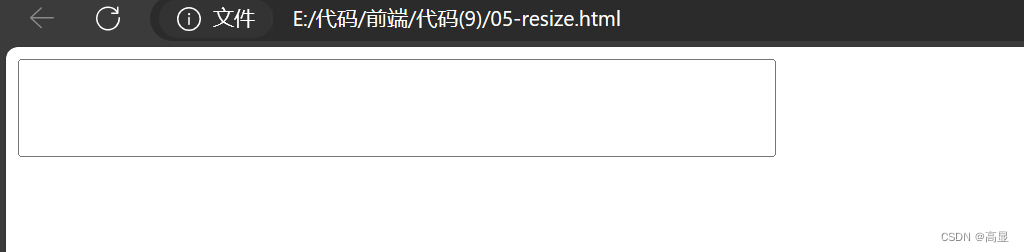
22. Resize
textarea {
    width: 500px;
    height: 60px;
    resize: none;
}
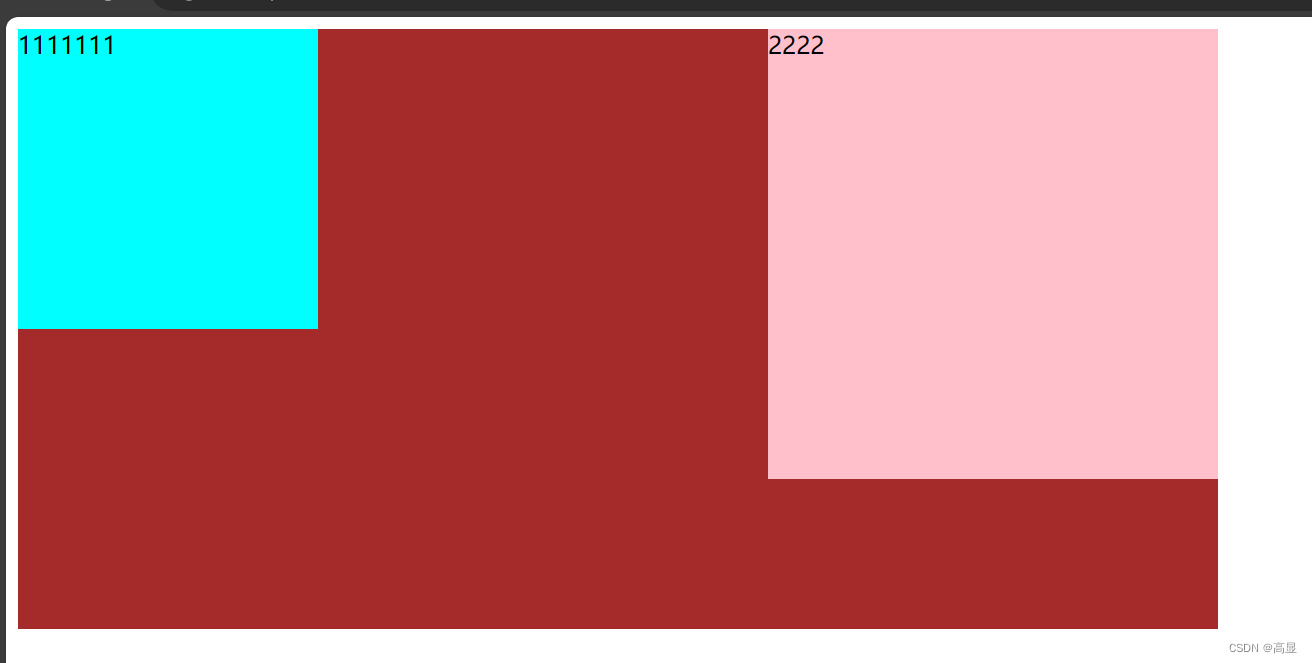
23. Floats
.box1 {
    width: 200px;
    height: 200px;
    background-color: aqua;
    float: left;
}
.out {
    width: 800px;
    height: 400px;
    background-color: brown;
}
.box2 {
    width: 300px;
    height: 300px;
    background-color: pink;
    float: right;
}
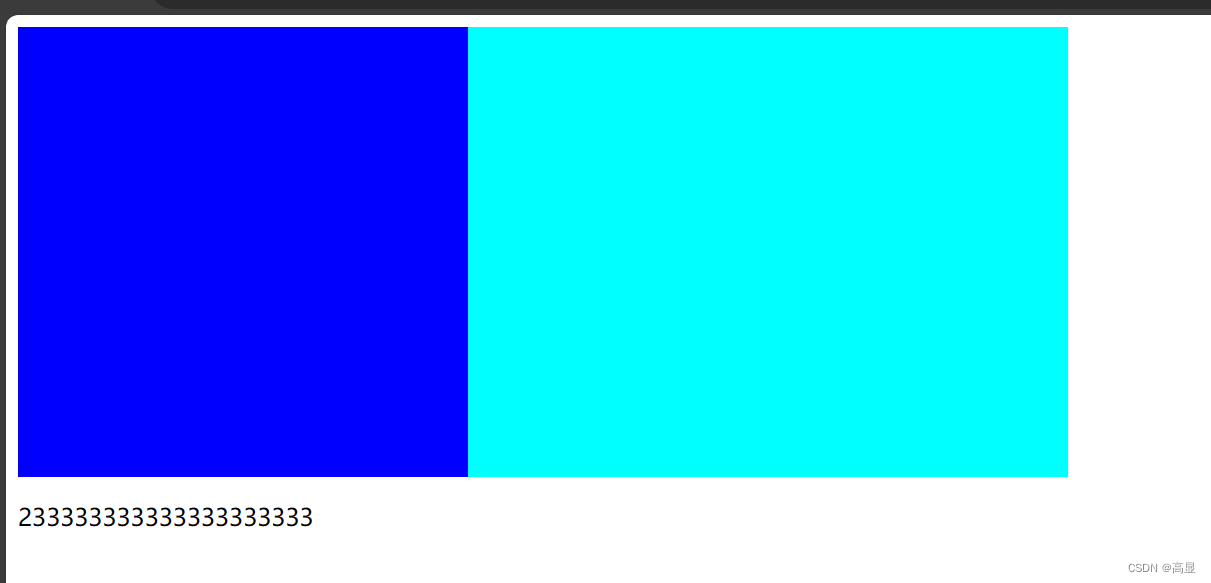
24. Float Issues (Clearing Floats)
.father {
    width: 700px;
    background-color: aqua;
}
.left {
    width: 300px;
    height: 300px;
    background-color: blue;
    float: left;
}
/* Clearfix using ::after */
.father::after {
    content: "";
    display: block;
    clear: both;
}
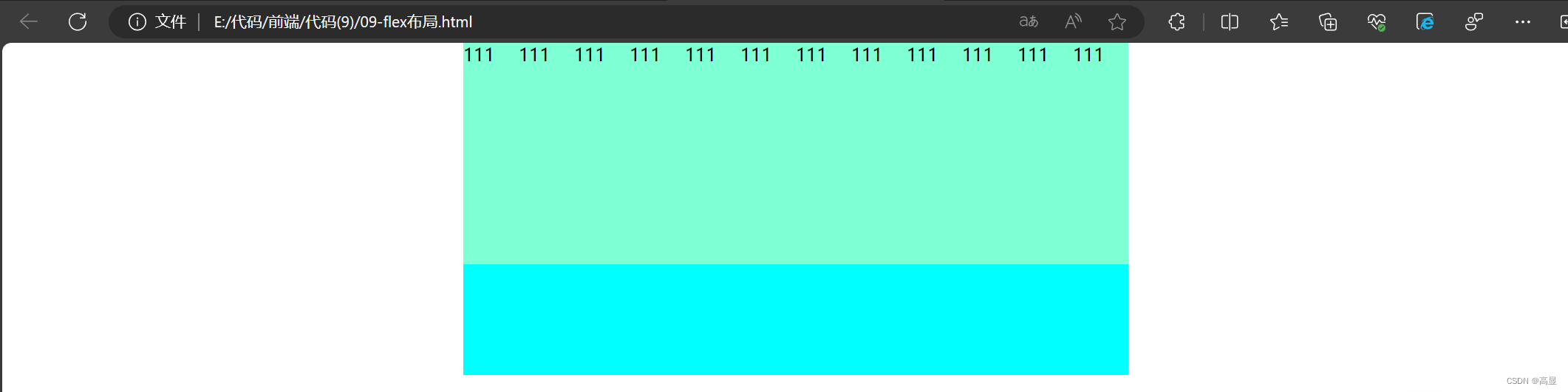
25. Flexbox Layout
ul {
    display: flex;
    width: 600px;
    height: 300px;
    background-color: aqua;
    margin: 0 auto;
}
li {
    list-style: none;
    width: 100px;
    height: 200px;
    background-color: aquamarine;
}
26. Main Axis Alignment
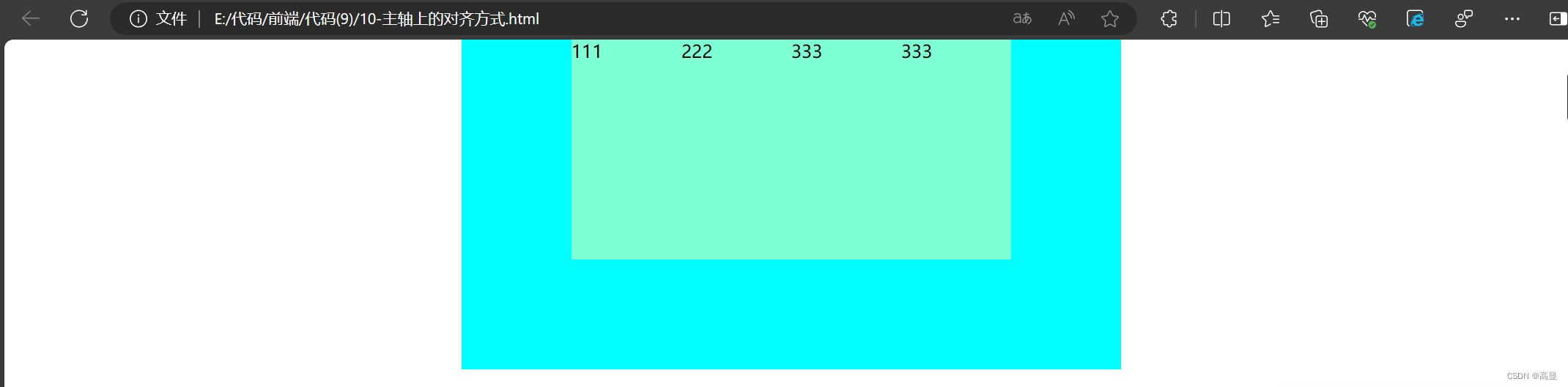
ul {
    display: flex;
    width: 600px;
    height: 300px;
    background-color: aqua;
    margin: 0 auto;
    justify-content: flex-end;
    justify-content: space-between;
    justify-content: space-around;
    justify-content: space-evenly;
    justify-content: center;
}
li {
    list-style: none;
    width: 100px;
    height: 200px;
    background-color: aquamarine;
}
27. Cross Axis Alignment
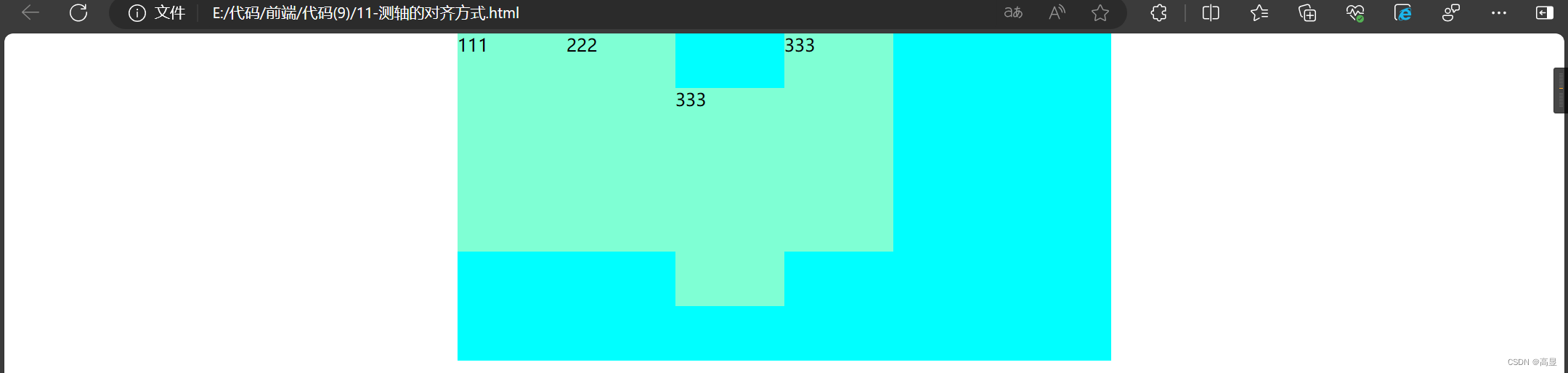
ul {
    display: flex;
    width: 600px;
    height: 300px;
    background-color: aqua;
    margin: 0 auto;
    align-items: center;
}
ul li:nth-child(3) {
    align-self: center;
}
li {
    list-style: none;
    width: 100px;
    height: 200px;
    background-color: aquamarine;
}
28. Changing the Main Axis Direction
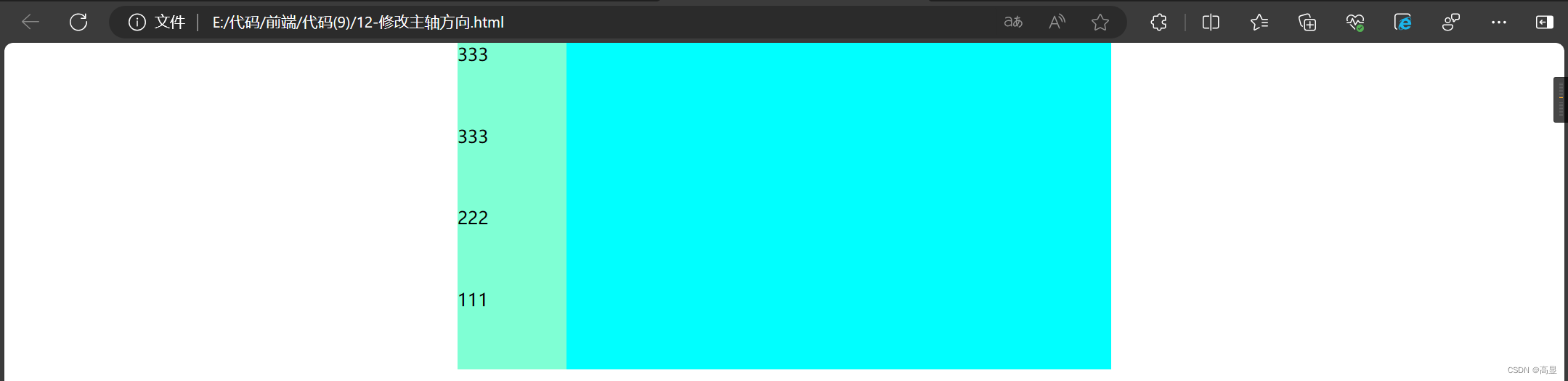
ul {
    display: flex;
    width: 600px;
    height: 300px;
    background-color: aqua;
    margin: 0 auto;
    flex-direction: column;
    flex-direction: row-reverse;
    flex-direction: column-reverse;
}
li {
    list-style: none;
    width: 100px;
    height: 200px;
    background-color: aquamarine;
}
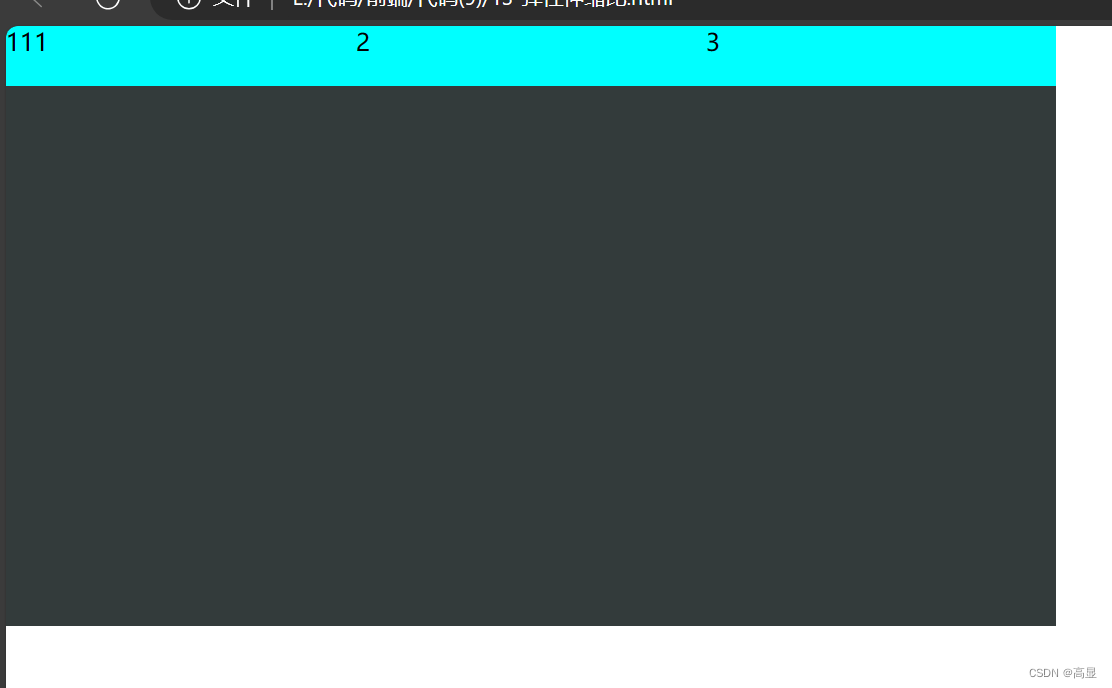
29. Flex Grow
ul {
    display: flex;
    width: 700px;
    height: 400px;
    background-color: rgb(51, 59, 59);
}
li {
    list-style: none;
    height: 40px;
    background-color: aqua;
}
ul li:nth-child(1) {
    flex: 1;
}
ul li:nth-child(2) {
    flex: 1;
}
ul li:nth-child(3) {
    flex: 1;
}
30. Wrapping
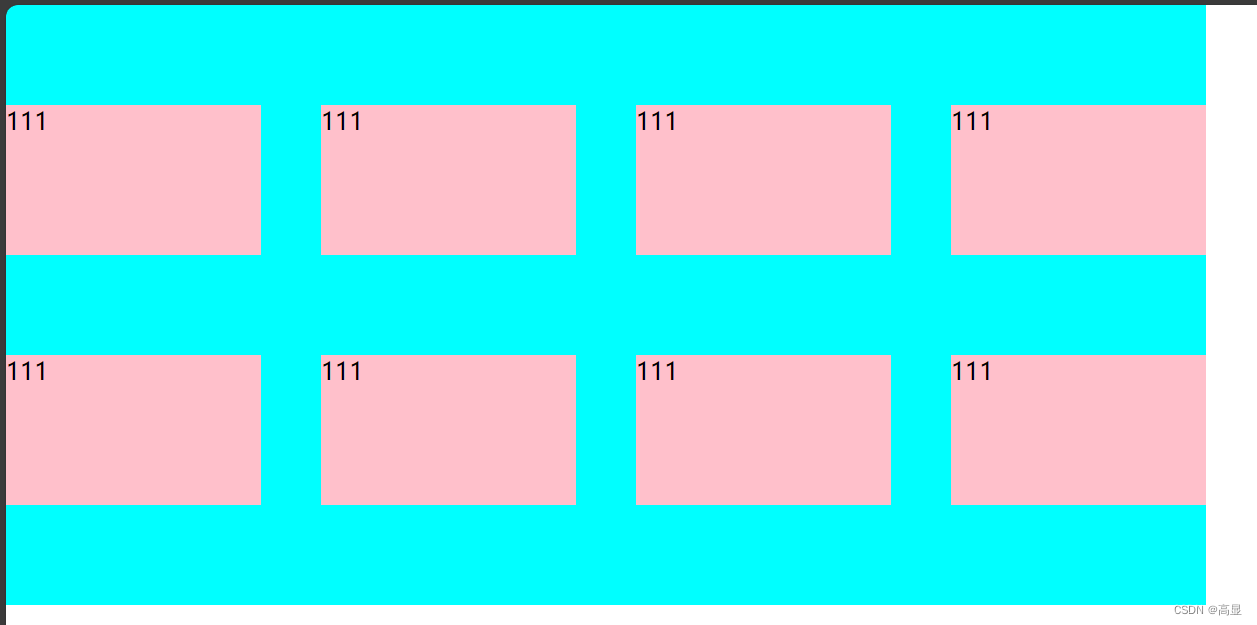
ul {
    display: flex;
    width: 800px;
    height: 400px;
    background-color: aqua;
    flex-wrap: wrap;
    justify-content: space-between;
    align-content: space-evenly;
}
li {
    list-style: none;
    width: 170px;
    height: 100px;
    background-color: pink;
}
31. Grid
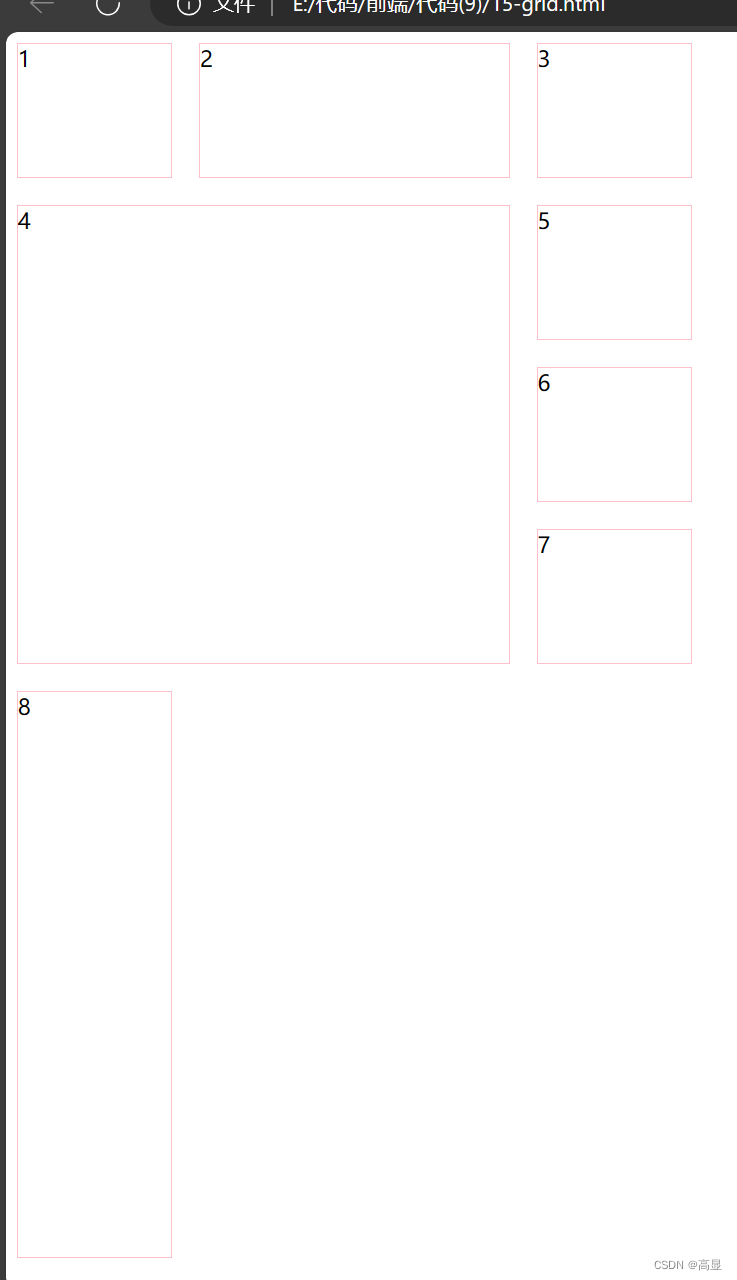
.box {
    display: grid;
    width: 500px;
    height: 900px;
    grid-template-columns: 1fr 2fr 1fr;
    grid-template-rows: repeat(4, 100px);
    grid-gap: 20px;
}
.box div {
    border: 1px solid pink;
}
.test {
    grid-column-start: 1;
    grid-column-end: 3;
    grid-row: 2/5;
}
32. Opacity
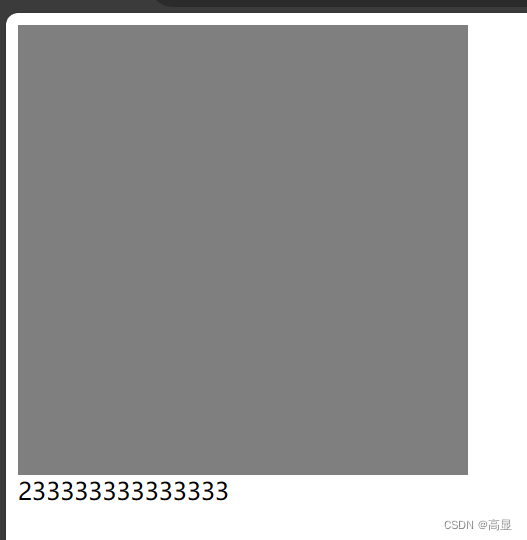
div {
    width: 300px;
    height: 300px;
    background-color: black;
    opacity: 0.5;
}
33. Showing & Hiding Elements
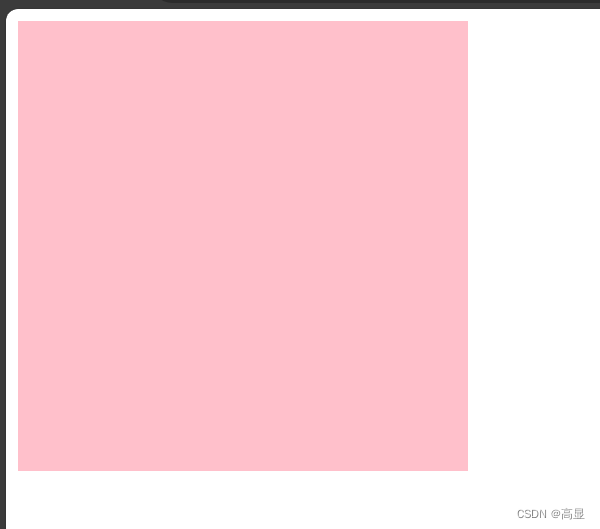
div {
    /* opacity: 0; still takes up space */
    /* display: none; does not take up space */
    /* visibility: hidden; still takes up space */
    width: 300px;
    height: 300px;
    background-color: pink;
}
34. Cursor Styles
a {
    cursor: text;
    cursor: pointer;
}
p {
    cursor: pointer;
    cursor: move;
    cursor: default;
    cursor: copy;
}
35. Outline Styles
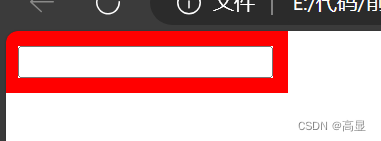
input {
    outline: 10px solid red;
}
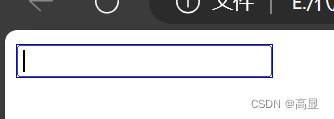
input:focus {
    outline: 1px solid blue;
}
36. Transitions
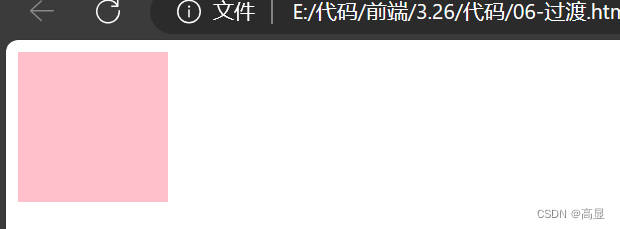
div {
    transition: all 2s;
    width: 100px;
    height: 100px;
    background-color: pink;
}
div:hover {
    width: 1200px;
    height: 50px;
    background-color: green;
}

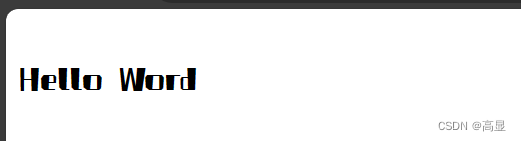
37. Custom Fonts
@font-face {
    font-family: myFont;
    src: url("./path/to/font.otf");
}
p {
    font-family: myFont;
    font-size: 30px;
}
38. Translation
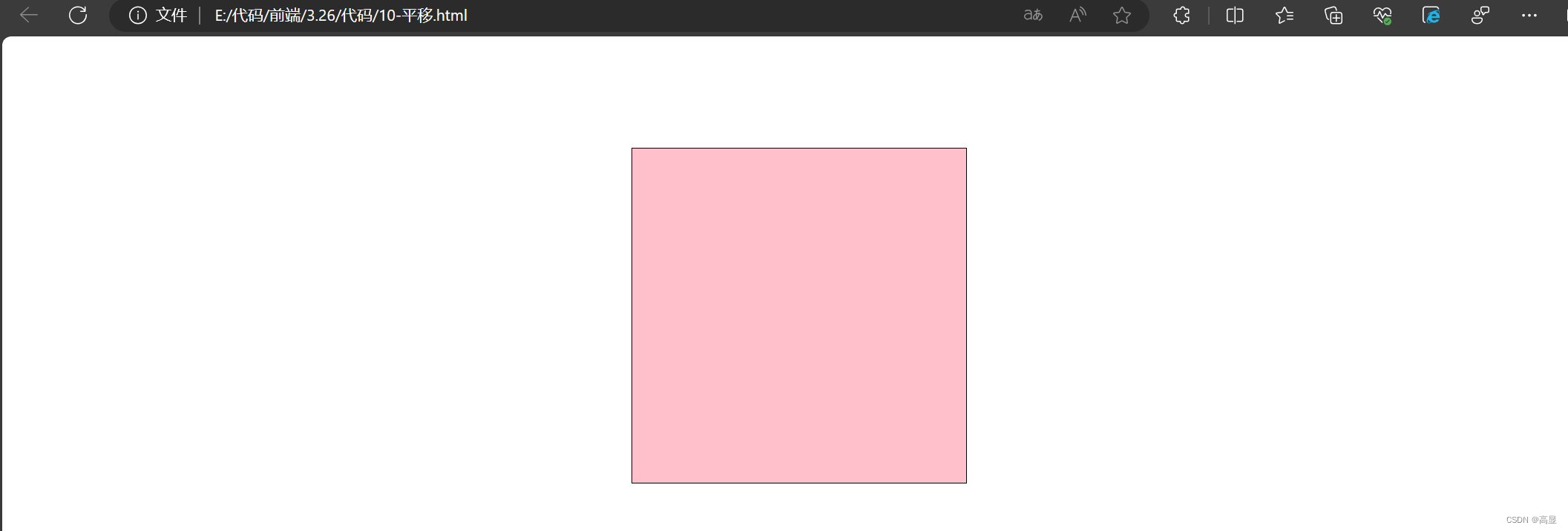
.father {
    position: relative;
    border: 1px solid black;
    margin: 100px auto;
}
.son {
    transition: all 2s;
    position: absolute;
    top: 0;
    left: 0;
    background-color: pink;
}
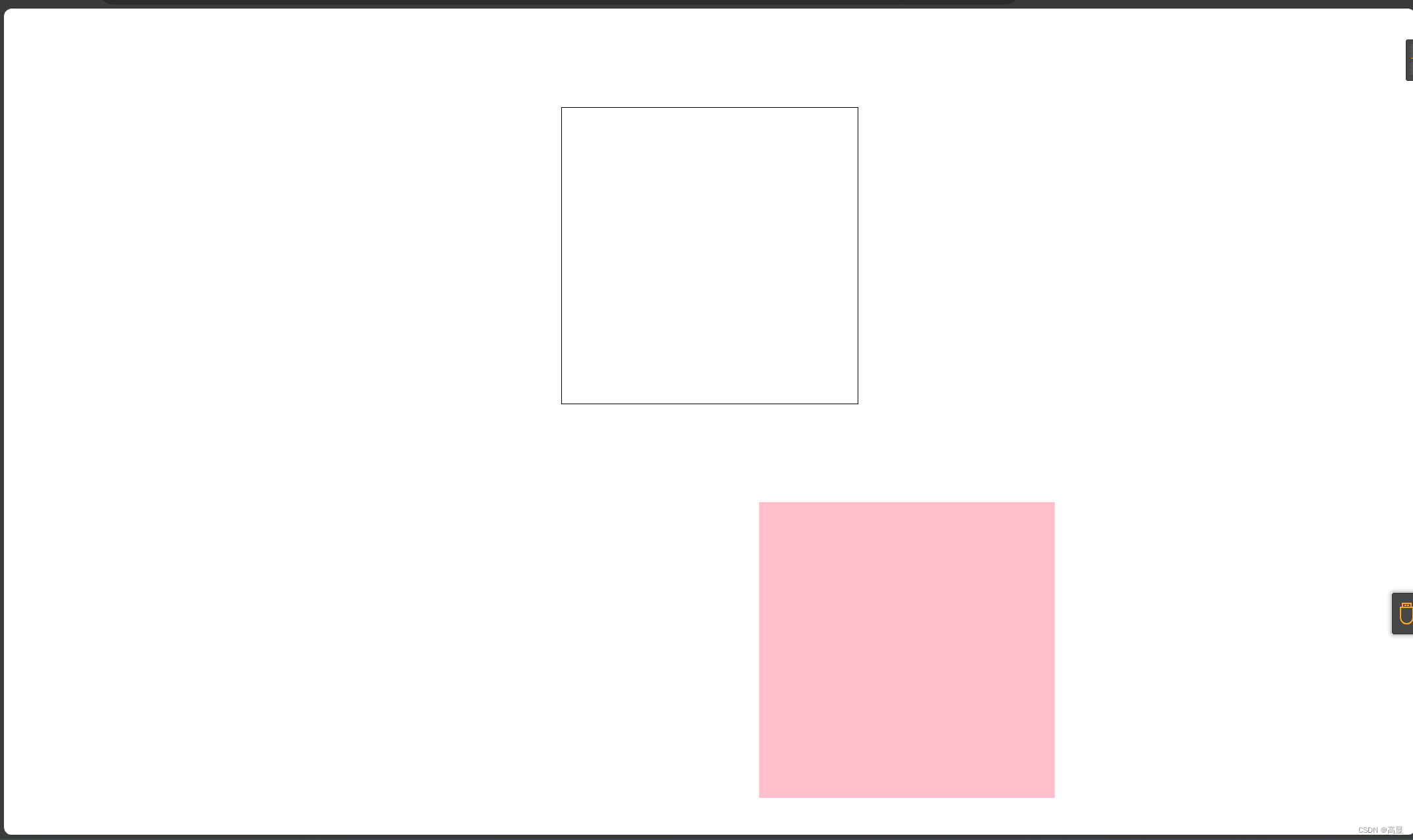
.father:hover .son {
    transform: translate(200px, 400px);
}
39. Rotation
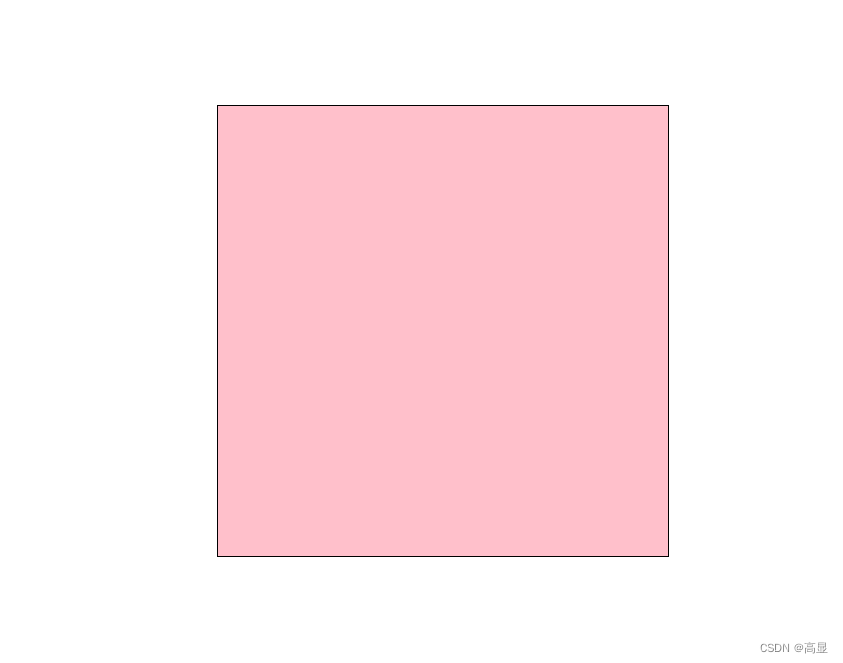
.father {
    margin: 100px auto;
    position: relative;
    border: 1px solid black;
}
.son {
    position: absolute;
    top: 0;
    left: 0;
    transition: all 2s;
    background-color: pink;
}
.father:hover .son {
    transform: rotateZ(360deg);
}
40. Changing Transform Origin
.father {
    margin: 100px auto;
    position: relative;
    border: 1px solid black;
}
.son {
    position: absolute;
    top: 0;
    left: 0;
    transition: all 2s;
    background-color: pink;
}
.father:hover .son {
    transform: rotateZ(45deg);
    transform-origin: bottom right;
}
41. Multiple Transforms
.father {
    position: relative;
    border: 1px solid black;
    margin: 100px auto;
}
.son {
    position: absolute;
    top: 0;
    left: 0;
    transition: all 2s;
    background-color: pink;
}
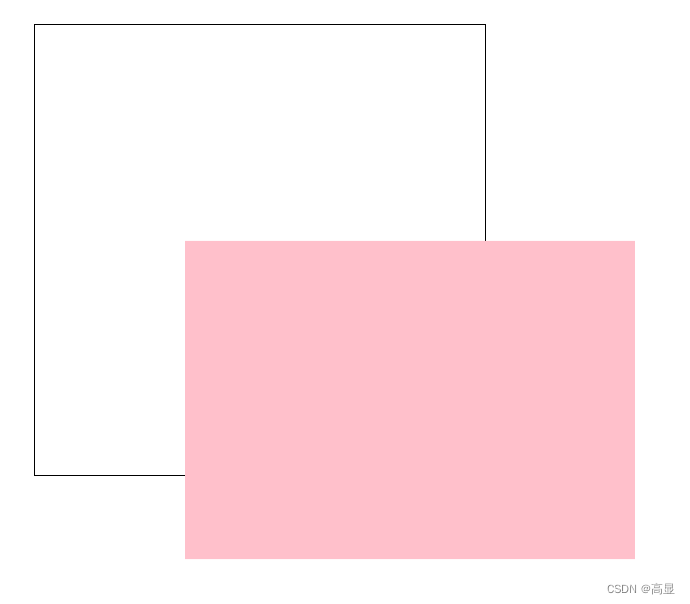
.father:hover .son {
    transform: translate(100px, 100px) rotateX(45deg);
}
42. Scaling
.father {
    position: relative;
    border: 1px solid black;
    margin: 100px auto;
    overflow: hidden;
}
.son {
    position: absolute;
    top: 0;
    left: 0;
    transition: all 2s;
    background-color: pink;
}
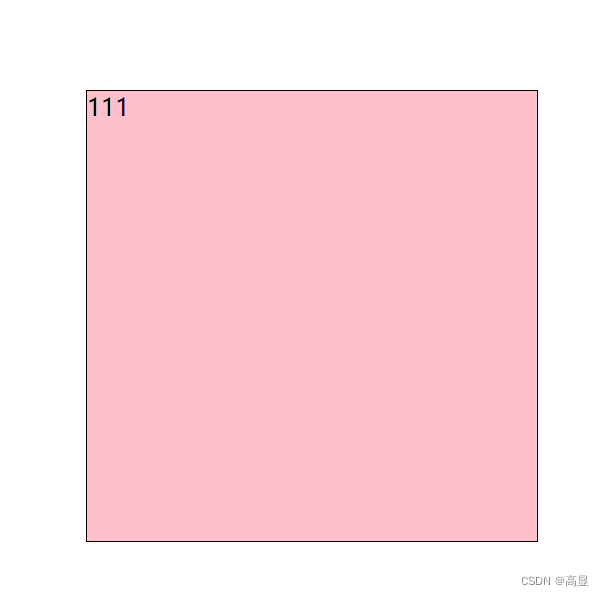
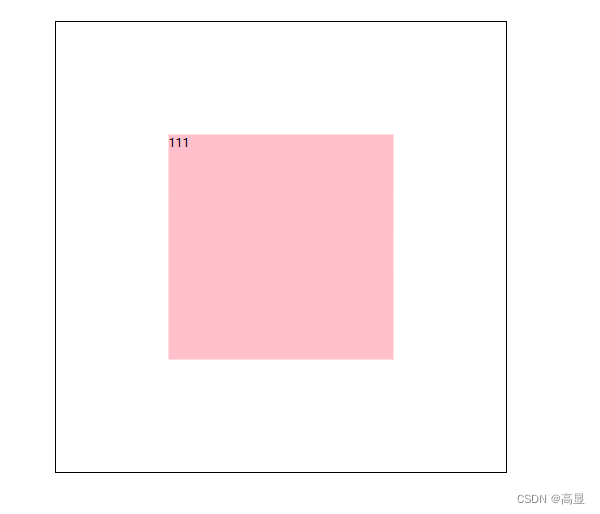
.father:hover .son {
    transform: scale(0.5);
}
43. Skewing
.father {
    margin: 100px auto;
    position: relative;
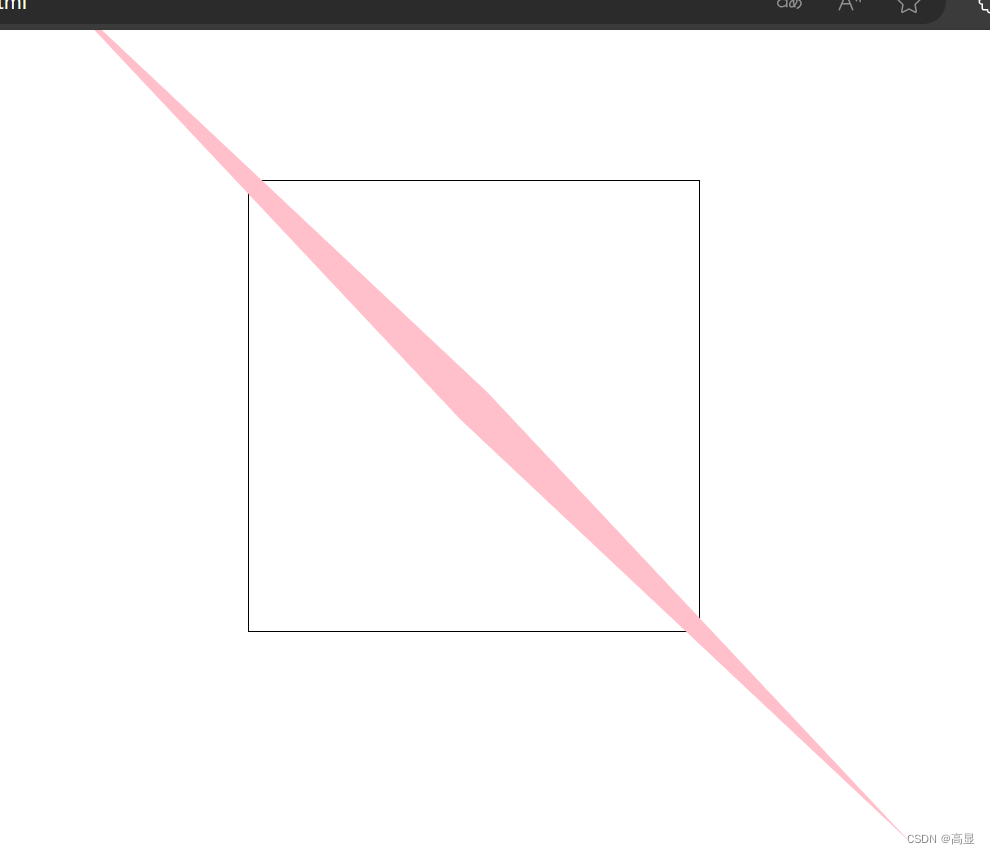
    border: 1px solid black;
}
.son {
    position: absolute;
    top: 0;
    left: 0;
    transition: all 2s;
    background-color: pink;
}
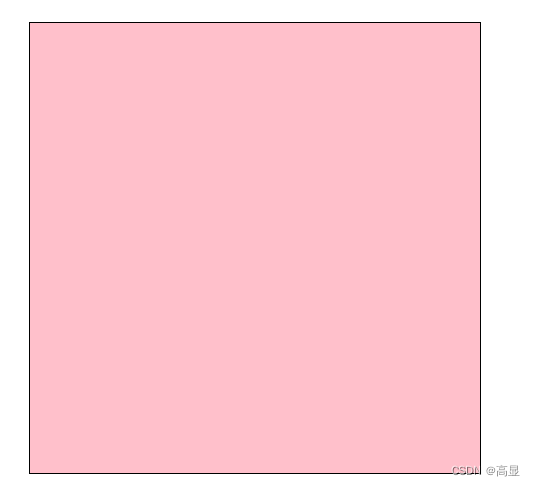
.father:hover .son {
    transform: skew(45deg, 45deg);
}
44. 3D Transforms
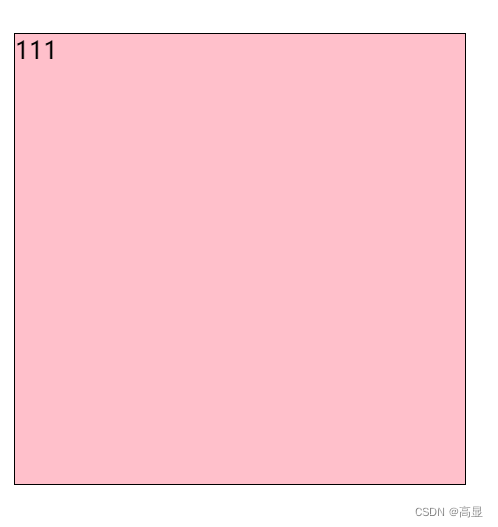
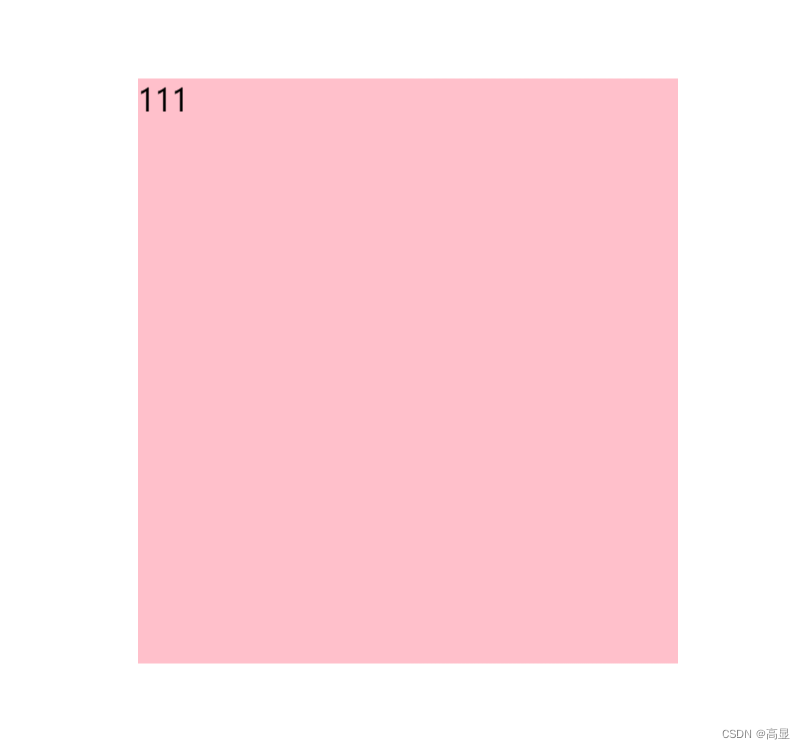
.father {
    position: relative;
    border: 1px solid black;
    margin: 100px auto;
    perspective: 1000px;
    transform-style: preserve-3d;
}
.son {
    position: absolute;
    top: 0;
    left: 0;
    transition: all 2s;
    background-color: pink;
}
.father:hover .son {
    transform: translate3d(100px, 100px, 200px);
}
45. Animations
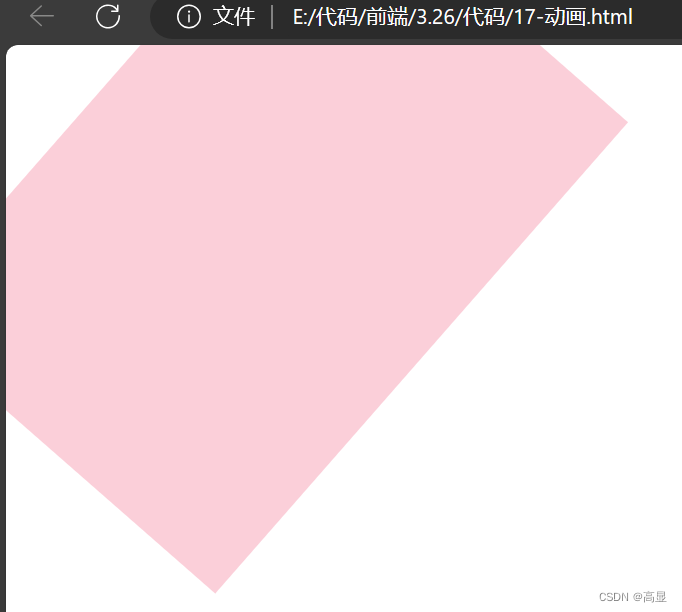
@keyframes myMove {
    from {
        width: 0;
        height: 0;
        background-color: aliceblue;
    }
    to {
        width: 200px;
        height: 300px;
        background-color: pink;
    }
}
@keyframes zhuan {
    from {
        transform: translate(0px);
    }
    to {
        transform: translateX(100px) rotate(45deg) scale(2);
    }
}
div {
    animation: myMove 3s, zhuan 2s;
}
46. Collapsing Table Borders
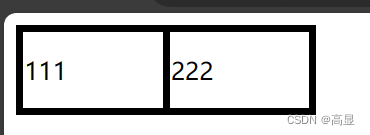
table {
    width: 200px;
    height: 60px;
    border: 2px solid pink;
    border-collapse: collapse;
}
td {
    border: 5px solid black;
}
47. Icon Fonts: Method 1 (Self-hosted)
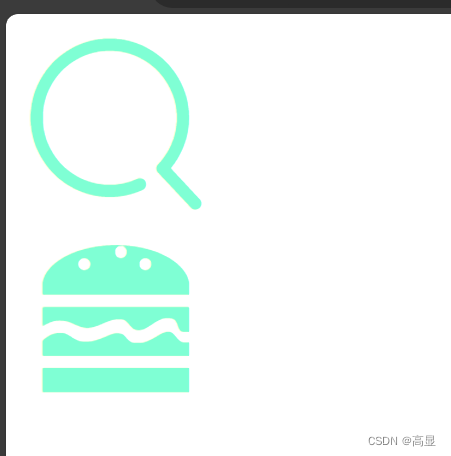
@font-face {
    font-family: 'iconfont';
    src: url('path/font_xxxx/iconfont.woff2') format('woff2'),
         url('path/font_xxxx/iconfont.woff') format('woff'),
         url('path/font_xxxx/iconfont.ttf') format('truetype');
}
.iconfont {
    font-family: "iconfont" !important;
    font-size: 16px;
    font-style: normal;
    -webkit-font-smoothing: antialiased;
    -moz-osx-font-smoothing: grayscale;
    font-size: 130px;
    color: aquamarine;
}
<div class="iconfont"></div>
<div class="iconfont"></div>
48. Icon Fonts: Method 2 (CSS classes)
@font-face {
  font-family: "iconfont";
  src: url('iconfont.woff2?t=1711763893587') format('woff2'),
       url('iconfont.woff?t=1711763893587') format('woff'),
       url('iconfont.ttf?t=1711763893587') format('truetype');
}
.iconfont {
  font-family: "iconfont" !important;
  font-size: 16px;
  font-style: normal;
  -webkit-font-smoothing: antialiased;
  -moz-osx-font-smoothing: grayscale;
}
.icon-sousuo1:before {
  content: "\e752";
}
.icon-hanbao:before {
  content: "\e639";
}
.icon-xiaoxiangji:before {
  content: "\e64f";
}
<link rel="stylesheet" href="path/iconfont.css">
<span class="iconfont icon-xiaoxiangji"></span>

49. Icon Fonts: SVG (Iconfont)
<style>
    .icon {
        width: 1em;
        height: 1em;
        vertical-align: -0.15em;
        fill: currentColor;
        overflow: hidden;
    }
</style>
<script src="path/iconfont.js"></script>
<svg class="icon" aria-hidden="true">
    <use xlink:href="#icon-hanbao"></use>
</svg>

50. Removing Image Bottom Gap
div img {
    vertical-align: middle;
}

51. JavaScript Semicolons
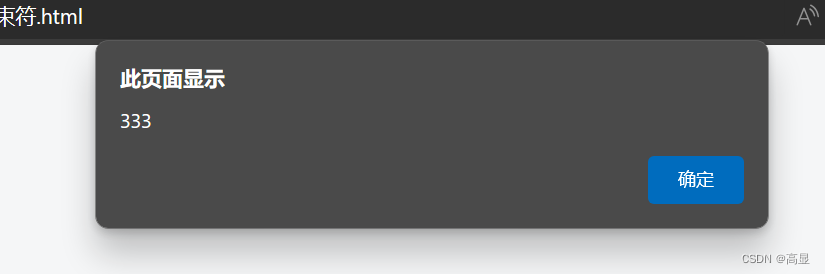
alert("444"); alert("333");
52. Input & Output
document.write("<h1>Content</h1>");
alert("Alert message");
console.log("Console output");


53. Variables
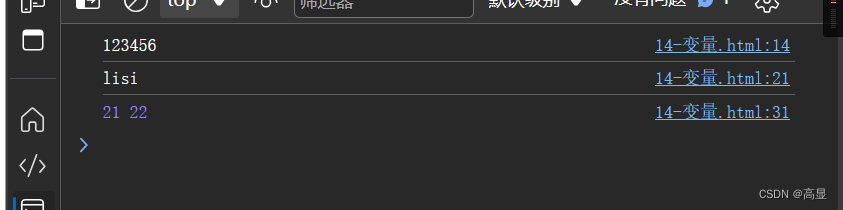
let uname = "zhangsan";
let age1 = 21, age2 = 22;
console.log(age1, age2);
54. let vs var
var num1 = "zhangsan";
console.log(num1);
var num1 = 22; // can be redeclared
console.log(num1);

55. Data Types
let str1 = "zhang\nsan";
document.write(`User: ${str1}`);
let age;
console.log(age); // undefined
let obj = null;

56. Implicit Type Conversion
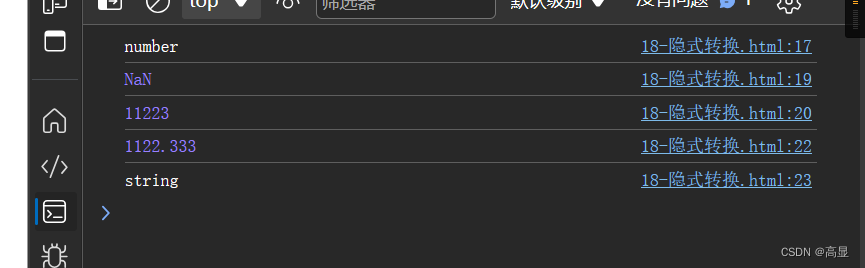
console.log(typeof Number("1122")); // number
console.log(Number("1122px")); // NaN
console.log(parseInt("11223.141px")); // 11223
console.log(parseFloat("1122.333px")); // 1122.333
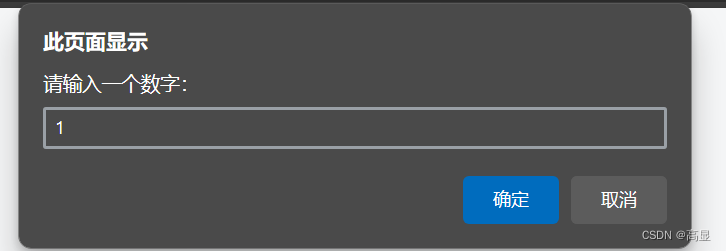
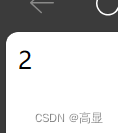
57. Summing User Input
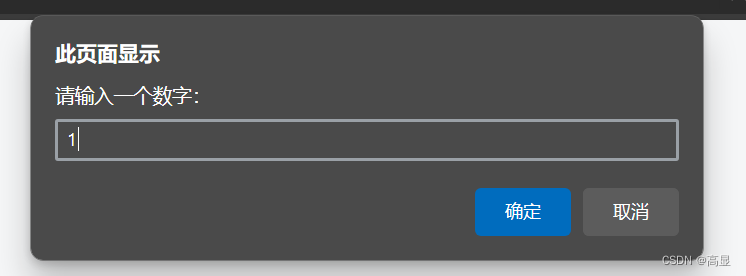
let num1 = +prompt("Enter a number:");
let num2 = +prompt("Enter another number:");
document.write(num1 + num2);
58. Rest Parameters
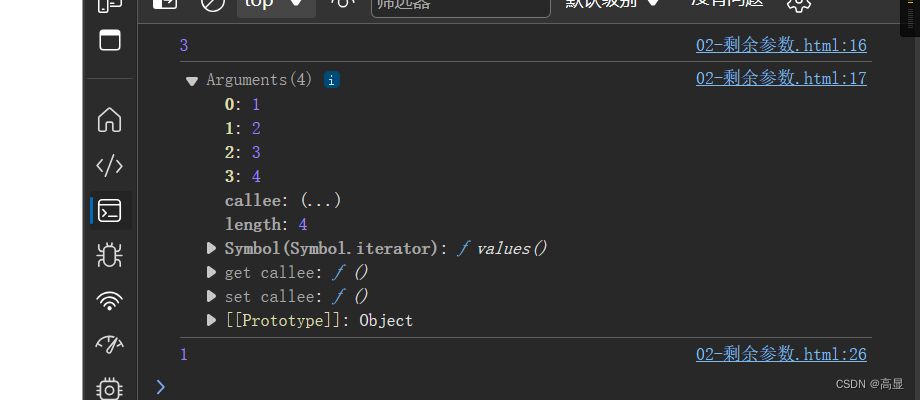
function test(a, b, ...arr) {
    console.log(a + b);
    console.log(arguments);
    return 1;
}
let result = test(1, 2, 3, 4);
console.log(result);
59. Spread Operator (...)
let arr1 = [1, 2, 3];
console.log(...arr1);
console.log(Math.max(...arr1));

60. Objects
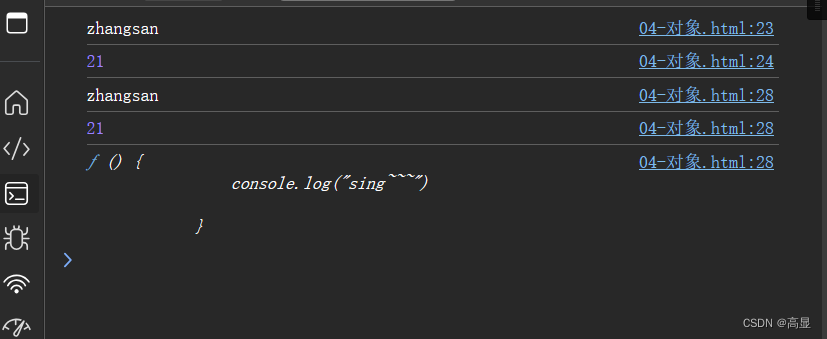
let obj1 = {
    uname: "zhangsan",
    age: 21,
    sing: function () {
        console.log("sing~~~");
    }
};
console.log(obj1.uname);
console.log(obj1["age"]);
for (let key in obj1) {
    console.log(obj1[key]);
}
61. Garbage Collection
// Reference counting and mark-and-sweep example
let obj1 = { uname: "zhangsan" };
let ref = obj1;
ref = null; // object still referenced by obj1
// Circular reference issue
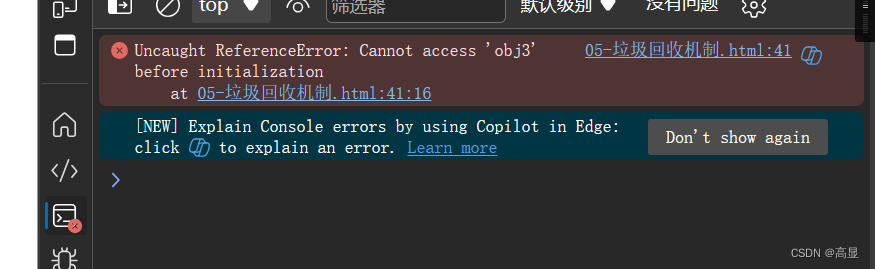
let obj2 = { a: obj3 };
let obj3 = { b: obj2 };
obj2 = null; // still referenced via obj3.b
62. Closures
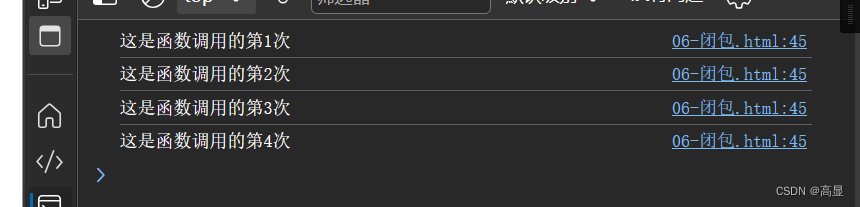
function outer() {
    let num = 0;
    function inner() {
        num++;
        console.log(`Called ${num} times`);
    }
    return inner;
}
let fn = outer();
fn(); // 1
fn(); // 2
// num is private and preserved
63. Math Object
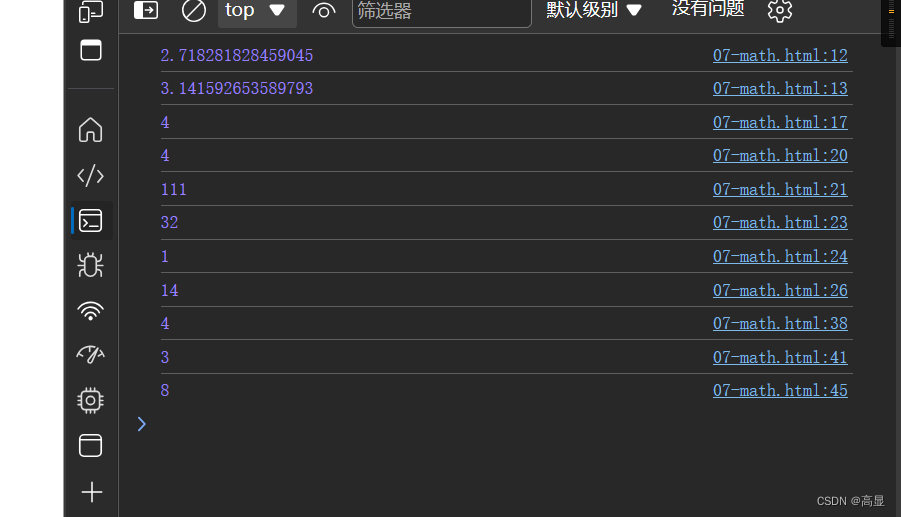
console.log(Math.PI);
console.log(Math.floor(4.999)); // 4
console.log(Math.ceil(3.11)); // 4
console.log(Math.abs(-111)); // 111
console.log(Math.max(1, 21, 32, 12)); // 32
console.log(Math.min(1, 21, 32, 12)); // 1
console.log(Math.random()); // between 0 (inclusive) and 1 (exclusive)
console.log(Math.round(3.51)); // 4
console.log(Math.sqrt(9)); // 3
console.log(Math.pow(2, 3)); // 8
64. Date Object
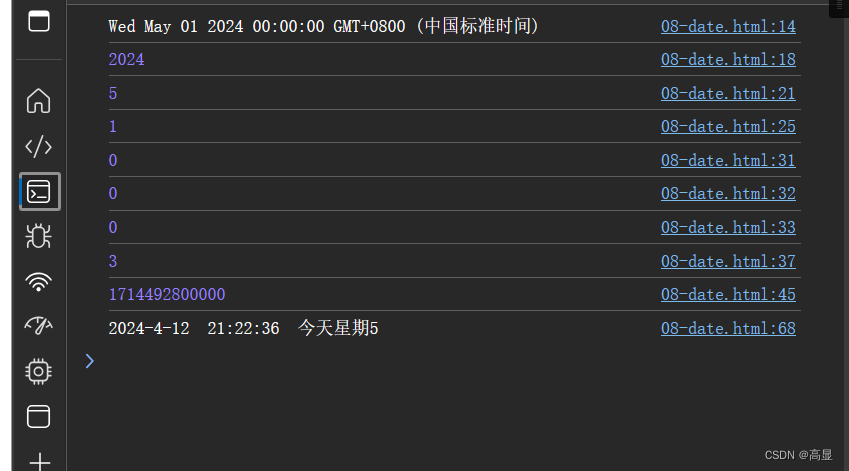
let date = new Date("2024-05-01 00:00:00");
console.log(date);
console.log(date.getFullYear());
console.log(date.getMonth() + 1); // months are 0-indexed
console.log(date.getDate());
console.log(date.getHours());
console.log(date.getMinutes());
console.log(date.getSeconds());
console.log(date.getDay()); // 0=Sunday
console.log(date.getTime()); // timestamp
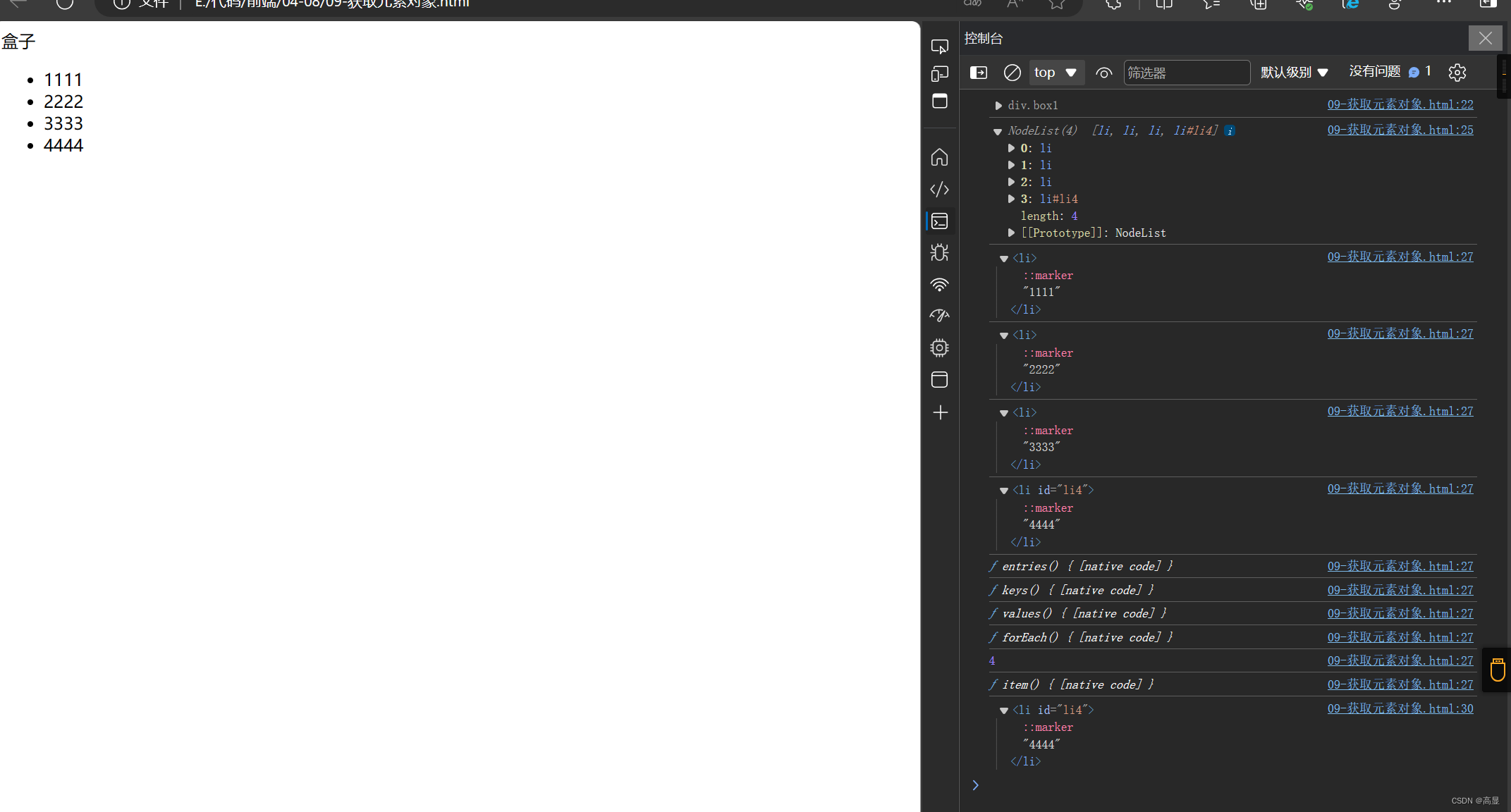
65. Selecting DOM Elements
<div class="box1">Box</div>
<ul>
    <li>1111</li>
    <li id="li4">4444</li>
</ul>
<script>
    let box = document.querySelector(".box1");
    console.dir(box);
    let items = document.querySelectorAll("ul li");
    console.log(items);
    let special = document.getElementById("li4");
</script>
66. Element Content (innerHTML, textContent)
const box = document.querySelector("div");
console.log(box.innerHTML); // includes HTML tags
box.innerHTML = `<h1>Hello</h1>`; // renders HTML
box.textContent = `<h1>Test</h1>`; // sets literal text, no HTML

67. Changing Element Attributes
const input = document.querySelector("input");
input.type = "password";

68. Changing Element Styles
.box1 {
    width: 300px;
    height: 300px;
    background-color: aqua;
    border: 1px solid rgb(187, 14, 43);
    border-radius: 30px;
}
.box_style {
    background-color: rgb(11, 179, 78);
    border: 10px solid rgba(12, 29, 126, 0.027);
    border-radius: 50%;
}
const box = document.querySelector("div");
// Direct style modification
box.style.backgroundColor = "pink";
// Using classList
box.classList.add("box_style");
box.classList.toggle("box1");

69. Additional Notes on Attributes
// For boolean attributes like 'checked', we use true/false
document.querySelector("input[value='nv']").checked = true;
console.log(document.querySelector("input[value='nv']").checked); // true

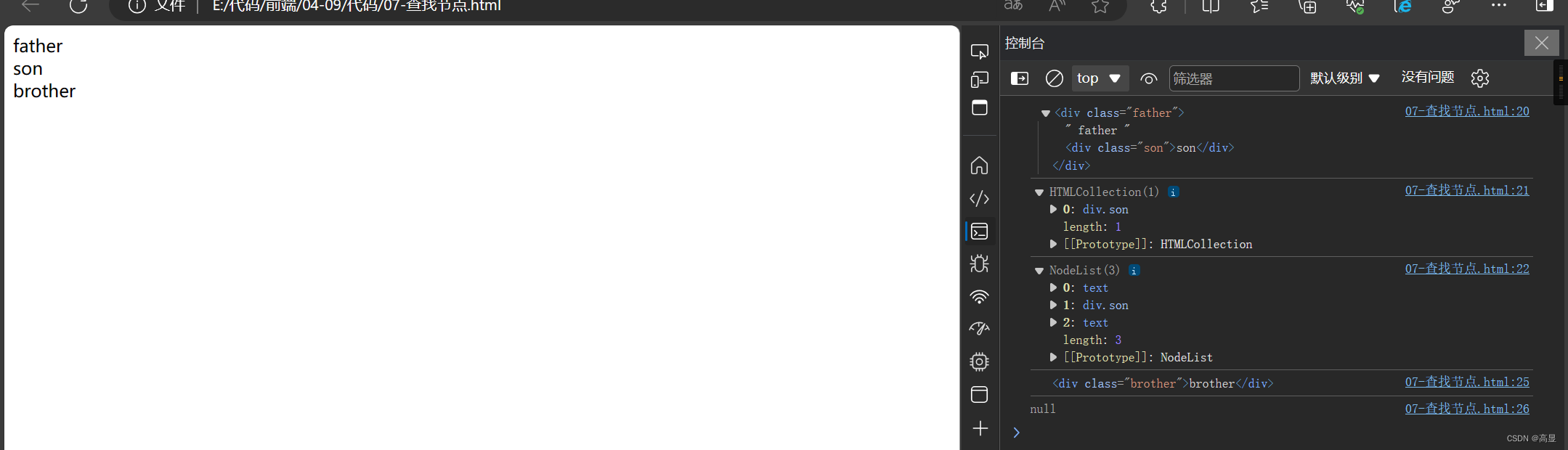
70. Traversing the DOM
const son = document.querySelector(".son");
console.log(son.parentNode); // parent element
const father = document.querySelector(".father");
console.log(father.children); // HTMLCollection of child elements
console.log(father.nextElementSibling); // next sibling element
console.log(father.previousElementSibling); // previous sibling element
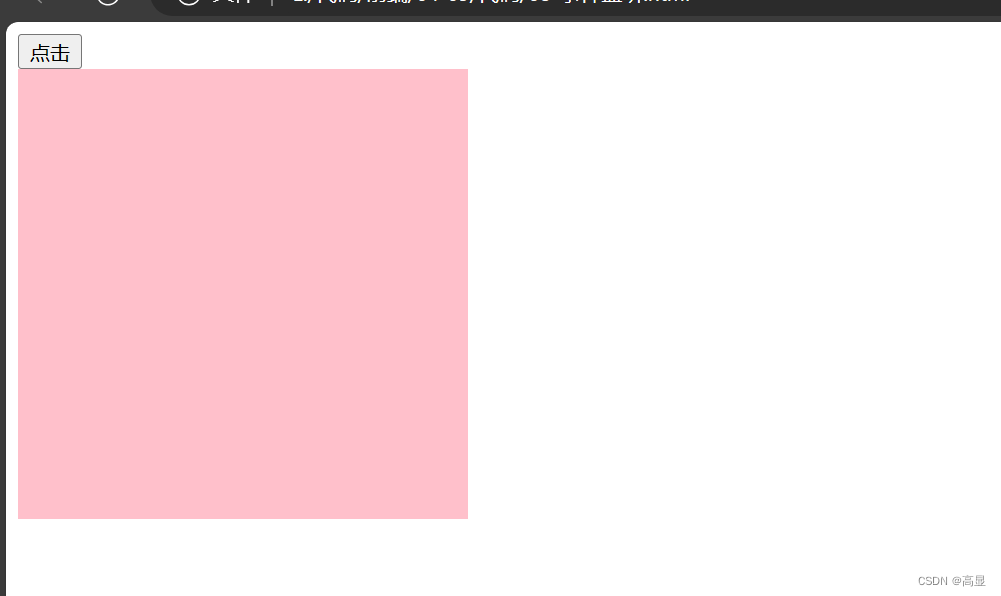
71. Event Listeners
const button = document.querySelector("button");
const box = document.querySelector("div");
function handleClick() {
    alert("Clicked!");
    box.style.display = "none";
}
// Level 0: button.onclick = handleClick;
// Level 1 (preferred):
button.addEventListener("click", handleClick);
// To remove:
button.removeEventListener("click", handleClick);
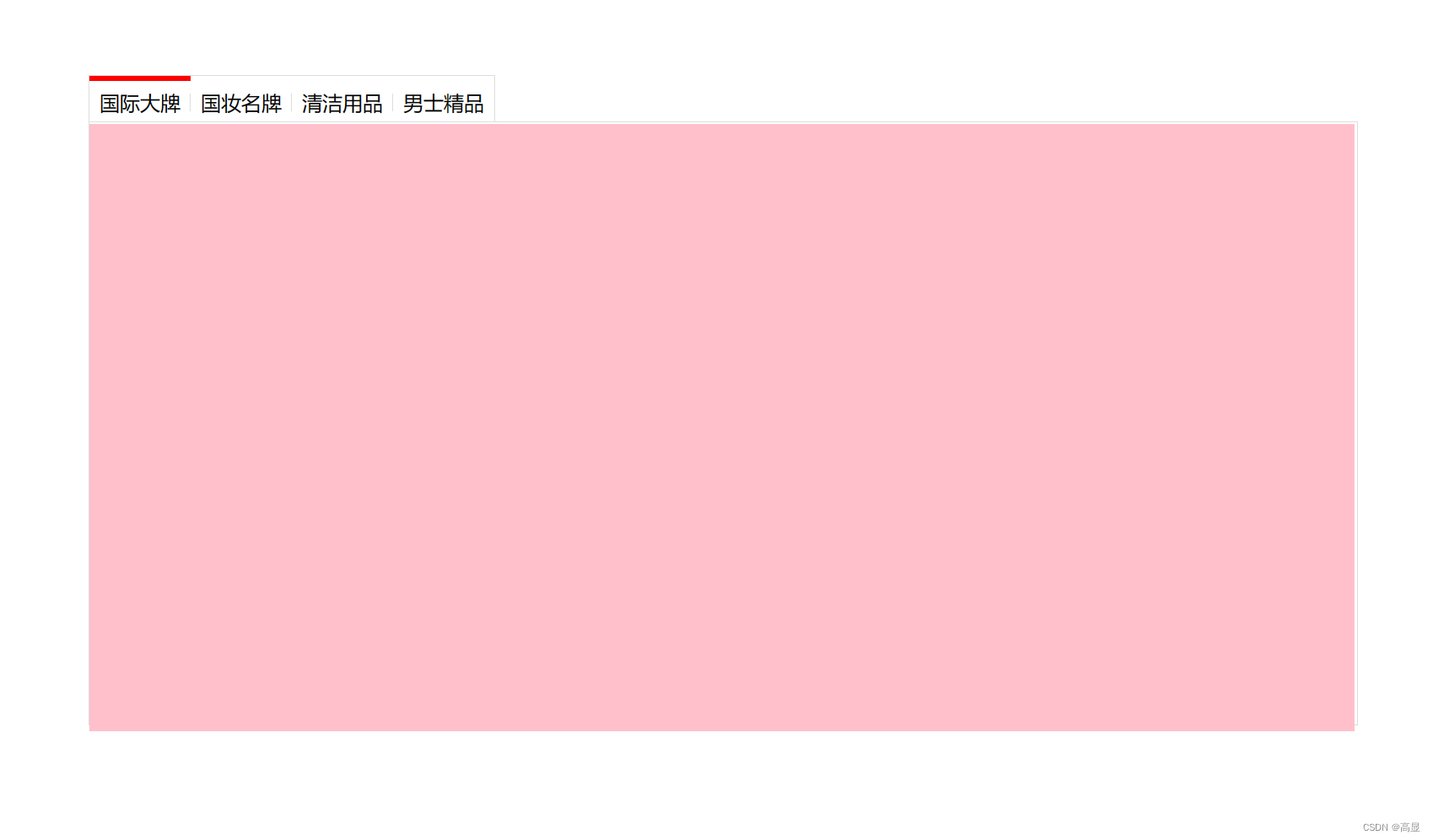
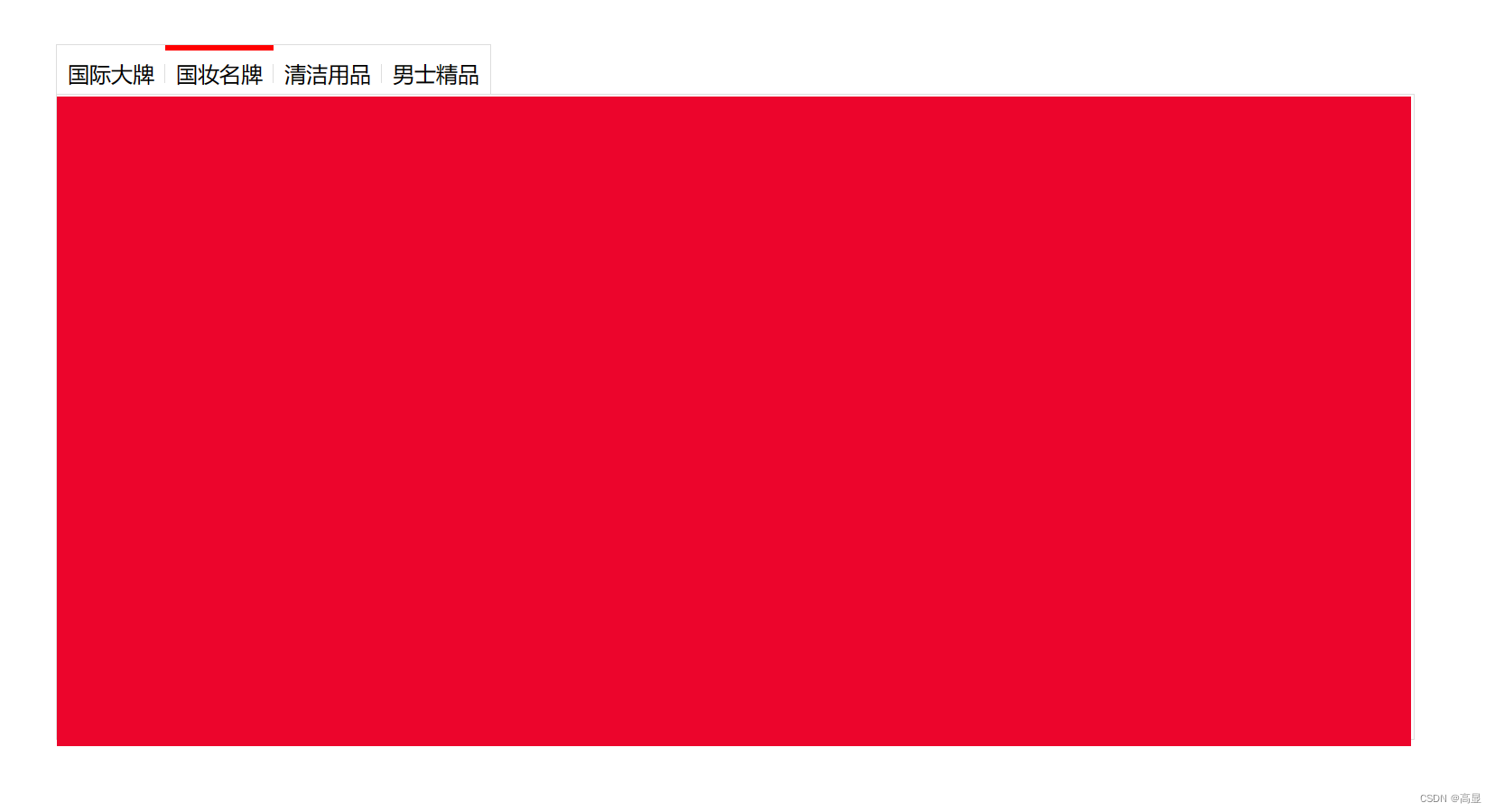
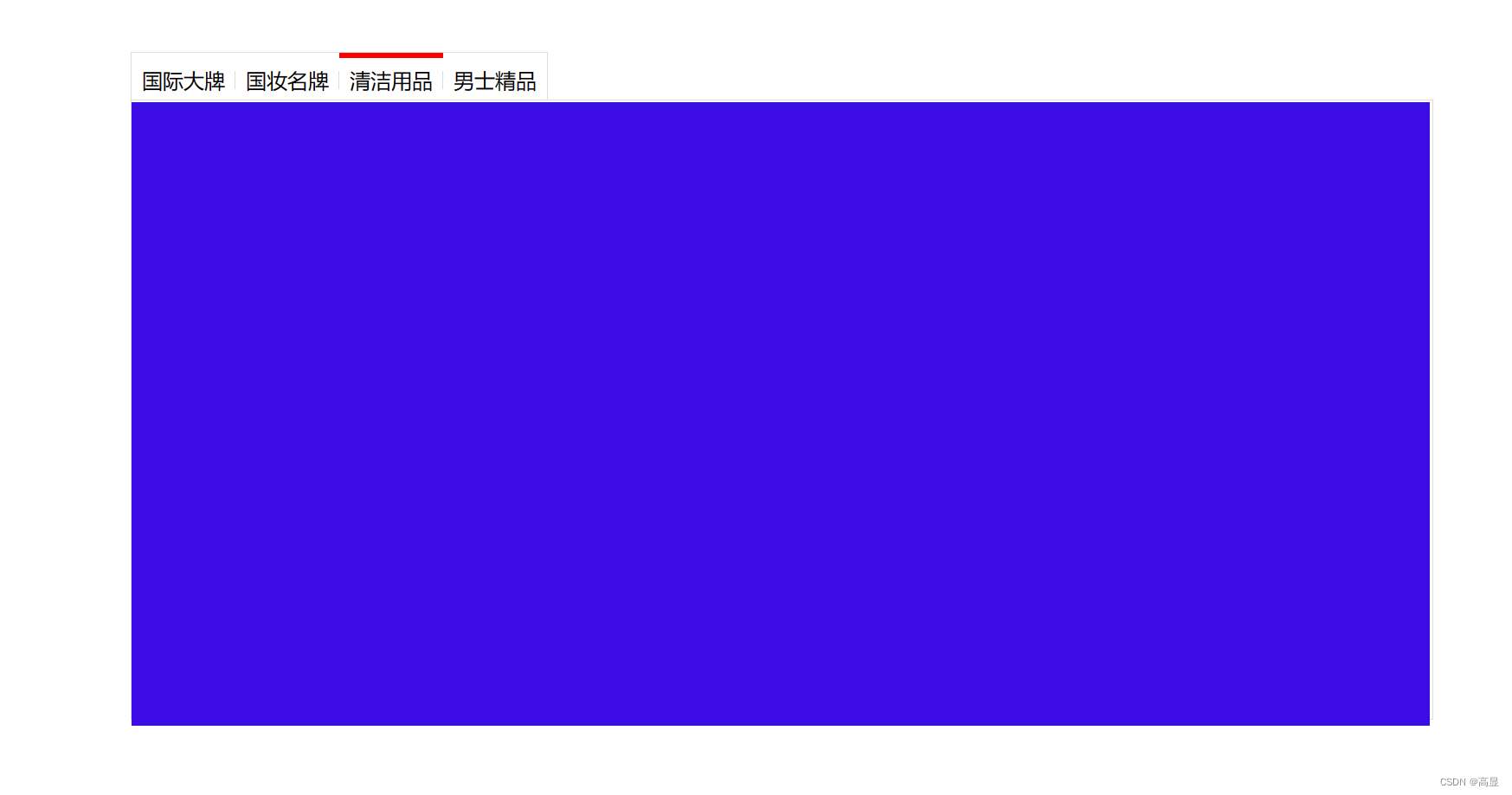
72. Tab Switch Example
<div class="wrapper">
  <ul class="tab">
    <li class="tab-item active">Tab 1<span>◆</span></li>
    <li class="tab-item">Tab 2<span>◆</span></li>
    <li class="tab-item">Tab 3<span>◆</span></li>
    <li class="tab-item">Tab 4</li>
  </ul>
  <div class="products">
    <div class="main active">Content 1</div>
    <div class="main">Content 2</div>
    <div class="main">Content 3</div>
    <div class="main">Content 4</div>
  </div>
</div>

<style>
  /* Base styles */
  .tab li { cursor: pointer; }
  .tab li.active { border-color: red; }
  .main { display: none; }
  .main.active { display: block; }
</style>

<script>
  let tabs = document.querySelectorAll(".tab .tab-item");
  let panels = document.querySelectorAll(".products .main");
  for (let i = 0; i < tabs.length; i++) {
    tabs[i].addEventListener("click", function() {
      // Remove active from current tab and panel
      document.querySelector(".tab .active").classList.remove("active");
      document.querySelector(".products .active").classList.remove("active");
      // Add active to clicked tab and corresponding panel
      tabs[i].classList.add("active");
      panels[i].classList.add("active");
    });
  }
</script>