Introduction
This article explains Docker network configuration.
Official Documentation: https://docs.docker.com/engine/reference/commandline/network/
Default Network Settings
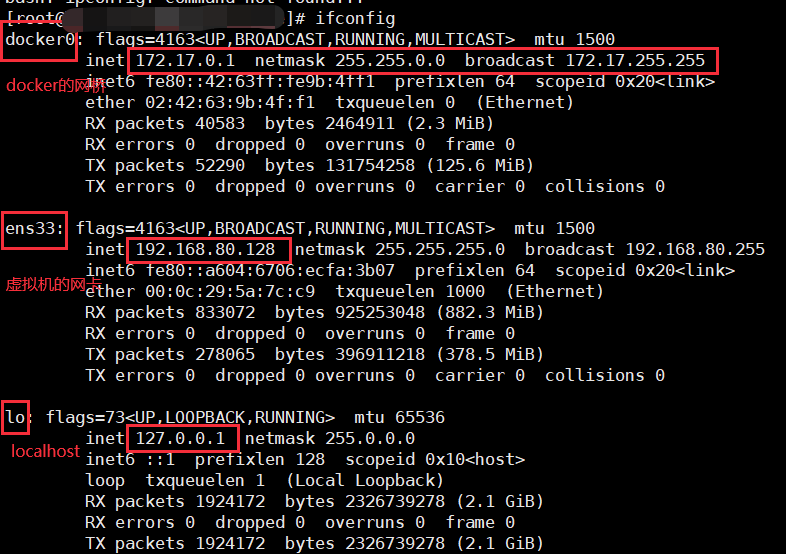
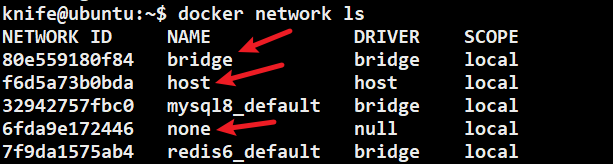
When Docker starts, it creates a virtual bridge named docker0 and three default networks: bridge, host, and none.
| Network Mode | Description |
|---|---|
| bridge | Assigns IP, etc. to each container and connects them to the docker0 virtual bridge. Default mode. |
| host | The container does not create its own network interface or IP; it uses the host's IP and ports. |
| none | The container has an independent network namespace but no network configuration (e.g., no veth pair, no bridge connection, no IP). |
| container | The new container does not create its own network interface or IP; it shares IP and port range with a specified container. |
Specifying network mode (example with bridge):
docker --network bridge
Communication Between Container and Non-Container
Supose there are two applications: A (not Dockerized) and B (Dockerized). Connectivity methods:
A connecting to B:
- Method 1: Specify the docker0 IP and application port in application A:
docker0 IP:container port. Example:http://172.17.0.1:8080
B connecting to A:
- Method 1: Specify the docker0 IP and application port in application B:
http://172.17.0.1:application port. Example:http://172.17.0.1:6379 - Method 2: Specify the host IP and application port in application B:
host IP:application port. Example:http://192.168.80.128:6379
Custom Networks
You can create custom networks using docker network create. Custom networks default to bridge mode.
docker network create my-network
Run two containers on the custom network:
docker run -d -p xxx:xxx --network my-network --name c1 xxx
docker run -d -p xxx:xxx --network my-network --name c2 xxx
From within container c1 or c2, you can ping each other using the container name (not IP) and it succeeds. Custom networks automatically maintain hostname-to-IP mappings.