Introduction to File Operations
What is a File?
Files are used to store data persistently. Example:

Purpose of Files
As the saying goes, " palest ink is better than the best memory." Computers, like humans, can forget data. For instance, a program might spend significant effort calculating a result; without saving it, the data would be lost after a reboot.
Files allow us to store data so that it can be reused later without recalculating or recreating it.
Opening and Closing Files
Consider the process of writing a resume in Word:
- Open Word and create a new file.
- Write the resume content.
- Save the file.
- Close Word.
Similarly, file operations follow a similar pattern:
- Open (or create) a file.
- Read or write data.
- Close the file.
Opening Files
In Python, the open() function is used to open an existing file or create a new one.
open(filename, mode)
Example:
f = open('test.txt', 'w')
File Access Modes
| Mode | Description |
|---|---|
r |
Read-only; file pointer at start (default). |
w |
Write-only; overwrites existing file or creates new one. |
a |
Append; writes at end; creates new file if it doesn't exist. |
rb |
Binary read-only. |
wb |
Binary write-only; overwrites or creates. |
ab |
Binary append; creates new file if missing. |
r+ |
Read/write; file pointer at start. |
w+ |
Read/write; overwrites or creates. |
a+ |
Read/write; append mode (end); creates new file if missing. |
rb+ |
Binary read/write; start. |
wb+ |
Binary read/write; overwrites or creates. |
ab+ |
Binary read/write; append; creates new file if missing. |
Closing Files
Always close a file after use with the close() method.
f = open('test.txt', 'w')
f.close()
Reading and Writing Files
Writing Data: write()
Use write() to write data to a file.
f = open('test.txt', 'w')
f.write('hello world, i am here!')
f.close()
Output:
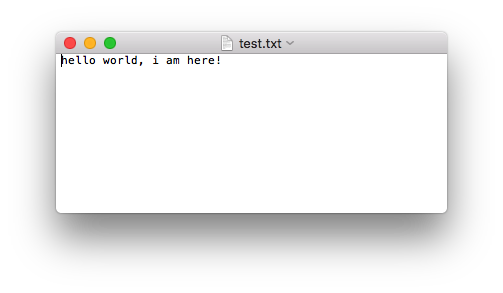
Note: If the file exists, it is overwritten (cleared first). If it does not exist, a new file is created.
Reading Data: read()
read(num) reads up to num bytes. Without argumants, it reads the entire file.
f = open('test.txt', 'r')

content = f.read(5)
print(content)

print('-' * 30)

content = f.read()
print(content)

f.close()

Note:
- If you open a file in read mode, you can omit the mode:
open('test.txt').- Subsequent reads continue from where the previous read stopped.
Reading Lines: readlines()
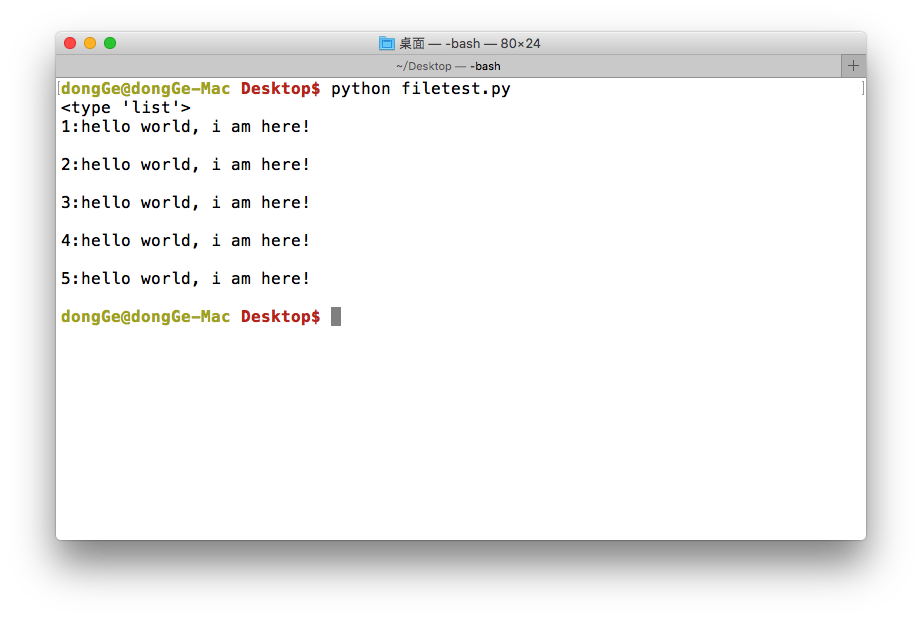
readlines() reads all lines and returns them as a list, each line being a string element (including newline characters).
f = open('test.txt', 'r')
content = f.readlines()

print(type(content))

for i, line in enumerate(content, 1):
    print(f'{i}:{line}')

f.close()
Reading Single Line: readline()
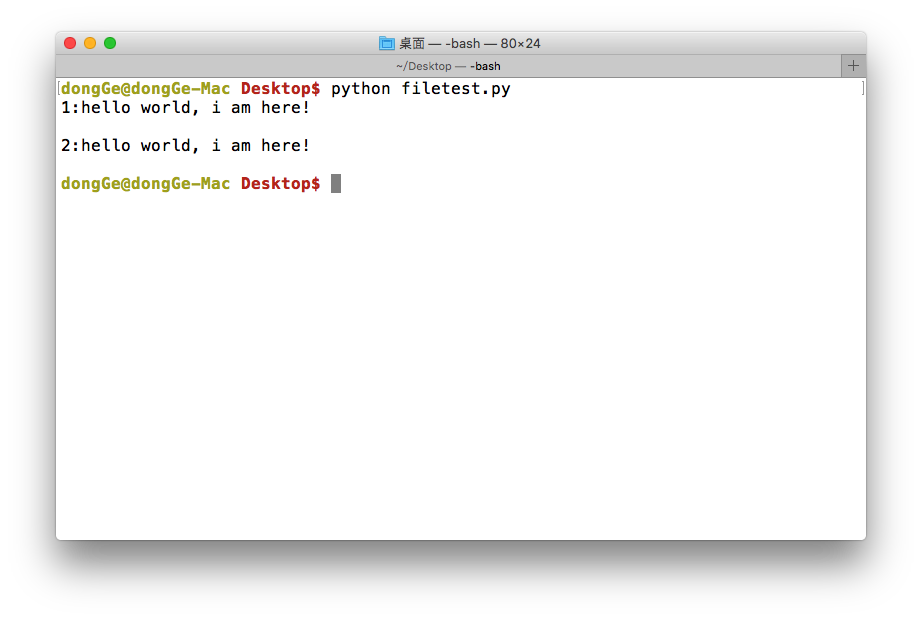
readline() reads one line at a time.
f = open('test.txt', 'r')

print('1:' + f.readline())
print('2:' + f.readline())

f.close()
Handling Large Files
For large files (e.g., 5 GB), reading the entire file into memory is inefficient. Use iteration or read in chunks.
Application: File Backup
Task
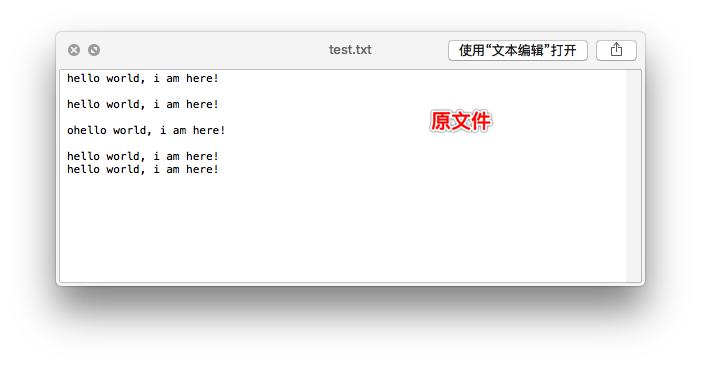
Input a file name, and the program automatically creates a backup copy with a suffix like [backup].
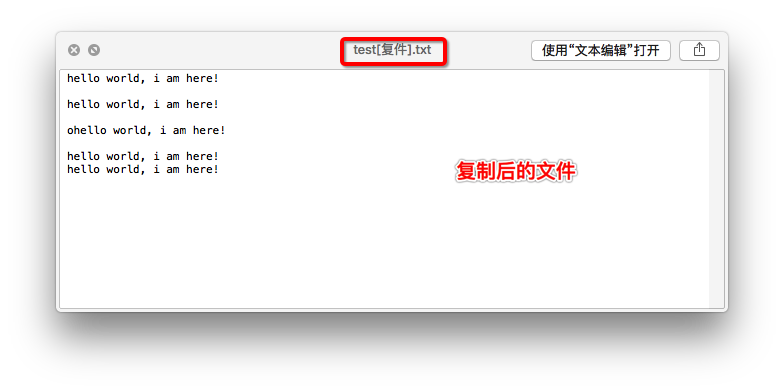
Code
old_filename = input('Enter the file name to copy: ')

with open(old_filename, 'r') as old_file:
    dot_index = old_filename.rfind('.')
    if dot_index > 0:
        extension = old_filename[dot_index:]
        new_filename = old_filename[:dot_index] + '[backup]' + extension
    else:
        new_filename = old_filename + '[backup]'

    with open(new_filename, 'w') as new_file:
        for line in old_file:
            new_file.write(line)
Random Access: tell() and seek()
Getting Current Position: tell()
f = open('test.txt', 'r')
data = f.read(3)
print(f'Read data: {data}')
position = f.tell()
print(f'Current position: {position}')

data = f.read(3)
print(f'Read data: {data}')
position = f.tell()
print(f'Current position: {position}')

f.close()
Seeking to a Position: seek(offset, whence)
offset: number of bytes to move.whence: reference point.0: beginning of file1: current position2: end of file
Example: Seek from beginning
f = open('test.txt', 'r')
data = f.read(30)
print(f'Read data: {data}')

position = f.tell()
print(f'Current position: {position}')

f.seek(5, 0)  # Move to 5th byte from beginning

position = f.tell()
print(f'Current position: {position}')

f.close()
Example: Seek from end
f = open('test.txt', 'r')

position = f.tell()
print(f'Current position: {position}')

f.seek(-3, 2)  # Move to 3 bytes before end

data = f.read()
print(f'Read data: {data}')

f.close()
Renaming and Deleting Files
Use the os module for file system operations.
Renaming a File
import os
os.rename('thesis.txt', 'thesis_final.txt')
Deleting a File
import os
os.remove('thesis.txt')
Folder Operations
The os module also handles directories (folders).
Creating a Folder
import os
os.mkdir('new_folder')
Getting the Current Directory
import os
current_dir = os.getcwd()
Changing the Current Directory
import os
os.chdir('../')
Listing Directory Contents
import os
items = os.listdir('./')
Removing a Folder
import os
os.rmdir('new_folder')
Application: Batch Rename Files
Before and After
Before:

After:

Code: Add or Remove a Prefix
import os

# 1: add prefix, 2: remove prefix
operation = 1
prefix = '[MyBrand]-'
folder = './renameDir/'

file_list = os.listdir(folder)

for name in file_list:
    if operation == 1:
        new_name = prefix + name
    elif operation == 2:
        new_name = name[len(prefix):]

    os.rename(os.path.join(folder, name), os.path.join(folder, new_name))