Overview
This article covers the core concepts of MySQL's transaction logs: redo log and bin log, focusing on the InnoDB storage engine. It explains the execution flow, important configuration parameters, and practical operations for viewing, managing, and recovering data using these logs.
1. InnoDB Storage Engine Execution Flow
1.1 Without a Transaction
- Load a page of the specified data into the buffer pool.
- Modify the data in the buffer pool.
- Update the redo log buffer (record the physical modification, e.g., "changed data at disk offset 0x01918").
- Write to the bin log.
- Write a commit flag to the redo log.
- A background thread in MySQL periodically synchronizes the buffer pool data to disk.
- On startup, MySQL reads the redo log to persist any data not yet written to the corresponding
.ibdfile.
1.2 With a Transaction
- Load a page of the specified data into the buffer pool.
- Modify the data in the buffer pool.
- Write to the undo log file (used for rollback on transaction failure).
- Update the redo log buffer (record physical modifications).
- Write to the bin log.
- Write a commit flag to the redo log.
- The background thread periodically synchronizes the buffer pool to disk.
- On startup, the redo log is used to persist any incomplete writes.
2. The redo log
Redo log improves write performance. When modifying data across different tables (different .ibd files), random disk I/O occurs. By recording all modifications sequentially in a single redo log file, MySQL enables disk sequential writes, improving overall performance.
2.1 Key Configuration Parameters
2.1.1 Buffer Size (innodb_log_buffer_size)
Sets the size of the redo log buffer. The default is 16 MB, with a maximum of 4096 MB and a minimum of 1 MB.
-- View buffer size
SHOW VARIABLES LIKE '%innodb_log_buffer_size%';
2.1.2 File Storage Location (innodb_log_group_home_dir)
Defines the directory for redo log files. The default is './', which is the InnoDB data directory. The files are named ib_logfile0, ib_logfile1, etc.
-- View redo log storage location
SHOW VARIABLES LIKE '%innodb_log_group_home_dir%';
2.1.3 Number of Redo Log Files (innodb_log_files_in_group)
Controls the number of redo log files (named ib_logfile0, ib_logfile1, ... ib_logfileN). The default is 2, with a maximum of 100.
-- View the number of files
SHOW VARIABLES LIKE '%innodb_log_files_in_group%';
2.1.4 Individual File Size (innodb_log_file_size)
Sets the size of each redo log file. The default is 48 MB, with a maximum of 512 GB. Note that the total size (innodb_log_files_in_group * innodb_log_file_size) cannot exceed 512 GB.
-- View individual file size
SHOW VARIABLES LIKE '%innodb_log_file_size%';
2.2 Disk Write Analysis
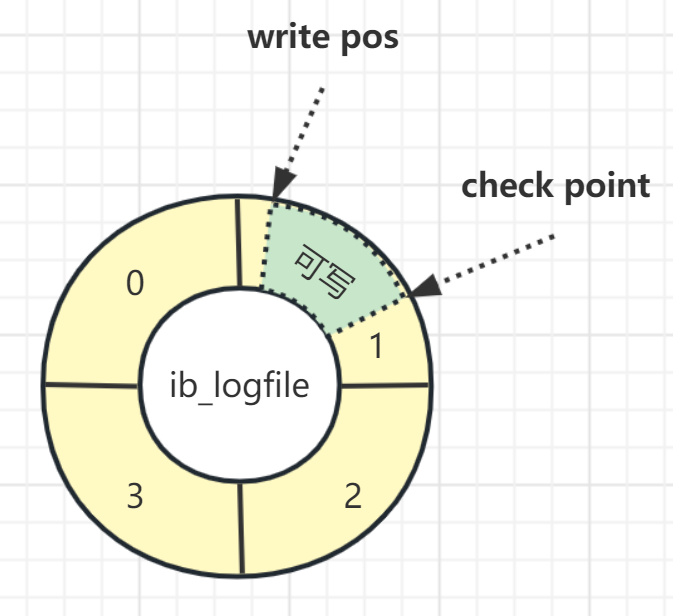
Redo logs use multiple files and write in a circular manner. InnoDB maintains two pointers internally: the write position (write pos) and the persisted position (check point). The offset between these two pointers indicates the writable space. When the pointers meet, MySQL pauses writing, forces persistence of unpersisted content, advances the checkpoint, and then resumes writing.
2.2.1 Write Strategy (innodb_flush_log_at_trx_commit)
This parameter controls how the redo log is written. It has three possible values:
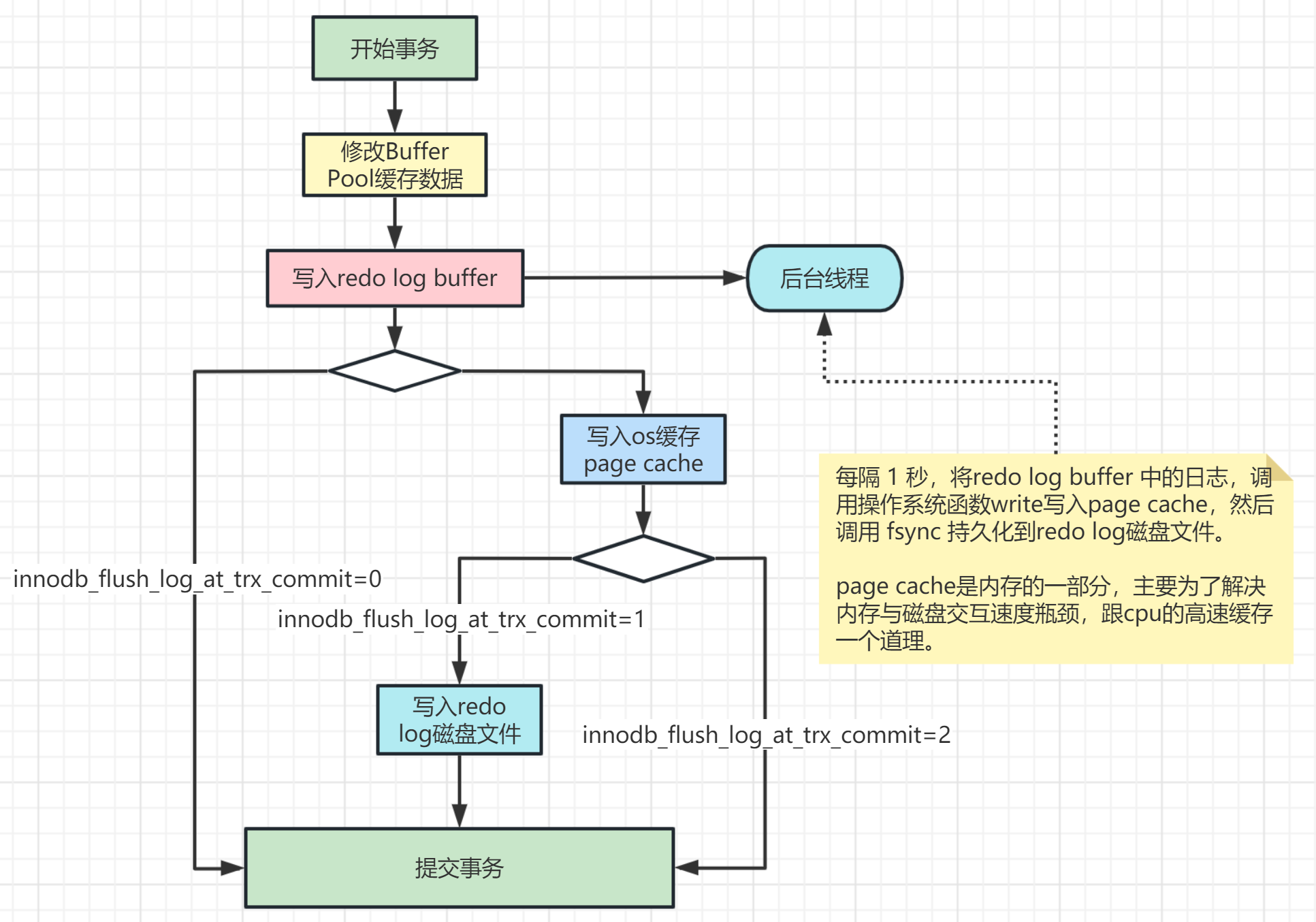
- 0: The redo log is left in the redo log buffer on each transaction commit. A database crash may cause data loss.
- 1 (default): The redo log is directly persisted to disk on each transaction commit. This is the safest option (no data loss on crash) but slightly less efficient. Recommended for production systems.
- 2: The redo log is written to the operating system's page cache on each transaction commit. A database crash does not cause data loss, but an OS crash can cause loss if the data in the page cache hasn't been flushed to disk.
InnoDB has a background thread that, every 1 second, calls write() to move the redo log buffer to the OS page cache, then calls fsync() to persist it to disk.
Page Cache Explanation: Page cache is a part of memory. Since memory is much faster than disk, data is first written to memory before being written to disk. The page cache is a memory area that acts as a buffer; once data is written there, it is logically considered written to disk, but the OS flushes it to disk periodically. If the OS crashes before flushing, the data is lost.
3. The bin log
The binary log (bin log) records all executed data modification statements (not queries). If the MySQL server stops unexpectedly, the binary log can be used for investigation or to recover data by replaying user operations or DDL changes.
Enabling the bin log affects server performance, but the benefits (e.g., point-in-time recovery, replication) usually outweigh the cost. In MySQL 5.7, bin log is disabled by default; in 8.0, it is enabled by default.
To enable bin log, add the following configuration to the [mysqld] section of the MySQL configuraton file (my.ini on Windows, my.cnf on Linux) and restart the server:
# log-bin sets the location; can be absolute or relative. Relative path stores files in the data directory.
log-bin=mysql-binlog
# server-id is a unique identifier for the MySQL server in a cluster. Required for replication.
server-id=1
# Other configurations
binlog_format = row
expire_logs_days = 15  # Auto-delete logs older than 15 days. 0 means no automatic deletion.
max_binlog_size = 200M # Maximum size per binlog file. Default is 1GB.
After restart, the data directory will contain two new files: the actual binlog file and an index file that manages all binlog files.

A new binlog file is created when:
- The server starts or restarts.
- The logs are flushed (command:
FLUSH LOGS). - The file size reaches
max_binlog_size(default 1 GB).
3.1 Viewing the Status
SHOW VARIABLES LIKE '%log_bin%';
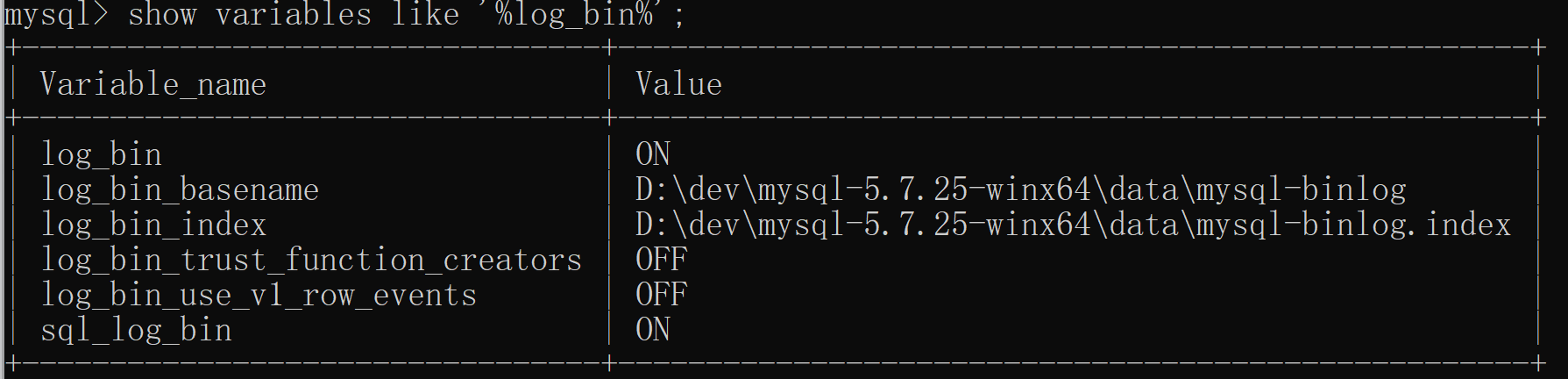
log_bin: Shows if binlog is enabled (ON) or disabled (OFF).log_bin_basename: The base name for binlog files. An identifier is appended (e.g.,.000001).log_bin_index: The path to the binlog index file.sql_log_bin: Controls whether SQL statements are written to the bin log. Set to OFF to execute statements that are not replicated to slaves.
3.2 Key Configuration Parameters
3.2.1 Log Format (binlog_format)
Three formats are available:
- STATEMENT: Logs the SQL statement itself. Low log volume, but non-deterministic functions like
UUID()orSYSDATE()may produce different results on replicas. - ROW: Logs each row change. Solves the non-deterministic function problem, but generates more log data. Example: An
UPDATEaffecting 10 rows logs 10 row changes, versus one SQL statement. - MIXED: Combines the two. MySQL chooses STATEMENT by default but switches to ROW for non-deterministic statements. Recommended.
3.2.2 File Location and Name (log-bin)
log-bin=mysql-binlog
Can be an absolute or relative path. Relative paths are relative to the data directory.
3.2.3 Server ID
server-id=1
A unique identifier for the MySQL server in a cluster environment. This is required for replication.
3.2.4 Expiration Days (expire_logs_days)
expire_logs_days = 15
Controls automatic deletion of binlog files older than the specified number of days. The default is 0 (no automatic deletion). Set this based on your backup strategy; ensure there is no gap between the last backup and the oldest retained binlog.
3.3 Deleting and Resetting Binlog Files
-- Reset all binlog files
RESET MASTER;

-- Delete all binlog files before a specific file (the specified file is kept)
PURGE MASTER LOGS TO 'mysql-binlog.000006';

-- Delete binlog files created before a specific date
PURGE MASTER LOGS BEFORE '2023-01-21 14:00:00';
3.4 Viewing Binlog Contents
Use the mysqlbinlog command-line tool (no MySQL login required):
# View the entire binary log file
mysqlbinlog --no-defaults -v --base64-output=decode-rows /path/to/mysql-binlog.000007

# View with conditions (time and position)
mysqlbinlog --no-defaults -v --base64-output=decode-rows /path/to/mysql-binlog.000007 \
    --start-datetime="2023-01-21 00:00:00" --stop-datetime="2023-02-01 00:00:00" \
    --start-position="5000" --stop-position="20000"
Example output:
# at 4
#230127 21:13:51 server id 1  end_log_pos 123 CRC32 0x084f390f  Start: binlog v 4, server v 5.7.25-log created 230127 21:13:51 at startup
...
# at 219
#230127 21:22:48 server id 1  end_log_pos 291 CRC32 0xbf49de02  Query   thread_id=3     exec_time=0     error_code=0
SET TIMESTAMP=1674825768/*!*/;
BEGIN
/*!*/;
# at 291
#230127 21:22:48 server id 1  end_log_pos 345 CRC32 0xc4ab653e  Table_map: `test`.`account` mapped to number 99
# at 345
#230127 21:22:48 server id 1  end_log_pos 413 CRC32 0x54a124bd  Update_rows: table id 99 flags: STMT_END_F
### UPDATE `test`.`account`
### WHERE
###   @1=1
###   @2='lilei'
###   @3=1000
### SET
###   @1=1
###   @2='lilei'
###   @3=2000
# at 413
#230127 21:22:48 server id 1  end_log_pos 444 CRC32 0x23355595  Xid = 10
COMMIT/*!*/;
This shows the pseudo-SQL statements and execution context.
3.5 Data Recovery
3.5.1 Recovery Using Binlog Files
Recovery can be based on:
- Full file: Recover all contents.
- Position: Each SQL in the binlog has a
BEGINandCOMMIT. Use the offset (at) beforeBEGINand afterCOMMIT. - Time: Specify start and end times.
# Full recovery
mysqlbinlog --no-defaults --database=db_name mysql-binlog.000009 | mysql -u root -p123456 -v db_name

# Position-based recovery
mysqlbinlog --no-defaults --start-position=START_AT --stop-position=END_AT --database=db_name mysql-binlog.000009 | mysql -u root -p123456 -v db_name

# Time-based recovery
mysqlbinlog --no-defaults --start-datetime="2023-01-27 23:32:24" --stop-datetime="2023-01-27 23:34:23" --database=db_name mysql-binlog.000009 | mysql -u root -p123456 -v db_name
3.5.2 Full Database Backup and Recovery
In disaster scenarios (e.g., accidental deletion), if therre was no prior backup and all binlogs are available, you could theoretically restore from the first binlog file onward. However, this is rarely feasible because earlier binlogs are usually deleted due to size constraints.
A better practice is to perform a full backup daily (e.g., after midnight) and retain binlogs since the last backup. To recover, restore the latest full backup, then apply all subsequent binlogs.
Backup using mysqldump:
# Backup an entire database
mysqldump -u root db_name > backup_file.sql

# Backup a single table
mysqldump -u root db_name table_name > backup_file.sql

# Restore a database (the database must exist first)
mysql -u root db_name < backup_file.sql