Introduction
Procedural Languages
Development requires executing steps one by one.
- Performing a task involves outlining steps: what to do first, what to do second; what to do in case A, what to do in case B.
- Suitable for small-scale problems that can be broken down into sequential steps.
- Instruction-centric: data serves instructions.
- Examples: C, Shell.
Object-Oriented Languages
Development treats tasks as a whole.
- Models programming as a real-world entity; for the outside world, the entity is used directly without caring about its internal details. Programming defines what the entity can do.
- A methodology for understanding and analyzing the world, abstracting everything into objects.
- Classes are abstract concepts, representing a set of common characteristics for a category of things.
- Objects are concrete instances of a class.
- Suitable for large-scale, complex systems.
- Data-centric: instructions serve data.
- Examples: Java, Python, Go.
Programming Language Rankings
Reference: https://www.tiobe.com/tiobe-index/
1. What is a Shell?
A Shell is a command interpreter. It resides on the outermost layer of the operating system, directly interacting with the user. It translates user input into instructions for the operating system and processes various output results from the OS, displaying them to the user on the screen. This interaction can be interactive or non-interactive. The commands we input are not directly understood by the computer; a program is needed to translate them into binary code that the computer can process, and simultaneously return the results generated by the computer to us.
2. The Role of a Shell
2.1 What Does a Shell Do?
In a Linux system, the Shell is a special application that sits between the OS kernel and the user, functioning as a "command interpreter." It receives user input commands, interprets them, passes the required operations to the kernel for execution, and displays the results.
There are many different Shell interpreter programs. When using different Shells, there might be differences in internal commands, command prompt styles, etc. The file /etc/shells lists the types of Shell scripts supported by the current system.
[root@localhost ~]# cat /etc/shells
/bin/sh   # Symbolic link to bash command (replaced by /bin/bash)
/bin/bash    # Shell developed under the GNU framework.
/usr/bin/sh   # Replaced by bash.
/usr/bin/bash   # Default shell for CentOS and RedHat systems
/bin/tcsh   # Enhanced version of csh, fully compatible with csh, integrates csh with more features.
/bin/csh   # Replaced by /bin/bash (integrates C Shell, provides more functionality).
Note: nologin is a special shell that prevents users from logging into the system. bash (/bin/bash) is the default Shell for most Linux distributions.
Why does the system need to list valid shells in /etc/shells?
This is because some system services check the user's allowed shells during operation, and they query this via the /etc/shells file.
2.2 What is a Shell Script?
A Shell script is essentially a file containing Linux commands or statements. When we execute this program file, we call it a Shell script or Shell program. We can put a series of commands and related syntax statements (like variables, flow control statements, etc.) into the script, combining them organically to form a powerful Shell script.
In summary: it's a text file that stores commands to be executed in sequence. It does not require compilation; it is interpreted.
2.3 What Can Shell Scripts Do?
- Automate software installation and deployment, e.g., installing and configuring a LAMP stack.
- Automate system administration tasks, e.g., adding users in bulk.
- Automate backup processes, e.g., scheduled database backups.
- Automate analysis and processing, e.g., analyzing website traffic.
2.4 When to Use Shell Scripts?
When dealing with a large number of complex, repetitive tasks, instead of typing commands repeatedly in the terminal, you can directly run a Shell script, saving significant time and improving efficiency.
2.5 How to Learn Shell Scripting
- Master various Linux commands.
- Learn the standard format for scripts.
- Grasp the basic syntax of scripting.
3. Structure of a Shell Script
- The first line is
#!/bin/bash, the shebang (declaration of the default interpreter): it indicates that the code below will be executed by the/bin/bashprogram. Other interpreters exist, like#!/usr/bin/python,#!/usr/bin/expect. - Comment lines: lines starting with
#are comments and will not be executed. - Executable statements: such as
echocommands, used to output strings enclosed in quotation marks.
3.1 Writing a Script
3.1.1 Example 1
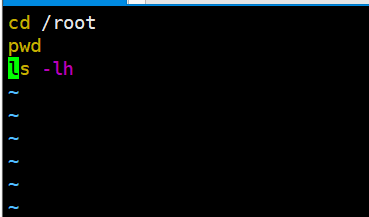
Create a script file named first.sh:
vim first.sh

cd /boot/
pwd
ls -lh vml*
3.1.2 Example 2
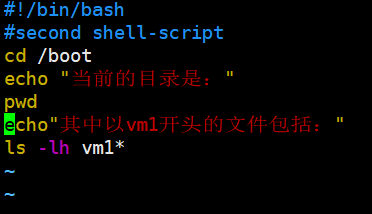
Create a script file named first.sh:
#!/bin/bash
# This is my first Shell-Script.
cd /boot
echo "The current directory is:"
pwd
echo "Files starting with vml include:"
ls -lh vml*
3.2 Steps to Create a Shell Program
3.2.1 Step 1: Create a file containing commands and control structures.
3.2.2 Step 2: Modify the file's permissions to make it executable.
chmod +x test.sh

3.2.3 Step 3: Check for syntax errors.
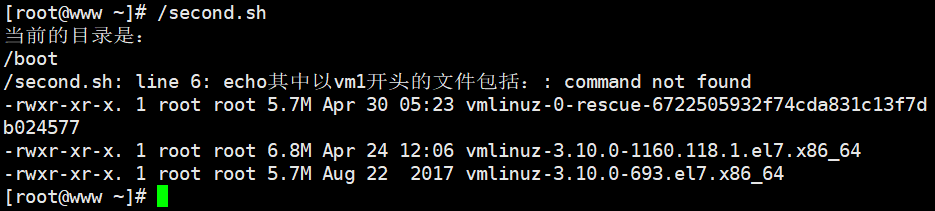
3.2.4 Step 4: Execute the script.
./first.sh
3.3 Ways to Execute a Shell Script
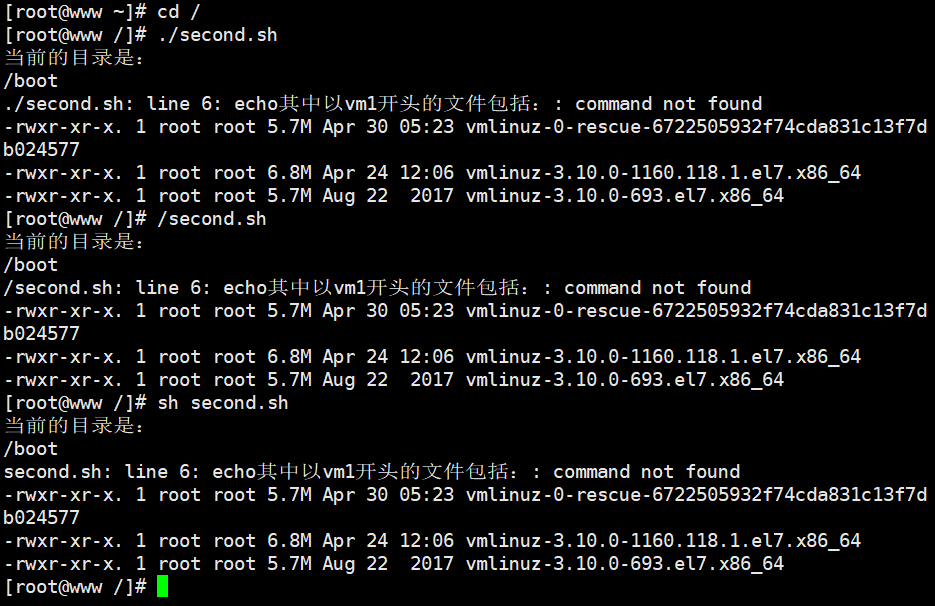
3.3.1 Method 1: Execute the script using its path (requires execute permission)
/home/first.sh
# or
./first.sh

3.3.2 Method 2: Use sh or bash command (does not require execute permission on the script file)
bash first.sh
# or
sh first.sh
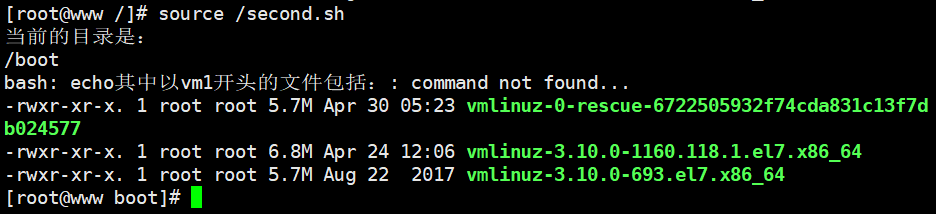
3.3.3 Method 3: Use the source command (also does not require execute permission)
source first.sh
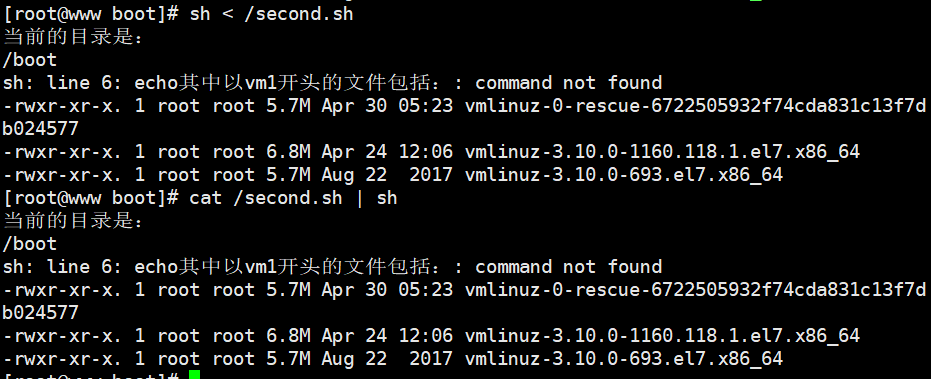
3.3.4 Method 4: Other methods (e.g., using input redirection or pipe)
sh < first.sh
# or
cat first.sh | sh (or bash)
4. Redirection and Pipes
4.1 Redirection
When users interact with the operating system, several standard device files are used:
- Standard Input (STDIN): Default is the keyboard, device file
/dev/stdin, file descriptor 0. Commands read input data from this file during execution. - Standard Output (STDOUT): Default is the display, device file
/dev/stdout, file descriptor 1. Commands send their execution results to this file. - Standard Error (STDERR): Default is the display, device file
/dev/stderr, file descriptor 2. Commands send error messages to this file.
Typically, the system reads user commands from the keyboard and displays the results or errors on the screen.
4.1.1 Interactive Hardware Devices
- Standard Input: Receives user input data.
- Standard Output: Sends output data to the user.
- Standard Error: Reports error information.
4.1.2 Redirection Meaning
Redirection means sending output to a different destination (like a file or another device) instead of the default one (the screen).
| Type | Operator | Purpose |
|---|---|---|
| Input Redirection | < |
Reads data from a specified file instead of the keyboard. |
| Output Redirection | 1> (or >) |
Saves standard output to a file (overwrites existing content). |
| Output Redirection (append) | >> |
Appends standard output to the end of a file. |
| Error Redirection | 2> |
Saves standard error to a file (overwrites). |
| Error Redirection (append) | 2>> |
Appends standard error to a file. |
| Combined Output | &> |
Redirects both standard output and standard error to the same file. |
4.1.3 Output Redirection
Output redirection saves the normal output of a command to a specified file instead of displaying it on the screen. It uses the > or >> operators for overwriting or appending, respectively. If the target file does not exist, it will be created.
>: Overwrites the target file with new content.>>: Appends new content to the target file without overwriting existing content.
Example 1
uname -p > kernel.txt
Check the result:
cat kernel.txt

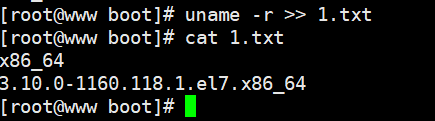
Example 2
uname -r >> kernel.txt
Check the result:
cat kernel.txt
4.1.4 Input Redirecsion
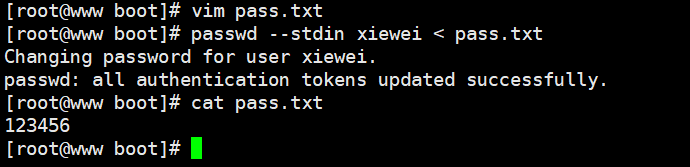
Input redirection changes the source of input for a command from the default keyboard to a specified file. It uses the < operator. This allows interactive processes to be automated by reading from a file. For example, setting a password with passwd can be simplified.
Example 1
Create a file pass.txt with the password string, then use it as input:
echo "123456" > pass.txt
passwd --stdin jerry < pass.txt
Example 2
[root@localhost ~]# cat 1.txt
1234
1234

[root@localhost ~]# cat < 1.txt
1234
1234
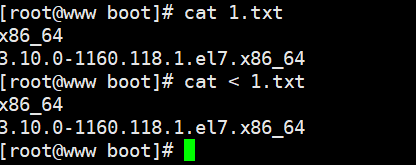
By default, cat reads from standard input (keyboard). When a file is used for input, it reads from that file instead.
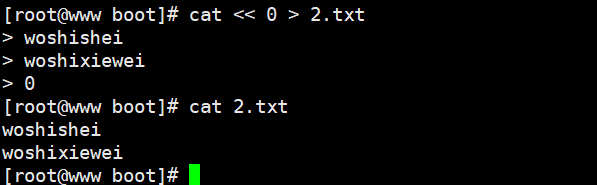
Using a here-document:
[root@localhost ~]# cat <<0
> 123
> 456
> 0
123
456

[root@localhost ~]# cat << 0 > a.txt
> 123
> 456
> 0

[root@localhost ~]# cat a.txt
123
456
4.1.5 Error Redirection
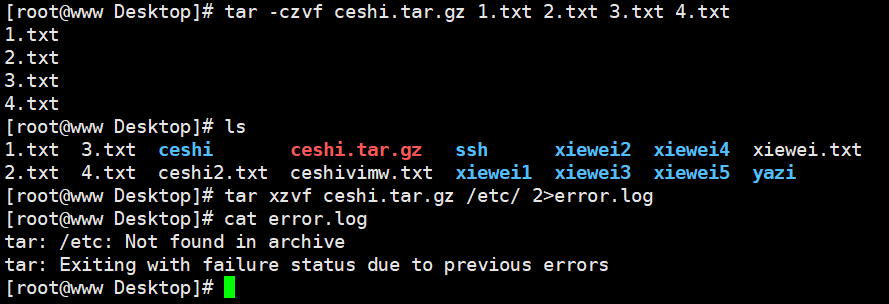
Error redirection saves error messages (e.g., invalid options or parameters) to a specified file instead of displaying them. It uses the 2> operator.
Benefits:
- Collect error information for debugging purposes.
- Discard unimportant errors by redirecting them to
/dev/null, keeping the script output clean.
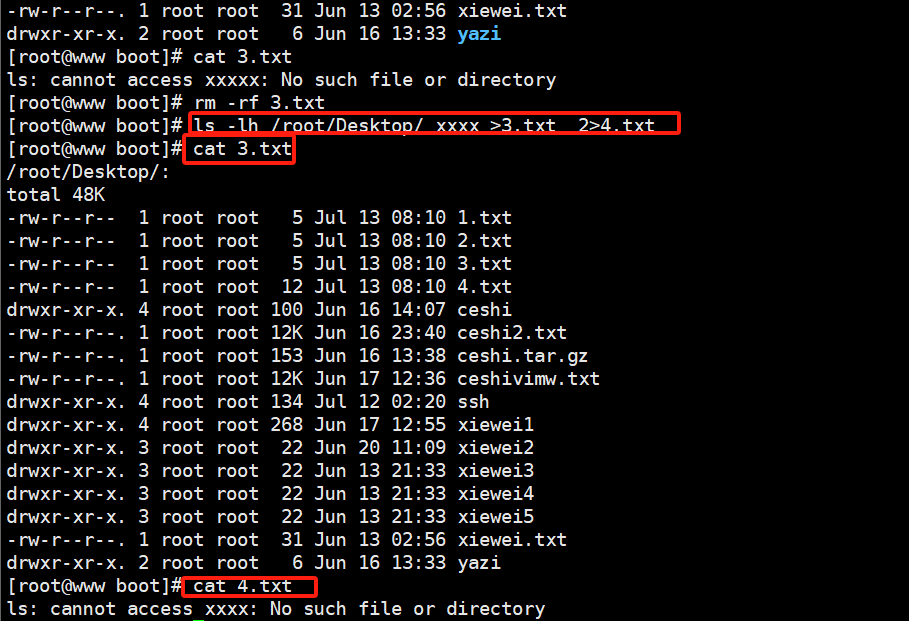
Using 2> overwrites the target file. To append, use 2>>.
When a command produces both standard output and error output, you can separate them using > and 2>, or combine them using &>.
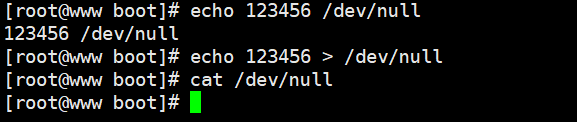
/dev/null is like a "black hole"; anything written to it is discarded forever. Reading from it returns nothing. It's very useful in scripts.
echo kgc > /dev/null
cat /dev/null  # shows nothing
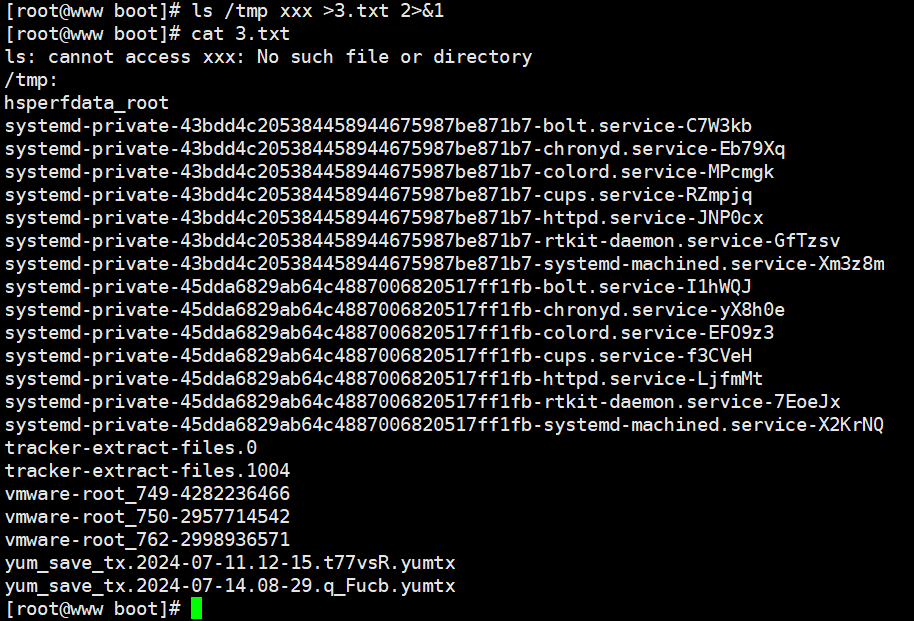
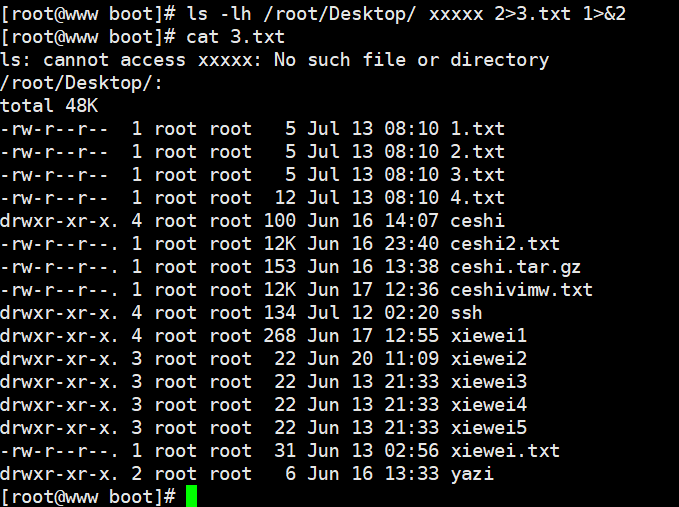
The &> and >& operators:
&>combines both stdout and stderr into the same destination.1>&2redirects standard output to standard error.2>&1redirects standard error to standard output.
ls /tmp xxxx >1.txt 2>&1
# or
ls /tmp xxxx 2>2.txt 1>&2
Example 1: Separating stdout and stderr
ls /etc/passwd xxx
ls: cannot access xxx: No such file or directory
/etc/passwd

ls /etc/passwd xxx > a.txt
ls: cannot access xxx: No such file or directory
(cat a.txt shows /etc/passwd)

ls /etc/passwd xxx 2> a.txt
/etc/passwd
(cat a.txt shows error)
Note: 2> overwrites; use 2>> to append.
Example 2: Collecting errors
tar jcf /nonedir/etc.tgz /etc/ 2> error.log
cat error.log
Example 3: Silencing output during compilation
#!/bin/bash
# Script to automatically compile and install httpd
cd /usr/src/httpd-2.4.25/
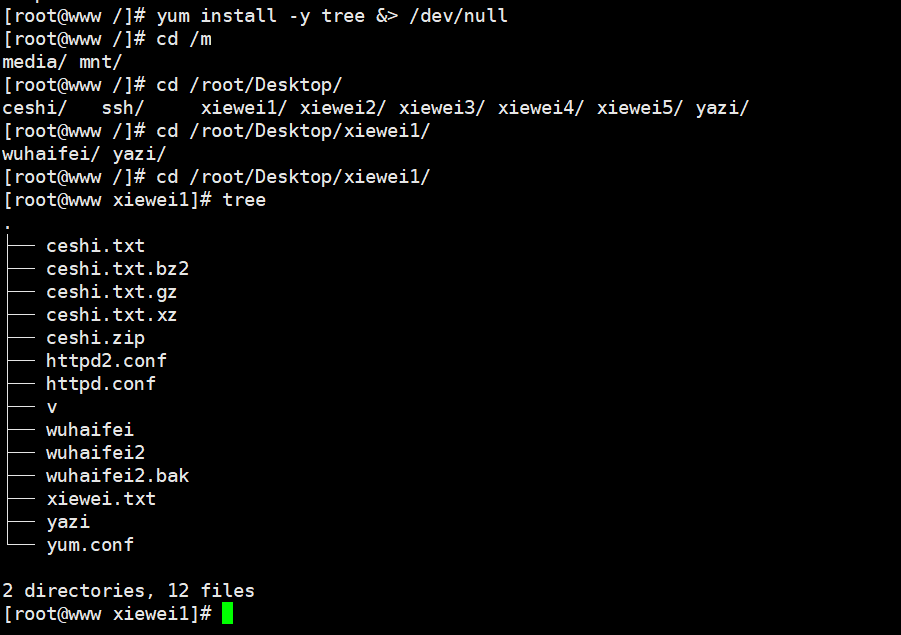
./configure --prefix=/usr/local/httpd --enable-so &> /dev/null
make &> /dev/null
make install &> /dev/null  # Equivalent to make install > /dev/null 2>&1
4.2 Pipe Operations
Pipes provide a mechanism for different commands to work together. The output of the command on the left side of the pipe symbol | becomes the input for the command on the right side. Multiple pipes can be used in a single line. In Shell scripts, pipes are often used to filter essential information.
$ bash  # $ is the prompt for a regular user; # is for the superuser (root)
# Running 'bash' starts a subshell (bash in this example)
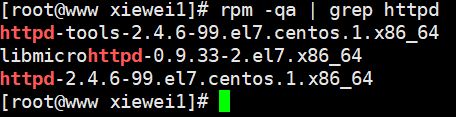
4.2.1 Example 1
rpm -qa | grep httpd
4.2.2 Example 2
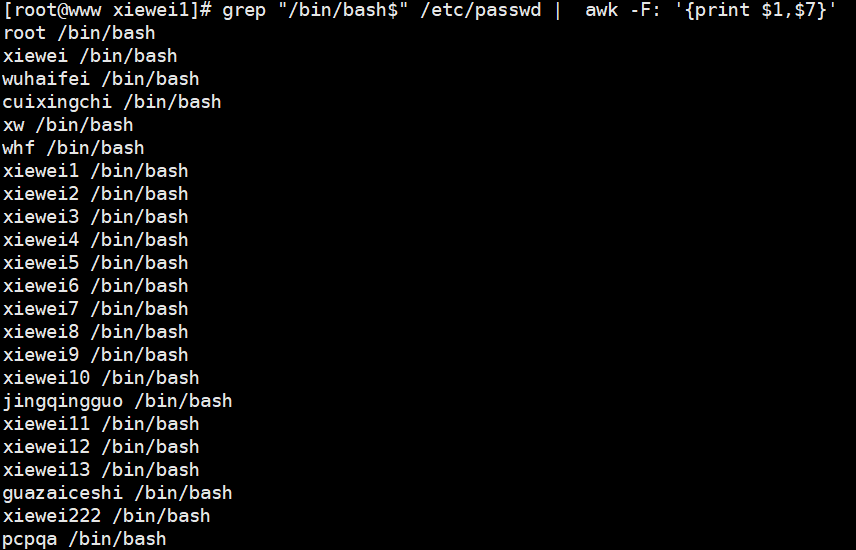
grep "/bin/bash$" /etc/passwd | awk -F: '{print $1,$7}'
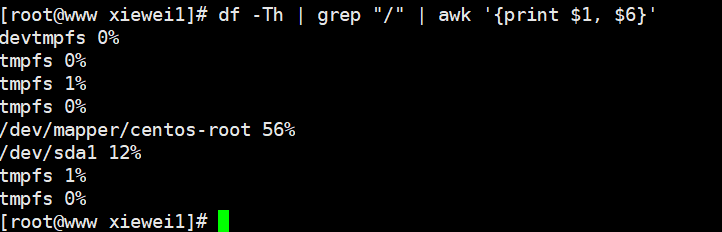
df -hT | grep "/$" | awk '{print $6}'

5. Extended Topics
5.1 Command Breakdown
5.1.1 grep "/bin/bash$" /etc/passwd | awk -F: '{print $1,$7}'
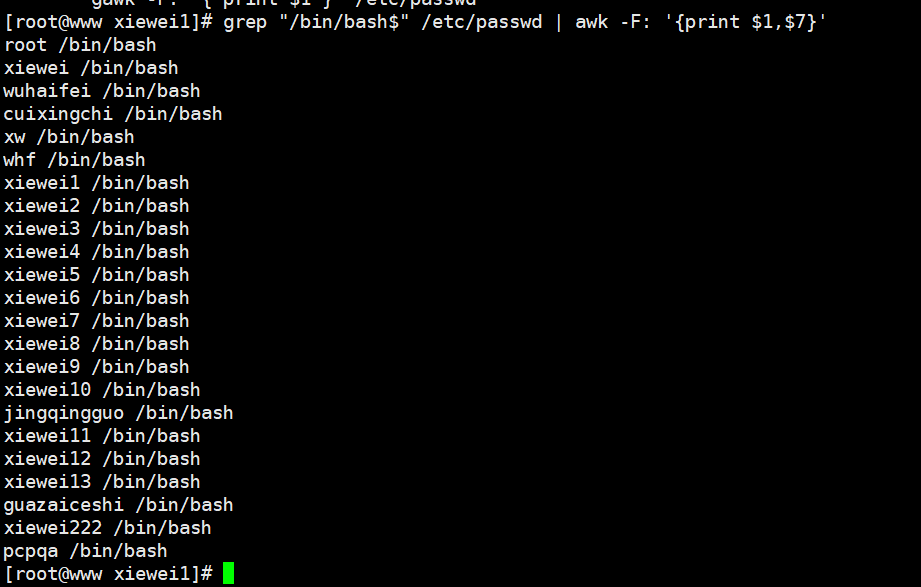
This command combination finds users whose default shell is /bin/bash and prints their username and shell path.
Explanation
grep "/bin/bash$" /etc/passwd: Searches/etc/passwdfor lines ending with/bin/bash. The$anchors the pattern to the end of the line.awk -F: '{print $1,$7}': Takes the output ofgrepand usesawkwith colon (:) as the field separator (-F:). It prints the first field (username) and the seventh field (default shell path).
Example Output
root /bin/bash
user1 /bin/bash
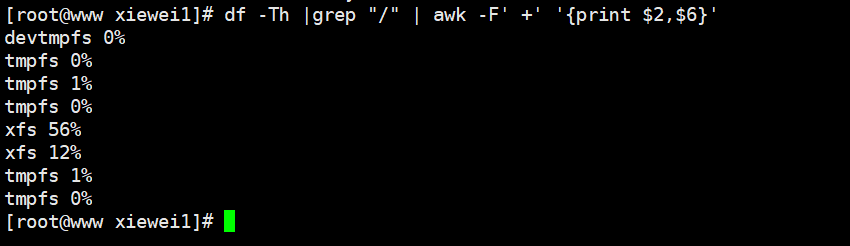
5.1.2 df -hT | grep "/$" | awk '{print $6}'
This command finds the usage percentage of the root filesystem (/).
Explanation
df -hT: Displays disk space usage in human-readable format with file system type.grep "/$": Filters the output to find the line corresponding to the root filesystem (line ending with/).awk '{print $6}': Prints the sixth field, which is the usage percentage.
Example Output
20%
5.1.3 Detailed Explanation of awk
awk is a powerful text-processing tool that can filter, format, and transform output from files or commands.
Basic Syntax
awk [options] 'program' file
Common Options
-F fs: Sets the field separator tofs.-v var=value: Defines a variablevarwith the valuevalue.
Program Structure
The awk program consists of patterns and actions:
pattern { action }
pattern: Condition to match input lines.action: Commands to execute on lines matching the pattern.
Common Built-in Variables
FS: Input field separator (default: space or tab).NF: Number of fields in the current record.NR: Total number of records (lines) processed so far.FNR: Number of records processed in the current file.OFS: Output field separator (default: space).ORS: Output record separator (default: newline).
Field Referencing
awk uses $ to reference fields: $1 for the first field, $2 for the second, and so on. $0 represents the entire line.
Examples
# Print every line in a file
awk '{print}' filename

# Print the first and third columns
awk '{print $1, $3}' filename

# Print the first two columns using colon as separator
awk -F: '{print $1, $2}' filename

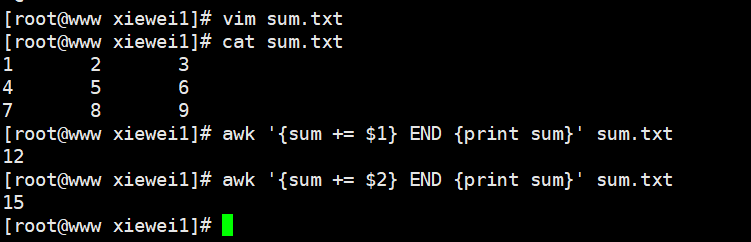
# Calculate the sum of all values in the first column
awk '{sum += $1} END {print sum}' filename