1. Directives
Directives are special attributes with the v- prefix, each providing different functionality.
v-html: Dynamically sets innerHTML of an element.v-showandv-if: Control element visibility.v-showtoggles thedisplayproperty, whilev-ifadds/removes the element from the DOM. Usev-showfor frequent toggling.v-elseandv-else-if: Used in conjunction withv-if.v-on: Binds events. Shorthand:@event="functionName". If the function has parameters:@event="functionName(param1, param2)".v-bind: Dynamically sets element attributes. Shorthand::attribute="value".v-for: Renders elements based on an array or object. Syntax:v-for="item in items"orv-for="(item, index) in items". Always use a unique:keyattribute, preferably an id, not index.v-model: Two-way data binding, primarily with form elements.
Example: Score Display with Buttons
<div id="app">
    <p v-if="grade >= 90">Excellent</p>
    <p v-else-if="grade >= 80">Good</p>
    <p v-else>Needs Improvement</p>
    <p>Score: {{ grade }}</p>
    <button @click="increase">+</button>
    <button @click="decrease">-</button>
</div>
<script>
new Vue({
    el: '#app',
    data: {
        grade: 90
    },
    methods: {
        increase() {
            this.grade++;
        },
        decrease() {
            this.grade--;
        }
    }
});
</script>

Example: Image Gallery
<!DOCTYPE html>
<html>
<head>
    <meta charset="UTF-8">
    <title>Gallery</title>
    <script src="../vue2.js"></script>
    <style>
        img {
            width: 100px;
            height: 100px;
        }
    </style>
</head>
<body>
<div id="app">
    <button v-show="currentIndex > 0" @click="prev">Prev</button>
    <img :title="images[currentIndex]" alt="">
    <button v-show="currentIndex < images.length - 1" @click="next">Next</button>
</div>
<script>
new Vue({
    el: '#app',
    data: {
        images: [1, 2, 3, 4, 5, 6],
        currentIndex: 0
    },
    methods: {
        prev() {
            this.currentIndex--;
        },
        next() {
            this.currentIndex++;
        }
    }
})
</script>
</body>
</html>

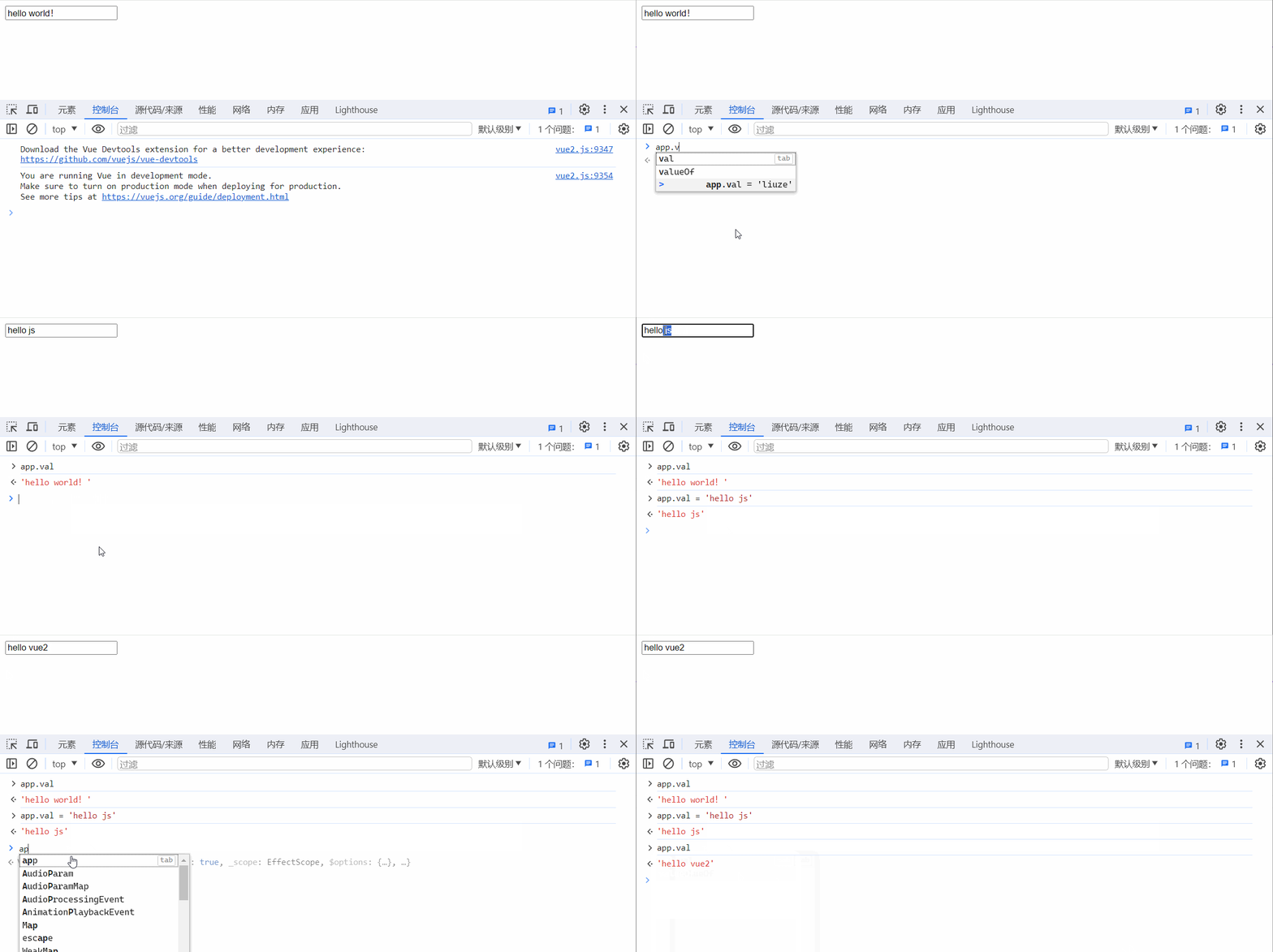
Example: v-model with Input
<div id="app">
    <input type="text" v-model="message">
</div>
<script>
new Vue({
    el: '#app',
    data: {
        message: 'Hello World!'
    }
});
</script>
1.1 Directive Modifiers
Modifiers are appended with a dot to specify additional behavior.
@keyup.enter: Listen for Enter key.v-model.trim: Trim whitespace.v-model.number: Convert to number.@click.stop: Stop event propagation.@click.prevent: Prevent default behavior.
1.2 v-bind for Style Enhancement
- Binding class:
:class="object/array"- Object: keys are class names, values are booleans. If true, the class is applied. Useful for toggling a single class.
- Array: all class in the array are applied. Useful for bulk adding/removing.
<!DOCTYPE html>
<html>
<head>
    <style>
        .highlight { background-color: red; }
        .alternate { background-color: blue; }
    </style>
</head>
<body>
<div id="app">
    <p :class="{highlight: true}">Hello World!</p>
    <p :class="['alternate']">Hello World! 2</p>
</div>
<script>
new Vue({
    el: '#app'
});
</script>
</body>
</html>

- Binding style:
:style="styleObject"Example::style="{width: '300px'}"For hyphenated properties likebackground-color, use quotes or camelCase:'background-color'orbackgroundColor.
Example: Progress Bar
<!DOCTYPE html>
<html>
<head>
    <style>
        .progress-bar {
            width: 200px;
            height: 30px;
            border-radius: 25px;
            border: 1px solid black;
        }
        .progress-fill {
            height: 100%;
            background-color: blue;
            border-radius: 25px;
            line-height: 30px;
            text-align: center;
            transition: all 0.6s;
        }
    </style>
</head>
<body>
<div id="app">
    <div class="progress-bar">
        <div class="progress-fill" :style="{width: progressWidth}">{{ progressWidth }}</div>
    </div>
    <br>
    <button @click="setWidth('20%')">20%</button>
    <button @click="setWidth('40%')">40%</button>
    <button @click="setWidth('60%')">60%</button>
</div>
<script>
new Vue({
    el: '#app',
    data: {
        progressWidth: '40%'
    },
    methods: {
        setWidth(width) {
            this.progressWidth = width;
        }
    }
});
</script>
</body>
</html>

1.3 v-model with Other Form Elements
<div id="app">
    Input: <input type="text" v-model="inputVal"><br>
    Checkbox: <input type="checkbox" v-model="isChecked"><br>
    Radio: 1 <input type="radio" name="radioGroup" value="1" v-model="radioVal">
           2 <input type="radio" name="radioGroup" value="2" v-model="radioVal"><br>
    Select:
    <select v-model="selectVal">
        <option value="1">1</option>
        <option value="2">2</option>
    </select><br>
    Textarea: <textarea v-model="textareaVal"></textarea>
</div>
<script>
new Vue({
    el: '#app',
    data: {
        inputVal: '',
        isChecked: true,
        radioVal: '1',
        selectVal: '2',
        textareaVal: ''
    }
});
</script>
2. Computed Propetries
Computed property are derived from existing data and are recalculated automatically when dependencies change. They are declared in the computed option and used like regular properties.
Example: Sum of Array
<body>
<div id="app">
    <p>{{ numbers }}</p>
    <p>Total: {{ total }}</p>
</div>
<script>
new Vue({
    el: '#app',
    data: {
        numbers: [1, 2, 3, 4, 5]
    },
    computed: {
        total() {
            return this.numbers.reduce((acc, cur) => acc + cur, 0);
        }
    }
});
</script>
</body>
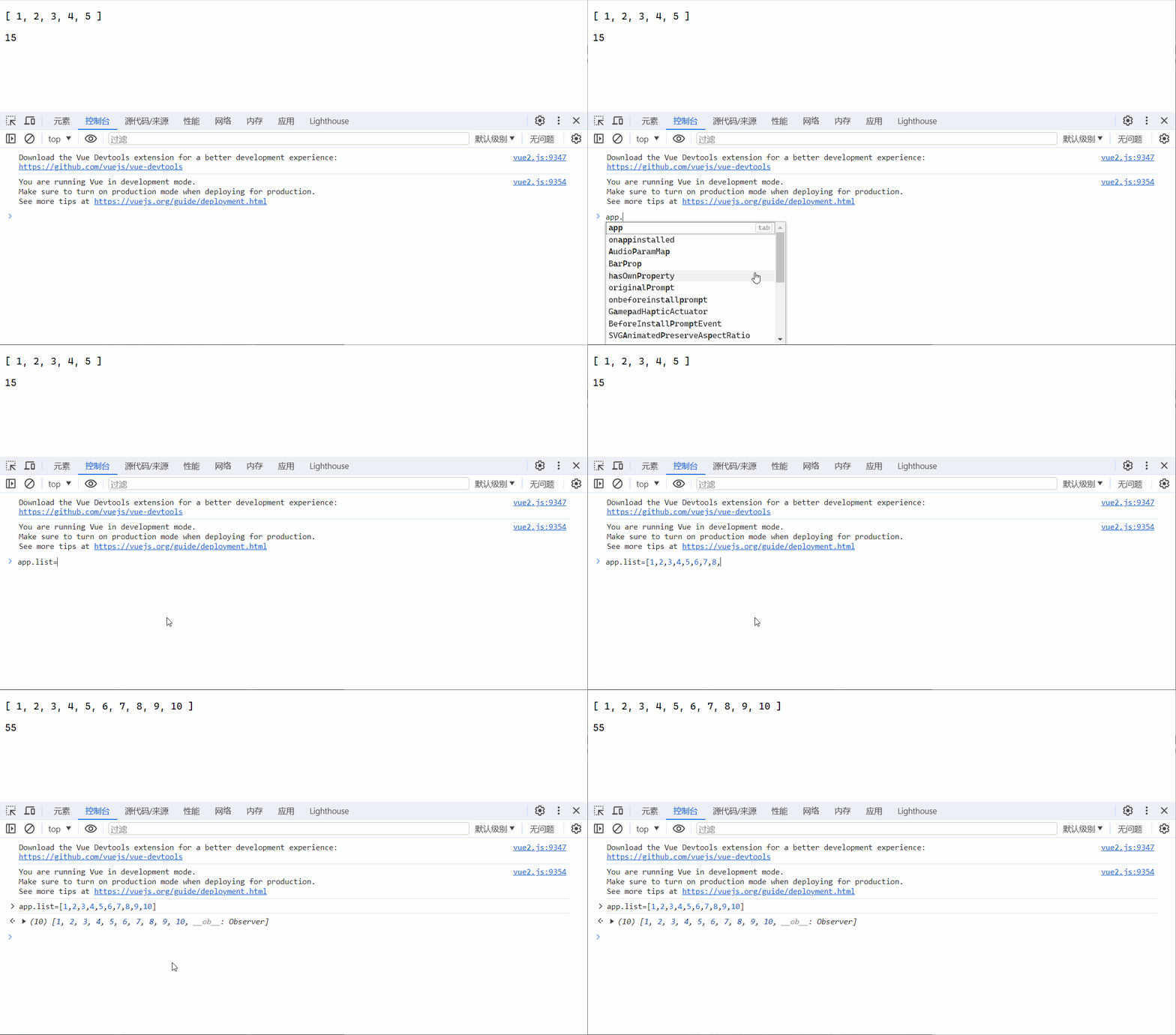
Computed properties cache results. If dependencies haven't changed, the cached value is returned. The default is getter-only. For a setter, use the full syntax:
computed: {
    fullName: {
        get() {
            return this.firstName + this.lastName;
        },
        set(newValue) {
            this.firstName = newValue.slice(0, 1);
            this.lastName = newValue.slice(1);
        }
    }
}
Example: Full Name with Setter
<body>
<div id="app">
    <p>{{ fullName }}</p>
    <button @click="changeName">Change Name</button>
</div>
<script>
new Vue({
    el: '#app',
    data: {
        firstName: 'John',
        lastName: 'Doe'
    },
    methods: {
        changeName() {
            this.fullName = 'Jane Doe';
        }
    },
    computed: {
        fullName: {
            get() {
                return this.firstName + ' ' + this.lastName;
            },
            set(val) {
                const parts = val.split(' ');
                this.firstName = parts[0];
                this.lastName = parts[1];
            }
        }
    }
});
</script>
</body>

3. Watchers
Watchers observe data changes and perform asynchronous operations.
Simple data watcher:
watch: {
    dataName(newValue, oldValue) {
        // logic
    }
}
Nested data watcher:
watch: {
    'object.property'(newValue, oldValue) {
        // logic
    }
}
Deep watcher for objects:
watch: {
    dataProperty: {
        deep: true,
        handler(newValue) {
            // logic
        }
    }
}